> ## Documentation Index
> Fetch the complete documentation index at: https://www.checklyhq.com/docs/llms.txt
> Use this file to discover all available pages before exploring further.
# Status Page Maintenance
> Show planned maintenance windows on your status page so visitors and subscribers know what to expect, with automatic updates and subscriber notifications.
Showing maintenance windows on a status page is part of the Communicate add-on. [View pricing](https://checklyhq.com/pricing).
[Maintenance windows](/docs/communicate/maintenance-windows/overview) let you schedule planned downtime so checks don't create false alerts. When you also publish a status page, you can show that maintenance to your users: the window appears on the page before, during, and after it runs, affected services are flagged as under maintenance, and subscribers can be notified automatically.
* A [status page](/docs/communicate/status-pages/creating-a-status-page) with at least one service.
* The Communicate add-on, which unlocks status page maintenance. Without it, the **Status page visibility** section of the maintenance window stays locked.
* Access to the maintenance window feature.
## Showing a maintenance window on your status page
You configure status page visibility from the maintenance window itself.
Go to the **Maintenance Windows** page (the wrench icon in the sidebar) and create a window, or open an existing one. Set its schedule and [check behavior](/docs/communicate/maintenance-windows/overview#check-behavior) as usual.
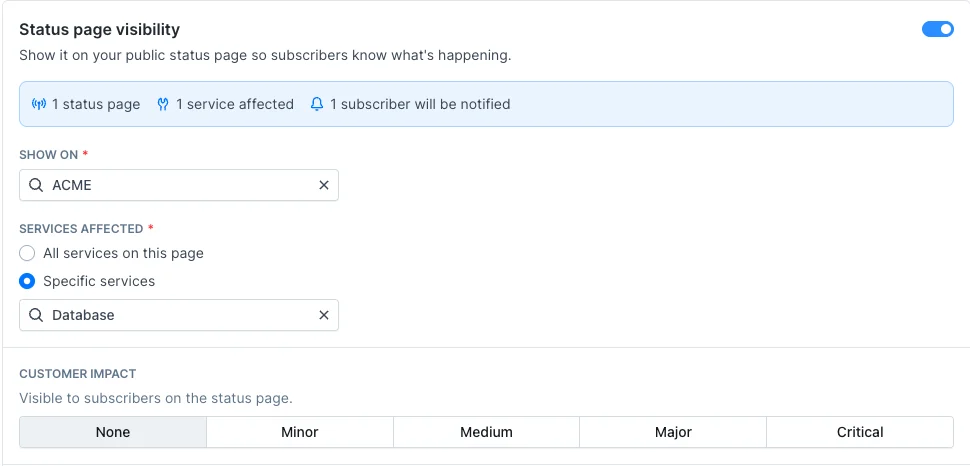
In the **Status page visibility** section, turn on the toggle. This is the master switch for everything below it.
* **Show on**: select one or more status pages the maintenance should appear on.
* **Services affected**: choose **All services on this page**, or pick **Specific services**. With "All services", services you add to the page later are automatically covered.
Pick a severity (**Minor**, **Medium**, **Major**, or **Critical**) to show your users how impactful the maintenance is.
Save the maintenance window. It now appears on the selected status pages.
 All maintenance times on a status page are displayed in **UTC**, the same as incidents.
## What your visitors see
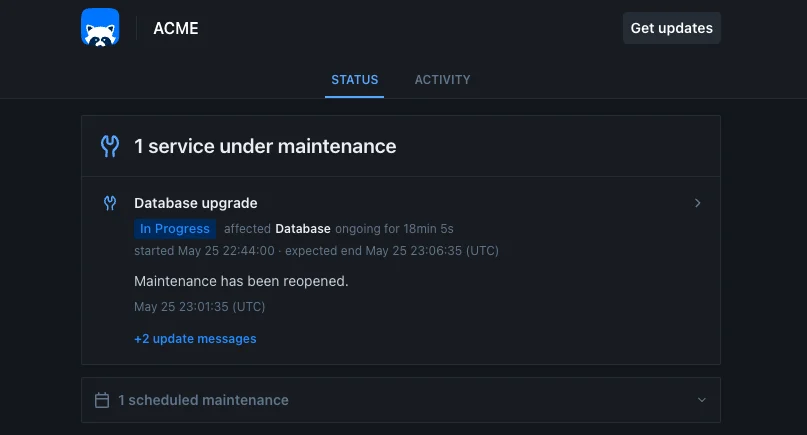
Once a window is visible, it appears on your status page in several places depending on its state:
* **Upcoming**: a collapsible "scheduled maintenances" section on the status page lists maintenance that hasn't started yet.
* **Active**: while maintenance is running, a banner at the top shows the affected services as under maintenance, and each affected service is marked with a maintenance icon.
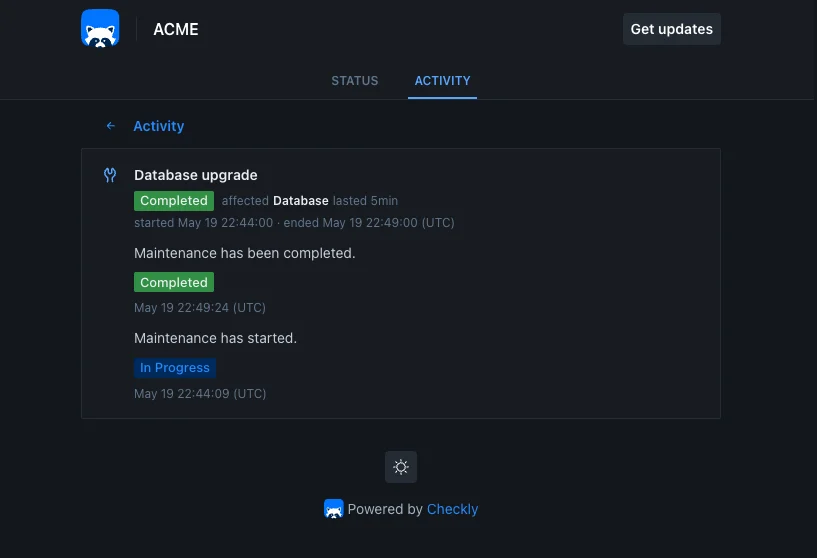
* **History**: completed maintenance appears in the **Activity** timeline alongside incidents, and on the 90-day availability chart. Scheduled (upcoming) maintenance is shown only in the upcoming section, not in the activity history.
* **Detail page**: every maintenance has its own page with the full timeline of updates.
All maintenance times on a status page are displayed in **UTC**, the same as incidents.
## What your visitors see
Once a window is visible, it appears on your status page in several places depending on its state:
* **Upcoming**: a collapsible "scheduled maintenances" section on the status page lists maintenance that hasn't started yet.
* **Active**: while maintenance is running, a banner at the top shows the affected services as under maintenance, and each affected service is marked with a maintenance icon.
* **History**: completed maintenance appears in the **Activity** timeline alongside incidents, and on the 90-day availability chart. Scheduled (upcoming) maintenance is shown only in the upcoming section, not in the activity history.
* **Detail page**: every maintenance has its own page with the full timeline of updates.
 ## Posting updates to your status page
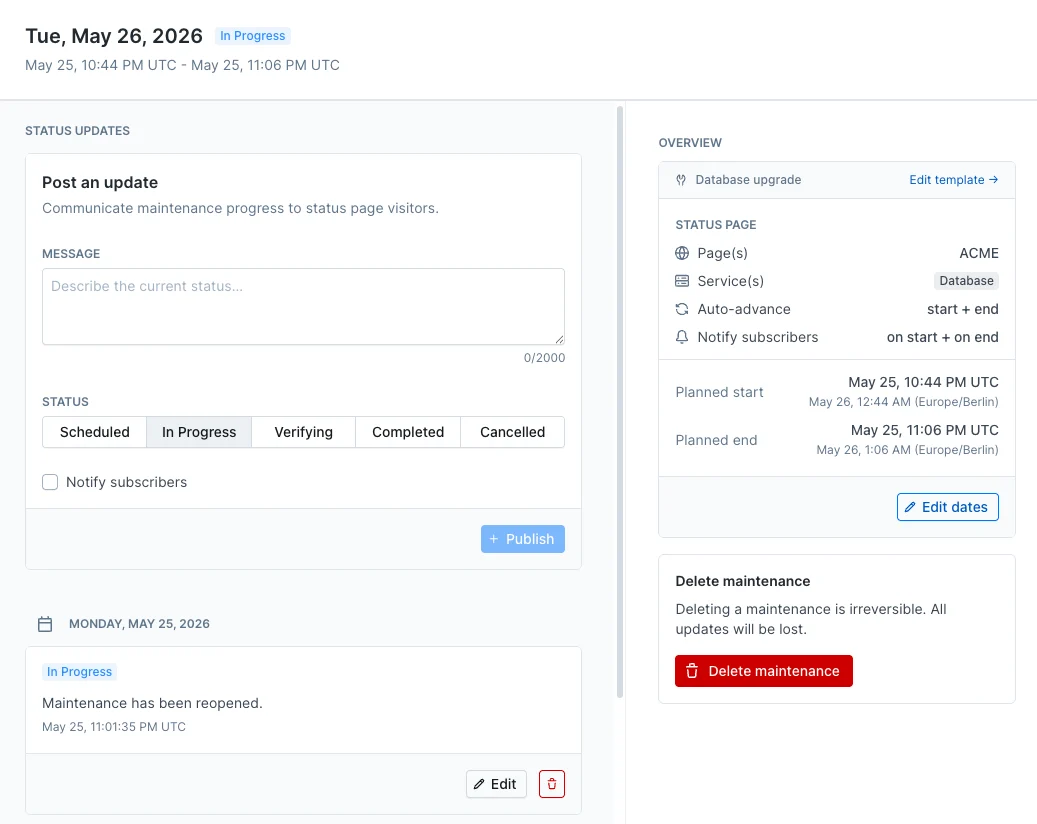
A maintenance moves through a [lifecycle of statuses](/docs/communicate/maintenance-windows/overview#maintenance-lifecycle-and-updates) (Scheduled, In progress, Verifying, Completed, Cancelled) and carries a timeline of **updates**. On a status-page window, those statuses and updates are exactly what your visitors see, and each update can notify subscribers.
Updates are posted automatically when the maintenance starts and completes. You can also post your own from the maintenance's page, with a message and a new status, to keep visitors informed while the work is happening (for example "running longer than expected, extending by 30 minutes").
On a status-page window you can turn **off** automatic start or completion, so the maintenance only advances when you act on it. (Windows that are not shown on a status page always start and complete automatically.)
If you turn off automatic completion and never close the maintenance yourself, it stays active past its scheduled end and keeps pausing checks or silencing alerts until you mark it **Completed** or **Cancelled**.
## Posting updates to your status page
A maintenance moves through a [lifecycle of statuses](/docs/communicate/maintenance-windows/overview#maintenance-lifecycle-and-updates) (Scheduled, In progress, Verifying, Completed, Cancelled) and carries a timeline of **updates**. On a status-page window, those statuses and updates are exactly what your visitors see, and each update can notify subscribers.
Updates are posted automatically when the maintenance starts and completes. You can also post your own from the maintenance's page, with a message and a new status, to keep visitors informed while the work is happening (for example "running longer than expected, extending by 30 minutes").
On a status-page window you can turn **off** automatic start or completion, so the maintenance only advances when you act on it. (Windows that are not shown on a status page always start and complete automatically.)
If you turn off automatic completion and never close the maintenance yourself, it stays active past its scheduled end and keeps pausing checks or silencing alerts until you mark it **Completed** or **Cancelled**.
 ## Notifying subscribers
You can notify your status page subscribers about maintenance, the same way you do for incidents.
* **Notify on start** and **Notify on end** send a notification when the maintenance starts and ends automatically.
* **Reminders** send up to three advance emails before the maintenance starts, each between 1 hour and 7 days ahead.
* When you post a manual update, you can also choose whether to notify subscribers for that specific update.
Only [verified subscribers](/docs/communicate/status-pages/subscriber-notifications) receive these emails.
Leave the notification options off for low-impact or internal maintenance to avoid emailing subscribers about work they don't need to know about.
## Recurring maintenance
If your maintenance window [repeats](/docs/communicate/maintenance-windows/overview#setting-repeats), each occurrence is tracked separately on your status page, with its own status and its own updates. This keeps the history of each individual maintenance run accurate for your users.
## Suppressing automatic incidents
If you use [incident automation](/docs/communicate/status-pages/incidents#incident-automation) to open incidents when a check fails, you can prevent those automatic incidents during planned maintenance.
Turn on **Don't open incidents** in the status page visibility settings. While the maintenance is active, a failing check on a covered service will not automatically open an incident on that status page. Incidents you open manually are unaffected.
This option applies only to the services covered by the maintenance on the pages it is shown on. A service that also appears on another page, where it is not under maintenance, can still get an automatic incident there.
Maintenance periods are also excluded from your status page **uptime**, so planned maintenance does not count as downtime against your services.
## Notifying subscribers
You can notify your status page subscribers about maintenance, the same way you do for incidents.
* **Notify on start** and **Notify on end** send a notification when the maintenance starts and ends automatically.
* **Reminders** send up to three advance emails before the maintenance starts, each between 1 hour and 7 days ahead.
* When you post a manual update, you can also choose whether to notify subscribers for that specific update.
Only [verified subscribers](/docs/communicate/status-pages/subscriber-notifications) receive these emails.
Leave the notification options off for low-impact or internal maintenance to avoid emailing subscribers about work they don't need to know about.
## Recurring maintenance
If your maintenance window [repeats](/docs/communicate/maintenance-windows/overview#setting-repeats), each occurrence is tracked separately on your status page, with its own status and its own updates. This keeps the history of each individual maintenance run accurate for your users.
## Suppressing automatic incidents
If you use [incident automation](/docs/communicate/status-pages/incidents#incident-automation) to open incidents when a check fails, you can prevent those automatic incidents during planned maintenance.
Turn on **Don't open incidents** in the status page visibility settings. While the maintenance is active, a failing check on a covered service will not automatically open an incident on that status page. Incidents you open manually are unaffected.
This option applies only to the services covered by the maintenance on the pages it is shown on. A service that also appears on another page, where it is not under maintenance, can still get an automatic incident there.
Maintenance periods are also excluded from your status page **uptime**, so planned maintenance does not count as downtime against your services.