> ## Documentation Index
> Fetch the complete documentation index at: https://checklyhq.com/docs/llms.txt
> Use this file to discover all available pages before exploring further.
# Browser Checks Overview
> Monitor end-to-end user flows and realistic interactions with automated browser testing using Playwright.
**Monitoring as Code**: Learn more about the [Browser Check Construct](/constructs/browser-check).
 ## What are Browser Checks?
Browser checks are automated tests that use real browsers to interact with your web applications. They simulate user journeys like logging in, filling out forms, making purchases, or navigating through complex workflows, ensuring your critical user paths work and perform correctly.
**Browser checks are perfect for detecting downtime and performance issues in:**
* User authentication flows
* E-commerce checkout processes
* Form submissions and user journey validation
* Frontend performance monitoring
Supported Browsers:
* **Chromium**: Default browser, fast and reliable
* **Chrome**: Google Chrome for production-like testing
* **Mobile Simulation**: Test responsive designs and mobile workflows
## How Browser Checks Work
Checkly uses Playwright to power your Browser checks. [Playwright](https://playwright.dev/docs/intro) is a robust, open-source framework for browser automation and end-to-end web application testing. It enables you to write idiomatic, reliable tests and easily control interactions within a web page. Browser checks execute automated test scripts in real browsers:
1. **Browser Launch** - Starts a real browser instance (Chromium or Chrome)
2. **Page Navigation** - Navigates to your web application
3. **User Interactions** - Simulates clicks, typing, form fills, and navigation
4. **Assertions** - Validates page content, elements, and user experience
5. **Performance Monitoring** - Captures Core Web Vitals and timing metrics
6. **Results Collection** - Records screenshots, videos, and detailed logs
7. **Alerts** - Triggers alerts if any of the assertions fail
## Check Structure
## What are Browser Checks?
Browser checks are automated tests that use real browsers to interact with your web applications. They simulate user journeys like logging in, filling out forms, making purchases, or navigating through complex workflows, ensuring your critical user paths work and perform correctly.
**Browser checks are perfect for detecting downtime and performance issues in:**
* User authentication flows
* E-commerce checkout processes
* Form submissions and user journey validation
* Frontend performance monitoring
Supported Browsers:
* **Chromium**: Default browser, fast and reliable
* **Chrome**: Google Chrome for production-like testing
* **Mobile Simulation**: Test responsive designs and mobile workflows
## How Browser Checks Work
Checkly uses Playwright to power your Browser checks. [Playwright](https://playwright.dev/docs/intro) is a robust, open-source framework for browser automation and end-to-end web application testing. It enables you to write idiomatic, reliable tests and easily control interactions within a web page. Browser checks execute automated test scripts in real browsers:
1. **Browser Launch** - Starts a real browser instance (Chromium or Chrome)
2. **Page Navigation** - Navigates to your web application
3. **User Interactions** - Simulates clicks, typing, form fills, and navigation
4. **Assertions** - Validates page content, elements, and user experience
5. **Performance Monitoring** - Captures Core Web Vitals and timing metrics
6. **Results Collection** - Records screenshots, videos, and detailed logs
7. **Alerts** - Triggers alerts if any of the assertions fail
## Check Structure
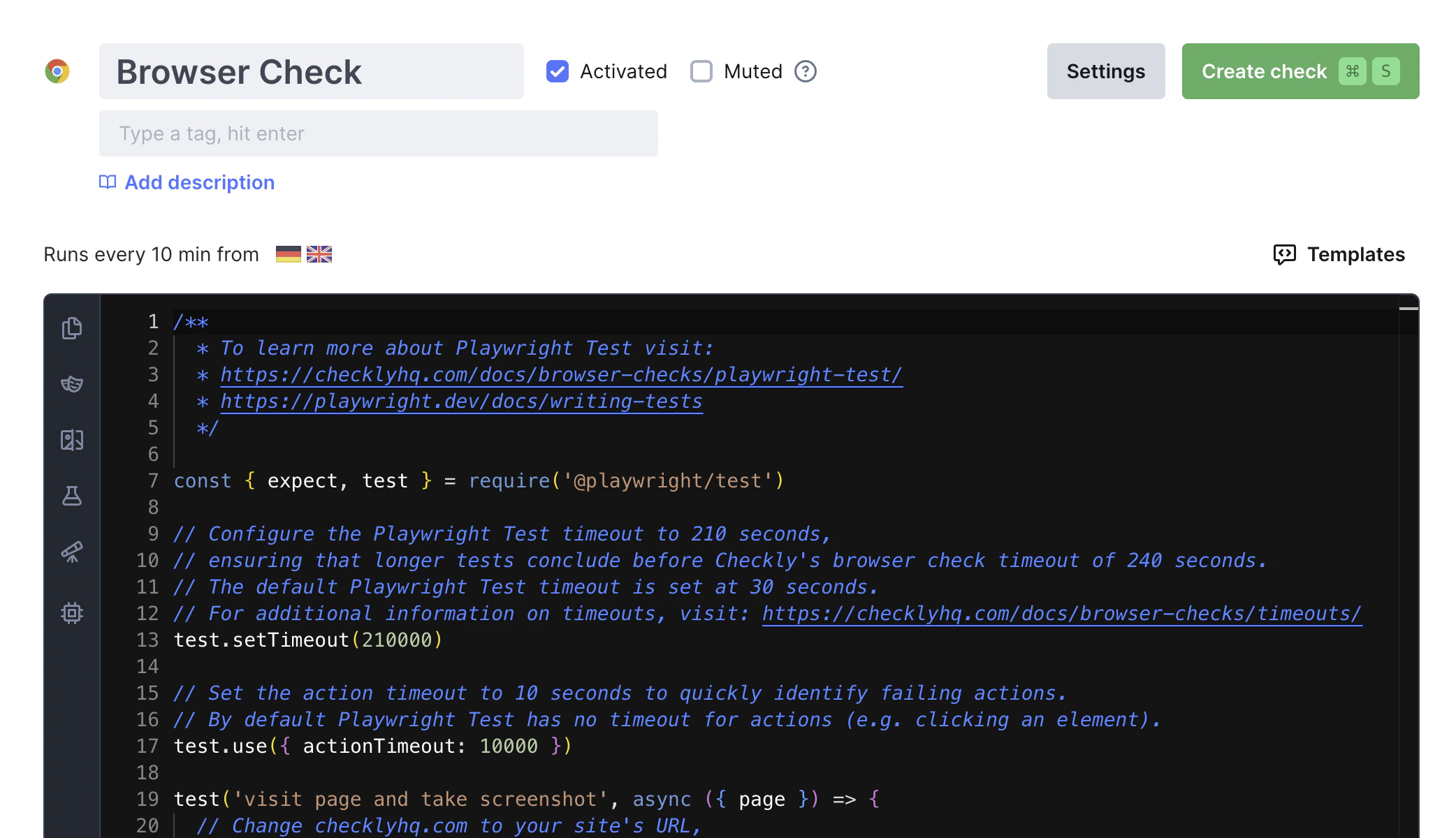
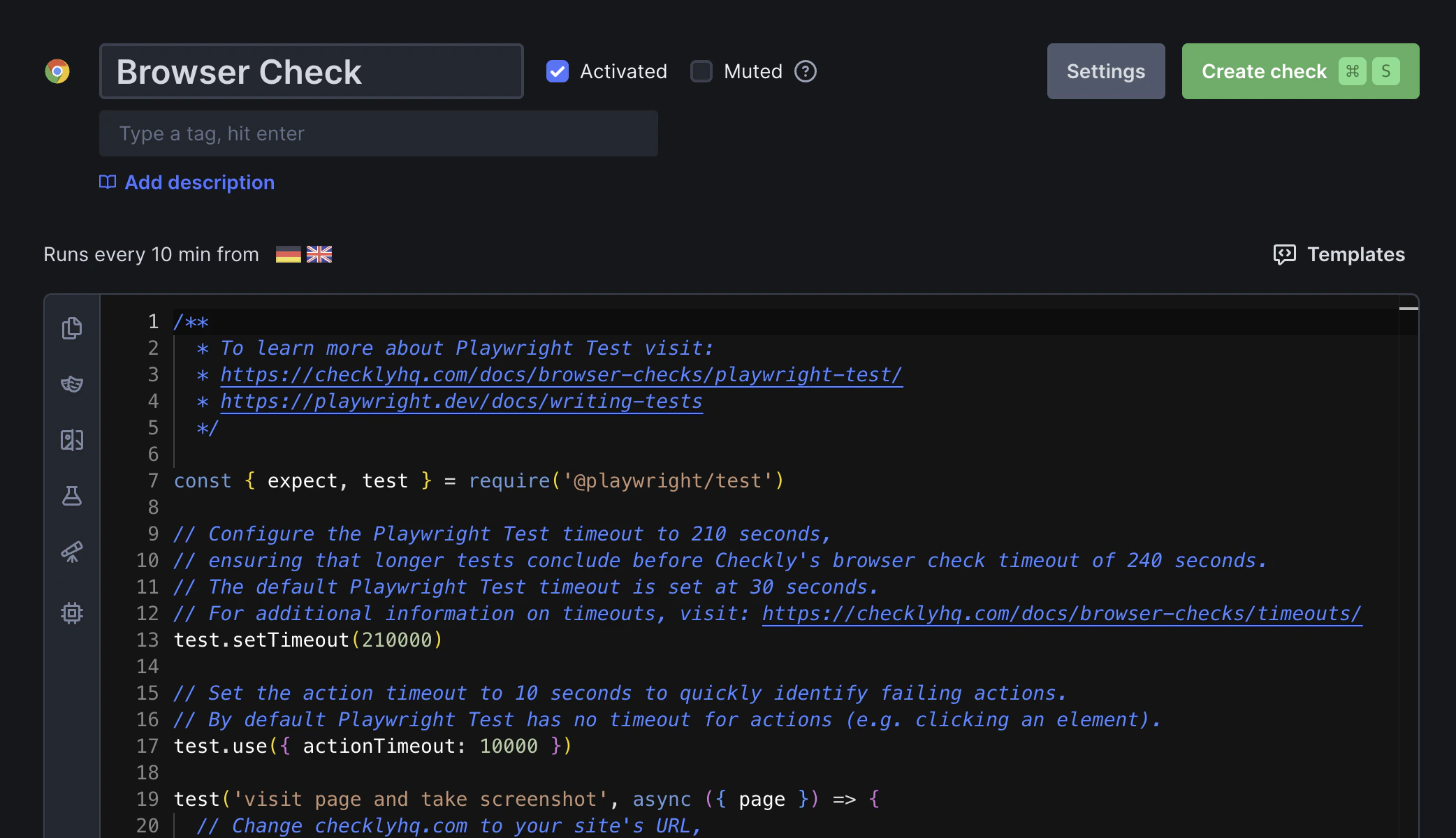
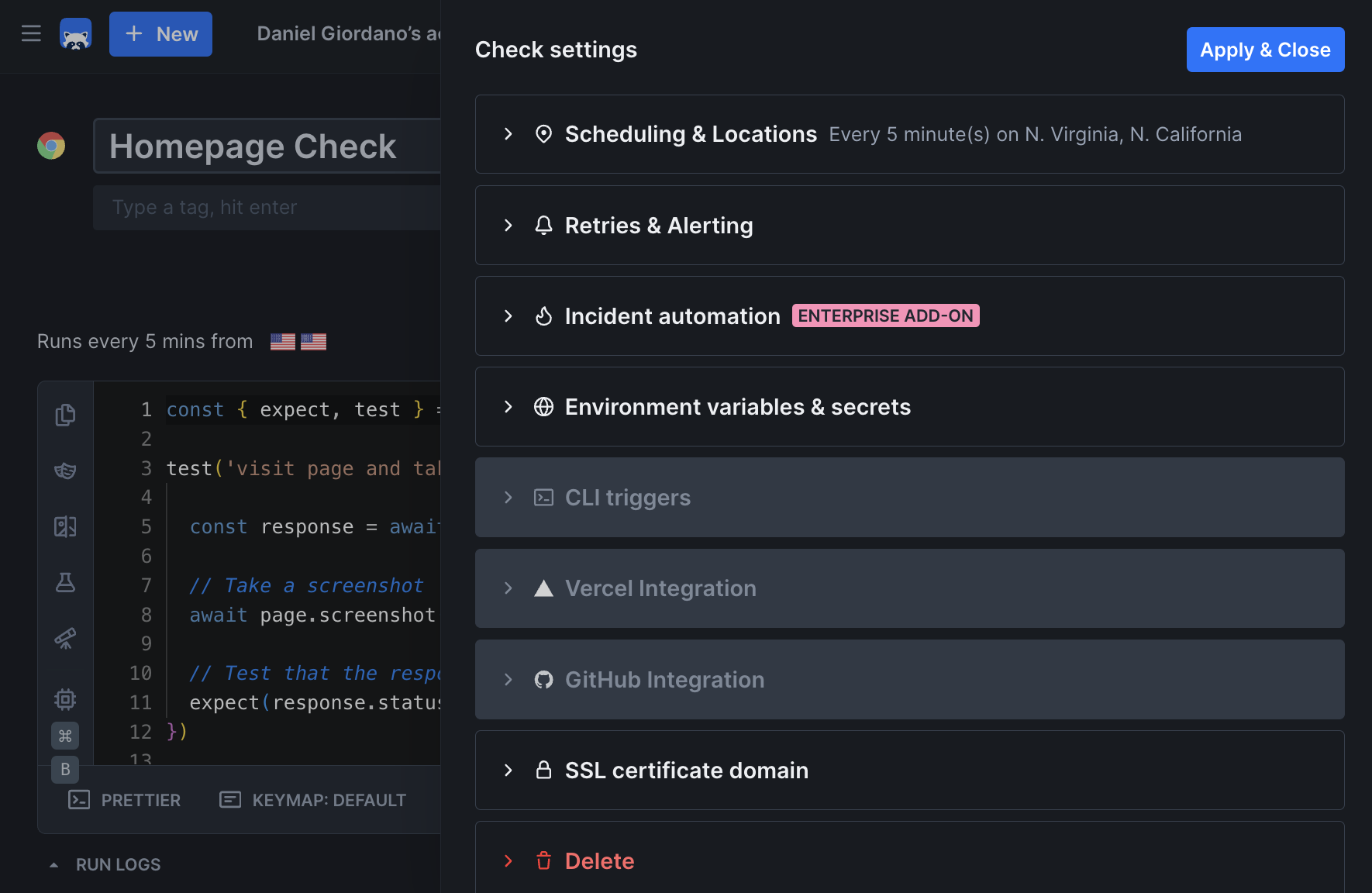 Create your Playwright test file in the Checkly IDE, then configure the check settings in the Checkly UI.
Browser checks use Playwright's test framework with a familiar structure.
It works by connecting constructs to handle the configuration of your Browser Check, and then referencing the test file in your repository.
```ts browser-check.ts theme={null}
import { BrowserCheck, Frequency } from 'checkly/constructs'
import * as path from 'path'
new BrowserCheck('browser-check-1', {
name: 'Browser check #1',
frequency: Frequency.EVERY_10M,
locations: ['us-east-1', 'eu-west-1'],
code: {
entrypoint: path.join(__dirname, 'home.spec.js')
}
})
```
```typescript home.spec.ts theme={null}
import { test, expect } from '@playwright/test'
test('User login workflow', async ({ page }) => {
// Navigate to login page
await page.goto('https://app.example.com/login')
// Fill in credentials
await page.fill('[data-testid="email"]', 'user@example.com')
await page.fill('[data-testid="password"]', 'securepassword')
// Submit login form
await page.click('[data-testid="login-button"]')
// Verify successful login
await expect(page.locator('[data-testid="dashboard"]')).toBeVisible()
await expect(page).toHaveURL(/.*dashboard/)
})
```
To learn more about Playwright, see the our [Playwright documentation](/learn/playwright).
## Browser Check Results
Individual browser check results contain:
* A short check summary, including errors broken down by category
Create your Playwright test file in the Checkly IDE, then configure the check settings in the Checkly UI.
Browser checks use Playwright's test framework with a familiar structure.
It works by connecting constructs to handle the configuration of your Browser Check, and then referencing the test file in your repository.
```ts browser-check.ts theme={null}
import { BrowserCheck, Frequency } from 'checkly/constructs'
import * as path from 'path'
new BrowserCheck('browser-check-1', {
name: 'Browser check #1',
frequency: Frequency.EVERY_10M,
locations: ['us-east-1', 'eu-west-1'],
code: {
entrypoint: path.join(__dirname, 'home.spec.js')
}
})
```
```typescript home.spec.ts theme={null}
import { test, expect } from '@playwright/test'
test('User login workflow', async ({ page }) => {
// Navigate to login page
await page.goto('https://app.example.com/login')
// Fill in credentials
await page.fill('[data-testid="email"]', 'user@example.com')
await page.fill('[data-testid="password"]', 'securepassword')
// Submit login form
await page.click('[data-testid="login-button"]')
// Verify successful login
await expect(page.locator('[data-testid="dashboard"]')).toBeVisible()
await expect(page).toHaveURL(/.*dashboard/)
})
```
To learn more about Playwright, see the our [Playwright documentation](/learn/playwright).
## Browser Check Results
Individual browser check results contain:
* A short check summary, including errors broken down by category
 * When using Playwright Test Runner you will have an additional section displaying the test steps, error message, and assets (traces, videos, screenshots)
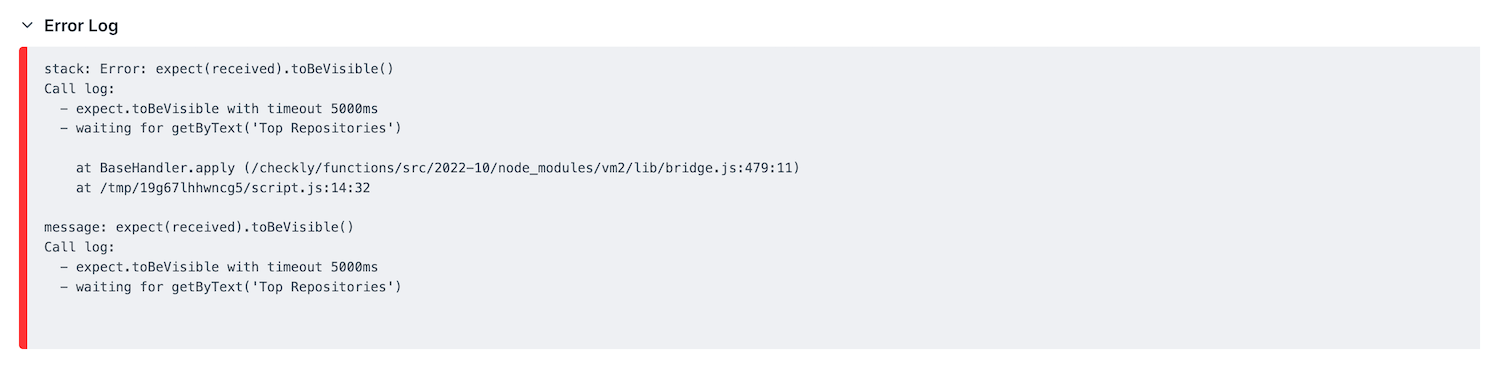
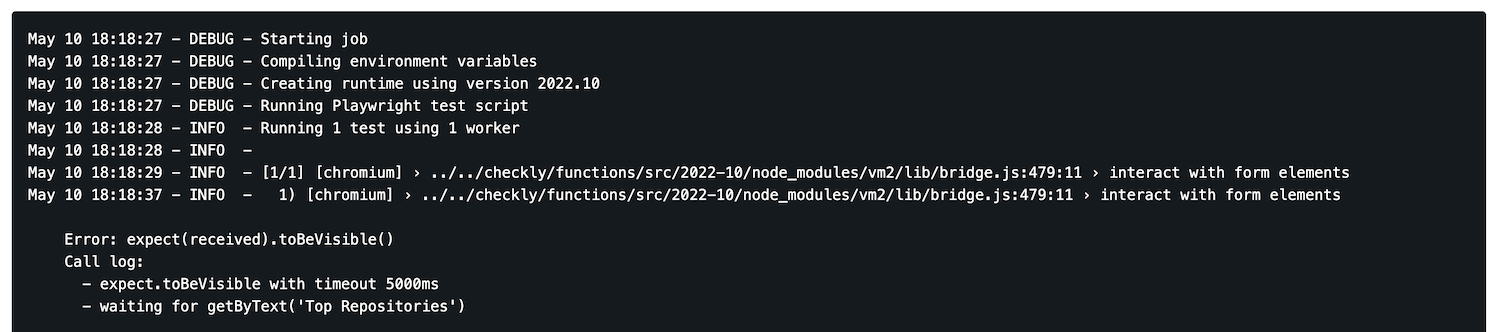
* An error log, only if your script failed
* When using Playwright Test Runner you will have an additional section displaying the test steps, error message, and assets (traces, videos, screenshots)
* An error log, only if your script failed
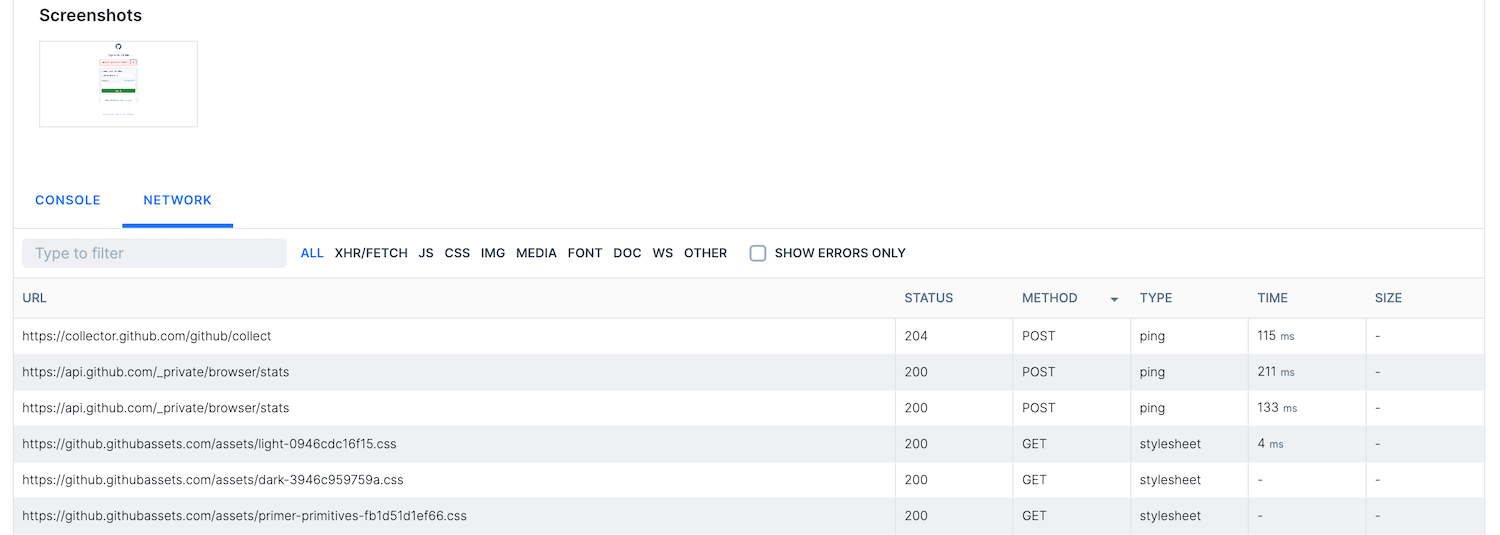
 * Expandable tabs on page your script navigated to
 When expanded, each tab shows its own navigation/loading time ribbon and web vitals...
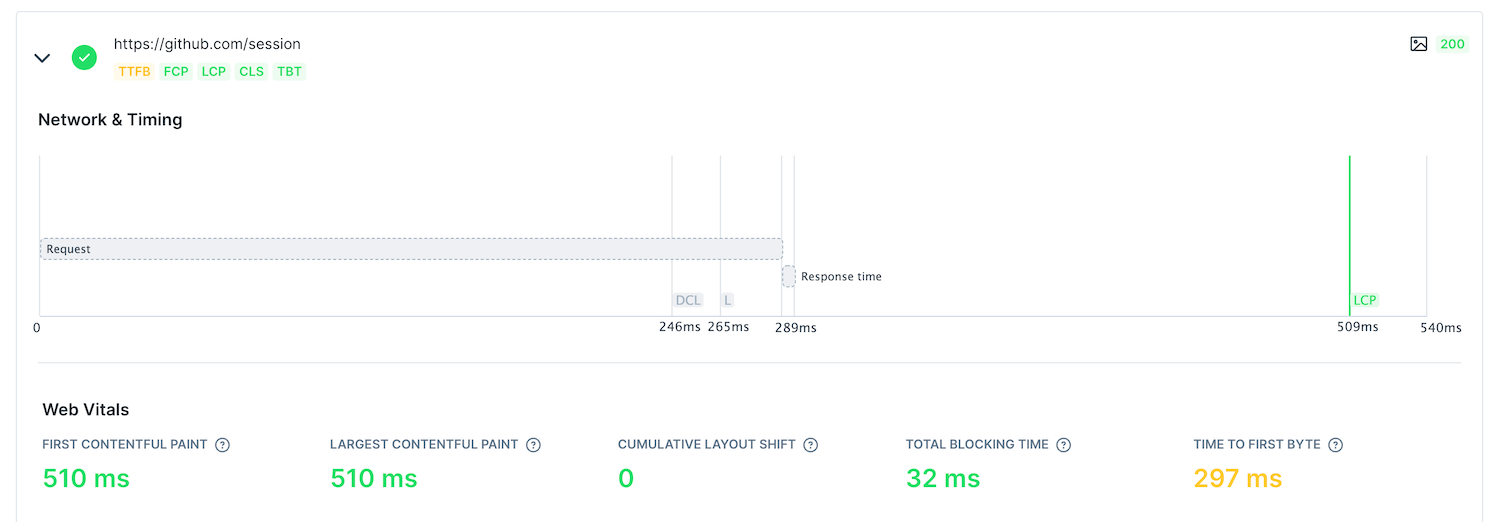 ...together with browser console logs, network logs and any screenshots that had been taken (including one screenshot taken automatically on failure)
 * A job log for the check
 Learn more in our documentation on [Results](/concepts/results).
## Key Capabilities
Execute scripts in real Chromium browsers to test complex user interactions, JavaScript functionality, and dynamic content.
Write tests using Playwright's powerful API for cross-browser automation with built-in waiting, assertions, and debugging capabilities.
Capture and compare screenshots to detect unintended visual changes in your application's UI.
Monitor Core Web Vitals, page load times, and custom performance metrics to ensure optimal user experience.
Test responsive designs and mobile-specific functionality by emulating various devices and screen sizes.
Run checks from multiple worldwide locations to verify performance and availability across different regions.
Learn more in our documentation on [Results](/concepts/results).
## Key Capabilities
Execute scripts in real Chromium browsers to test complex user interactions, JavaScript functionality, and dynamic content.
Write tests using Playwright's powerful API for cross-browser automation with built-in waiting, assertions, and debugging capabilities.
Capture and compare screenshots to detect unintended visual changes in your application's UI.
Monitor Core Web Vitals, page load times, and custom performance metrics to ensure optimal user experience.
Test responsive designs and mobile-specific functionality by emulating various devices and screen sizes.
Run checks from multiple worldwide locations to verify performance and availability across different regions.