> ## Documentation Index
> Fetch the complete documentation index at: https://checklyhq.com/docs/llms.txt
> Use this file to discover all available pages before exploring further.
# Creating A Browser Check
> Get started with Checkly by creating your first Browser Check
Learn more about all the [Browser Check capabilities](/detect/synthetic-monitoring/browser-checks/overview) in the general overview.
This guide will walk you through creating your first Browser Check with Checkly.
Browser Checks are perfect for monitoring realistic user flows within your application or services. If you are looking for monitoring general availability, check out the [Uptime Monitor Quickstart](/detect/uptime-monitoring/url-monitors/quickstart).
* A Checkly account (sign up at [checklyhq.com](https://checklyhq.com))
* The URL of a website you want to monitor
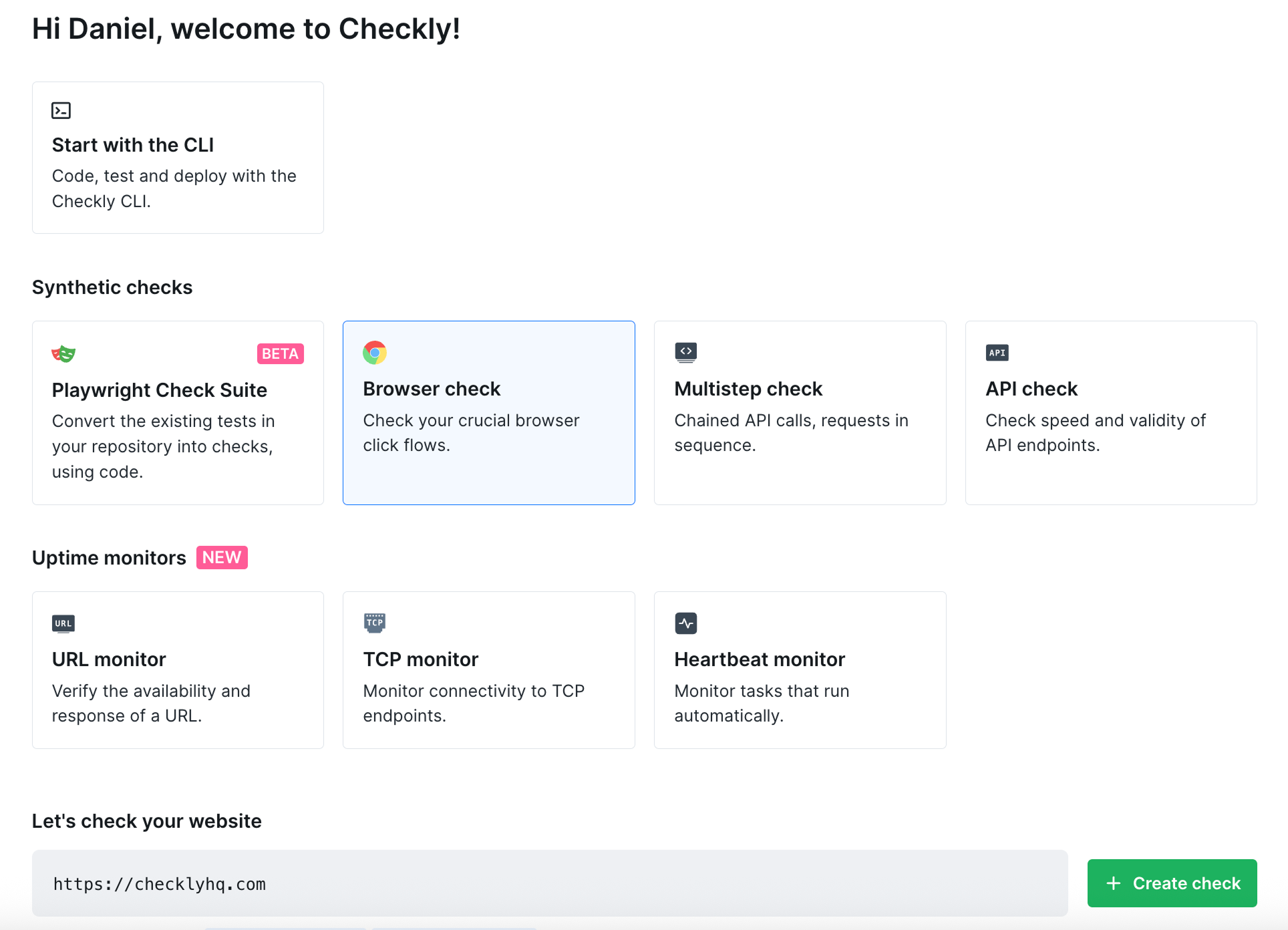
 1. **Head to [Create a Check](https://app.checklyhq.com/accounts/create)**
2. **Choose from one of the Browser Check templates** to start from a working example
The following test script will check if the homepage is available, performing correctly, and [looks visually correct](/detect/synthetic-monitoring/browser-checks/visual-regressions).
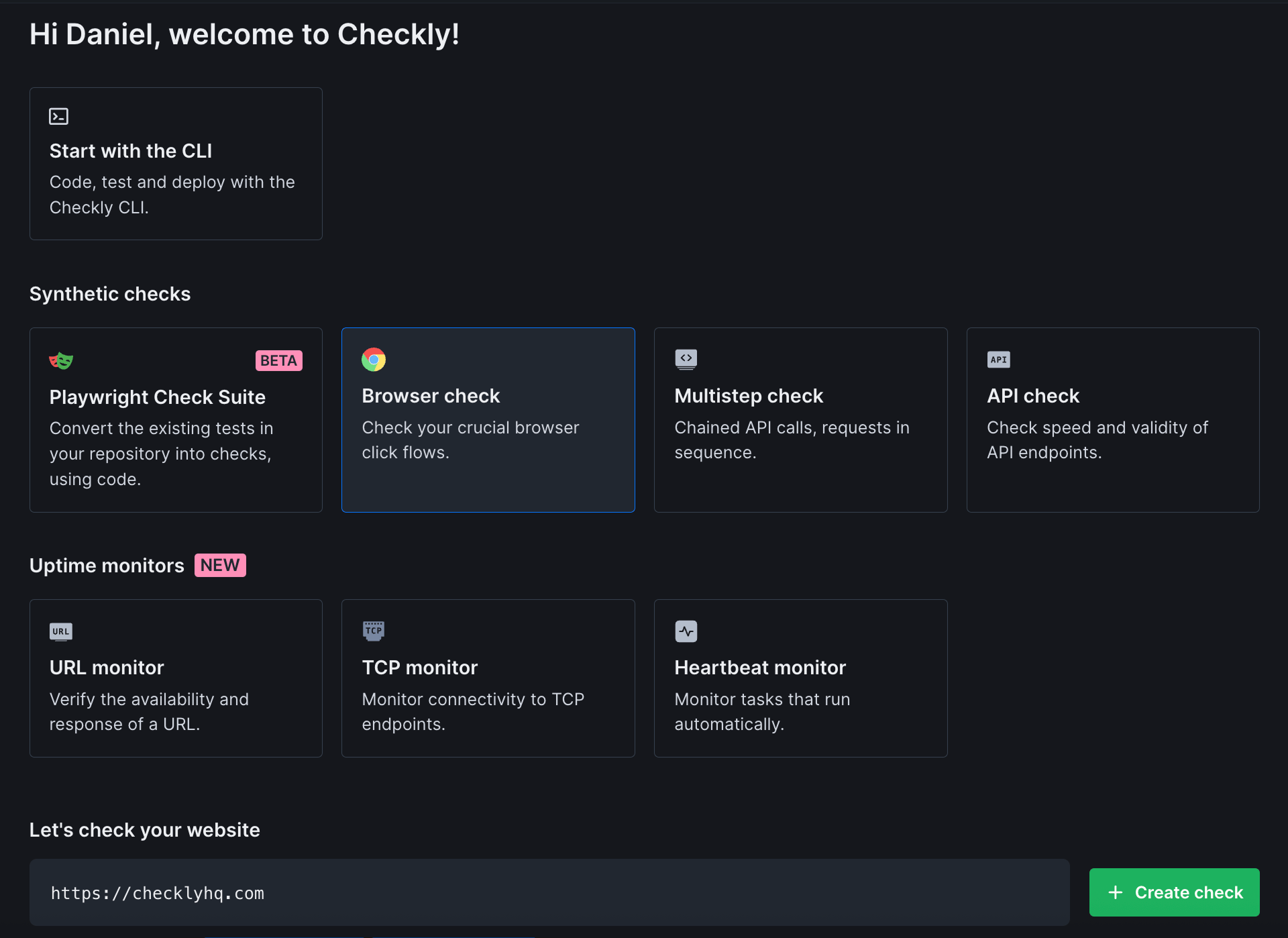
1. **Head to [Create a Check](https://app.checklyhq.com/accounts/create)**
2. **Choose from one of the Browser Check templates** to start from a working example
The following test script will check if the homepage is available, performing correctly, and [looks visually correct](/detect/synthetic-monitoring/browser-checks/visual-regressions).
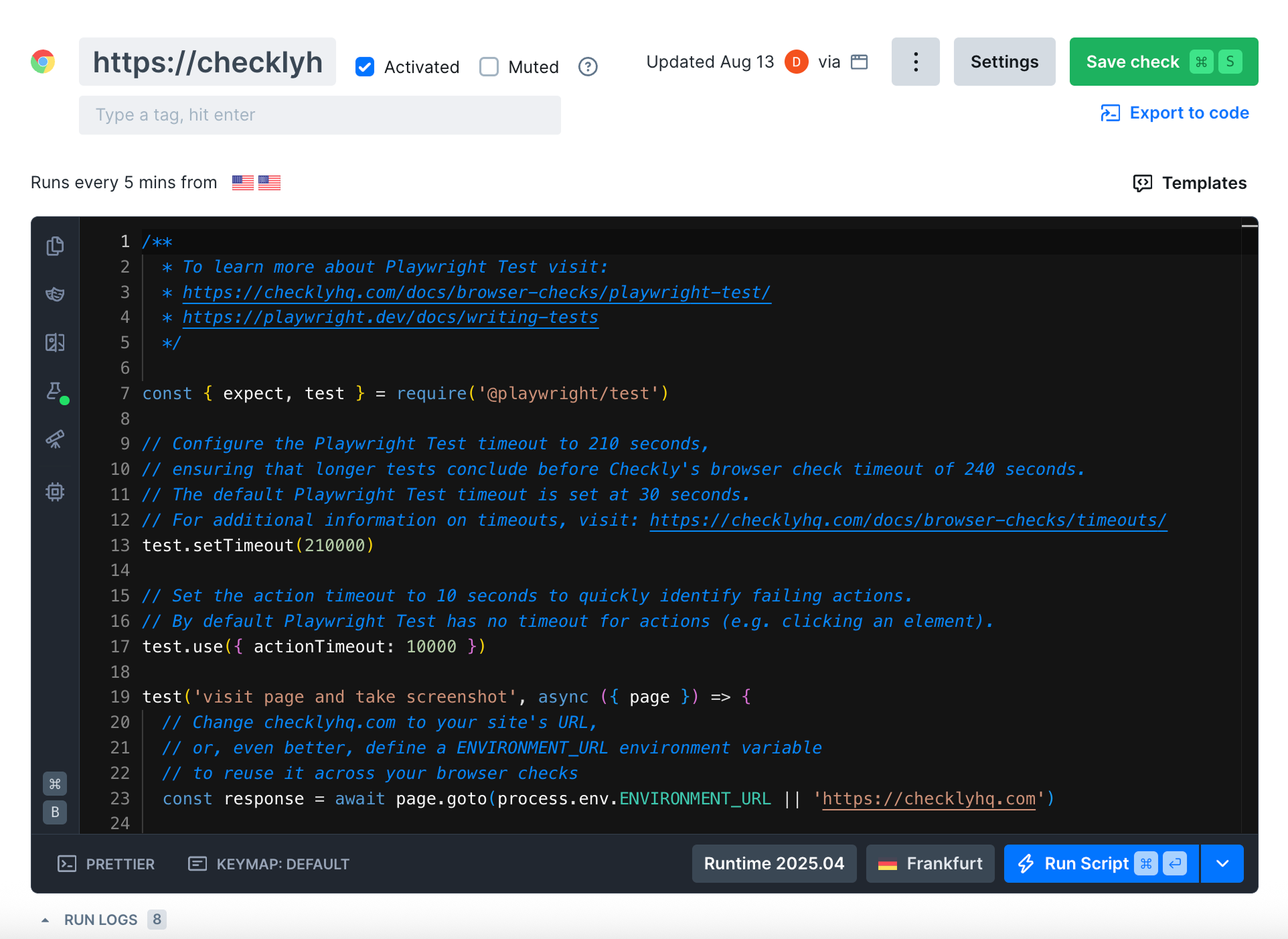
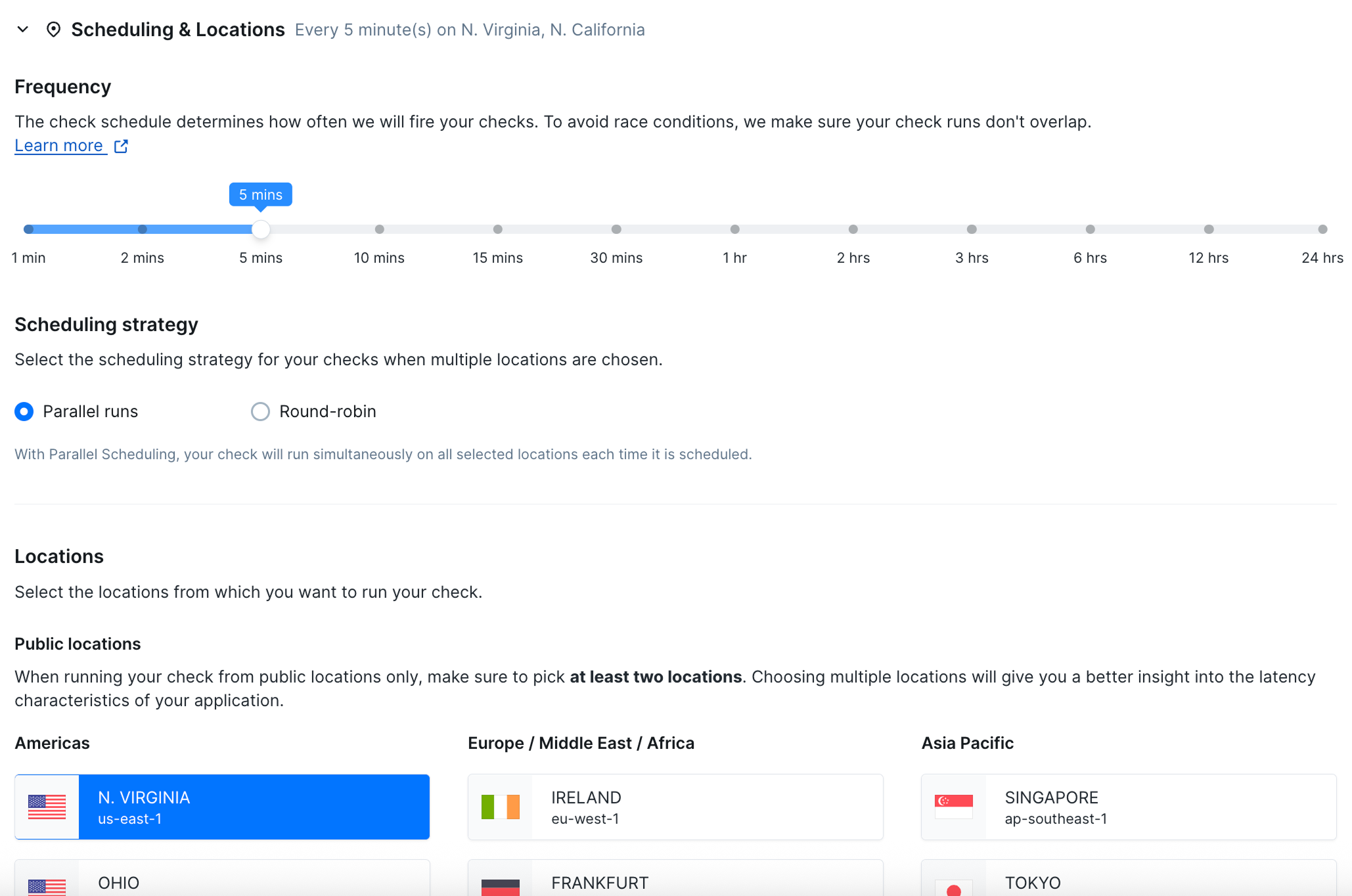
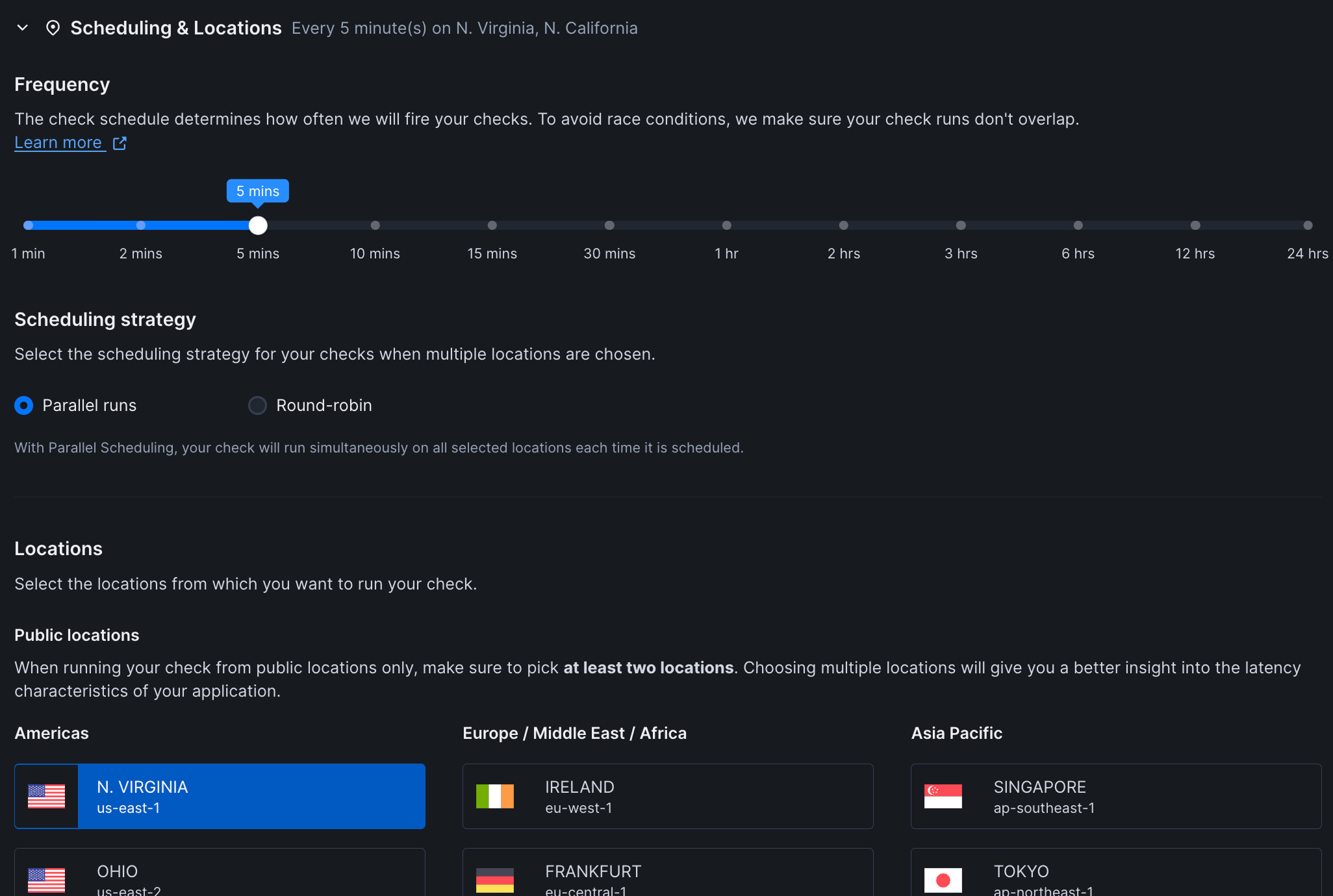
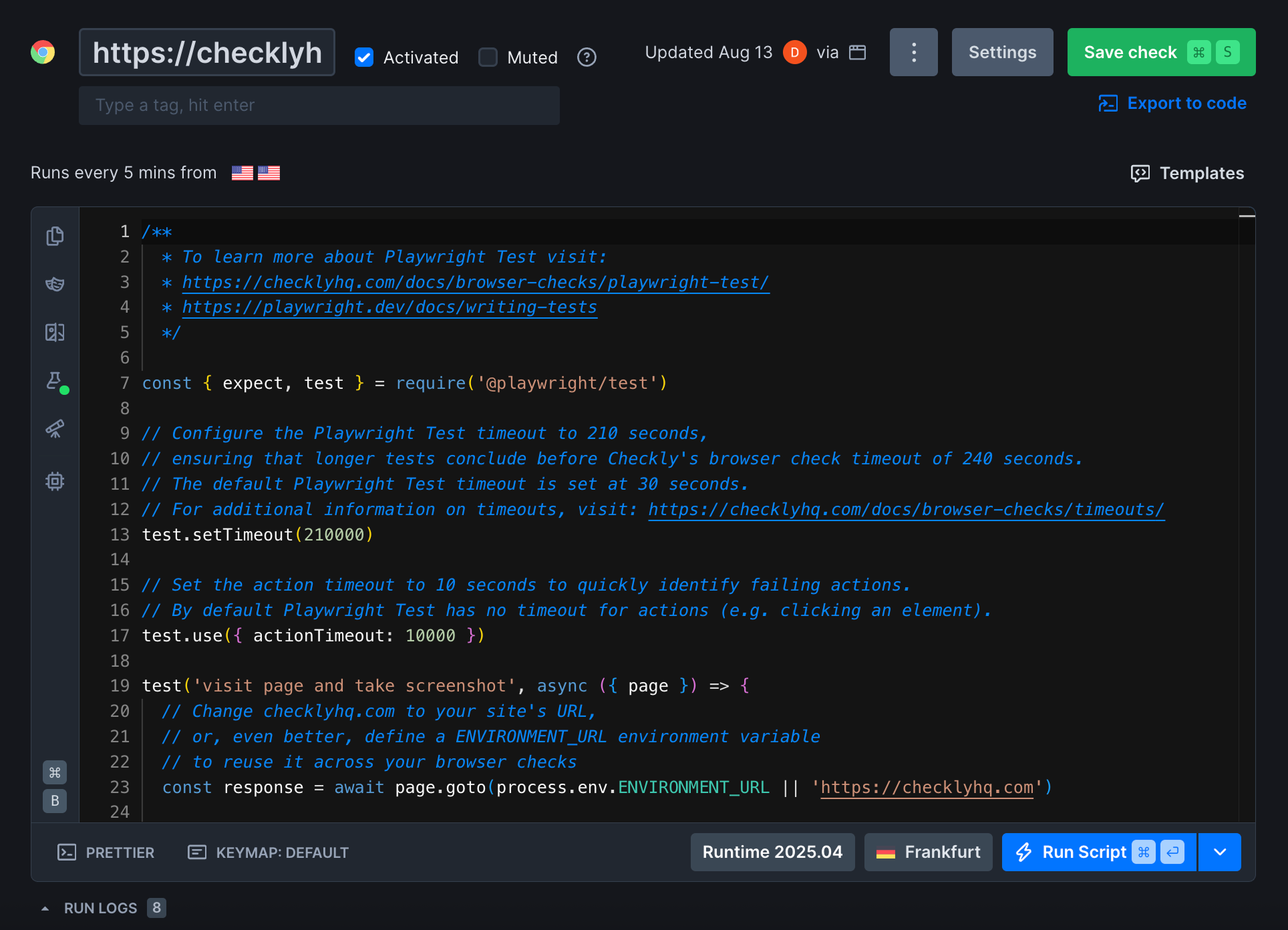 Configure your check settings by clicking the "Settings" button in the top right corner of the check editor
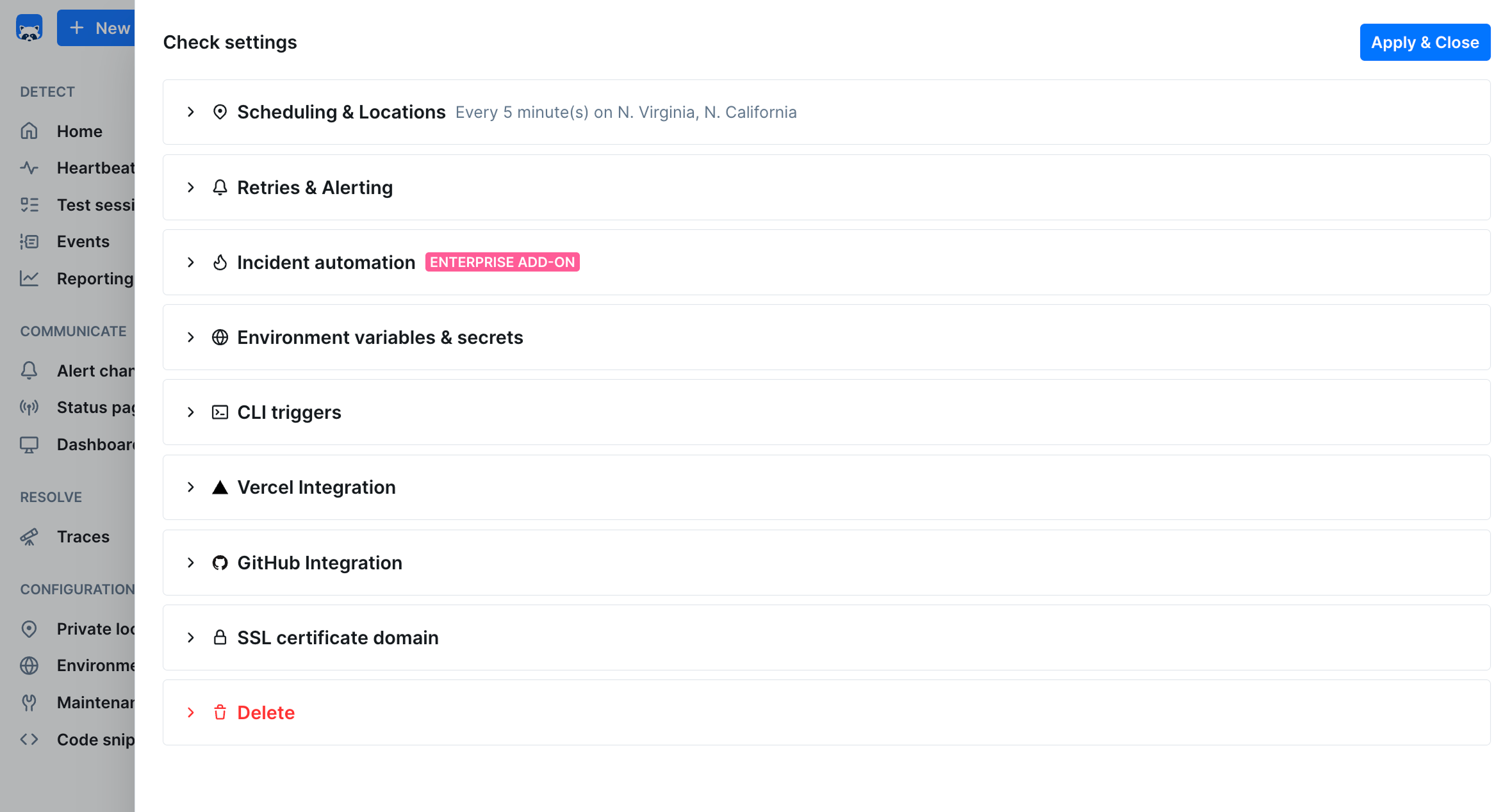
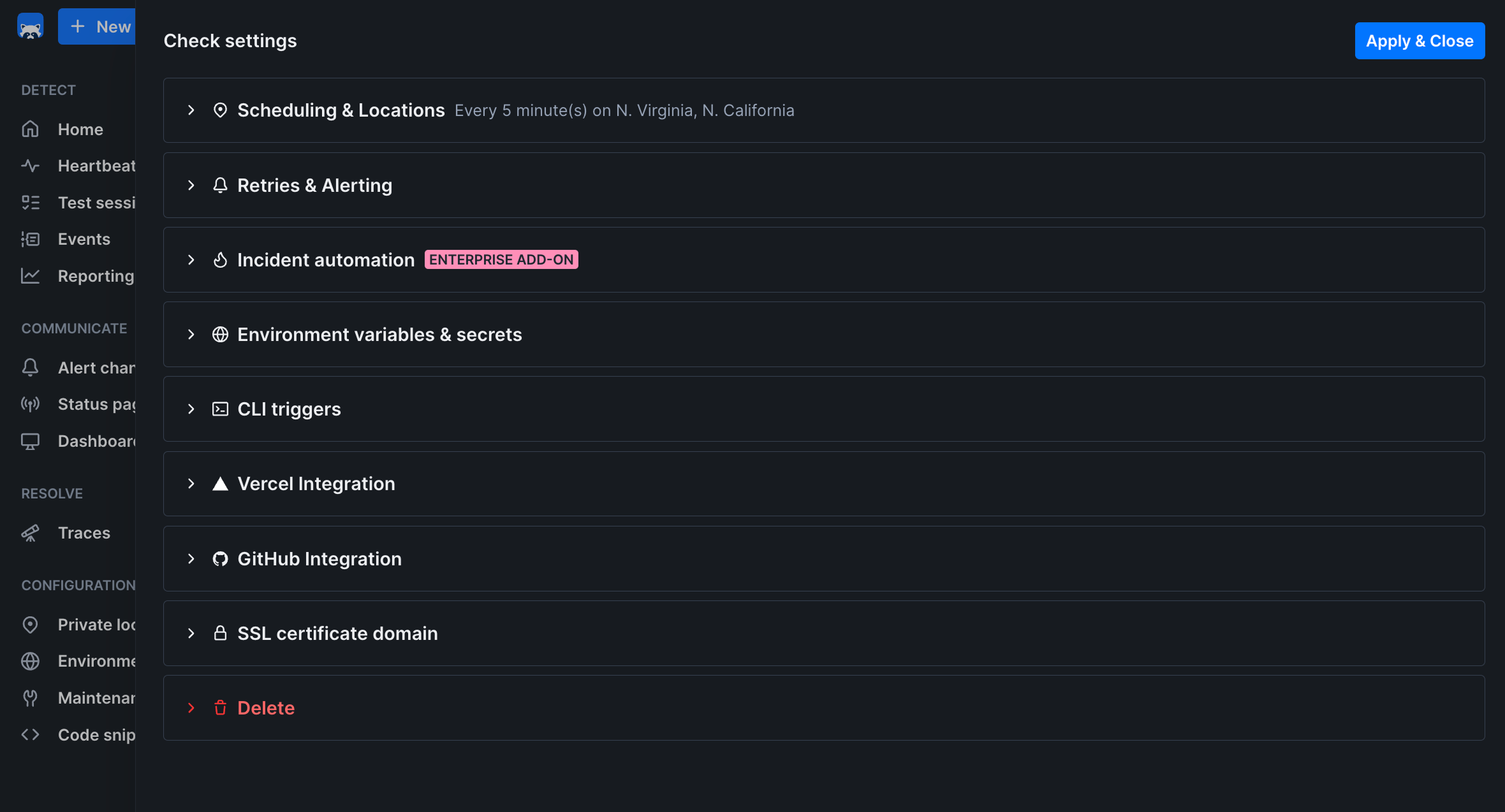 For your first check, the default settings work well. You can always adjust them later.
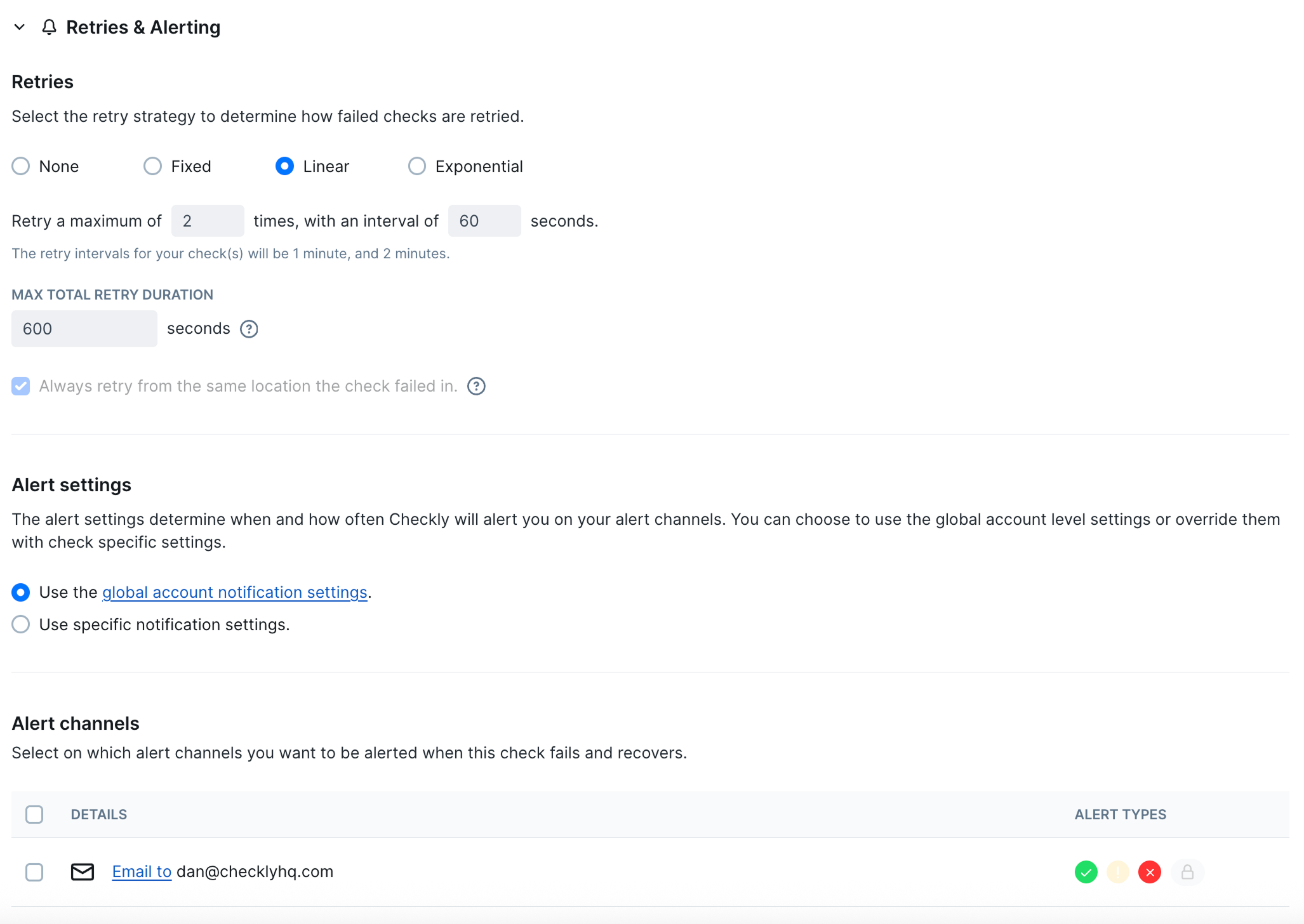
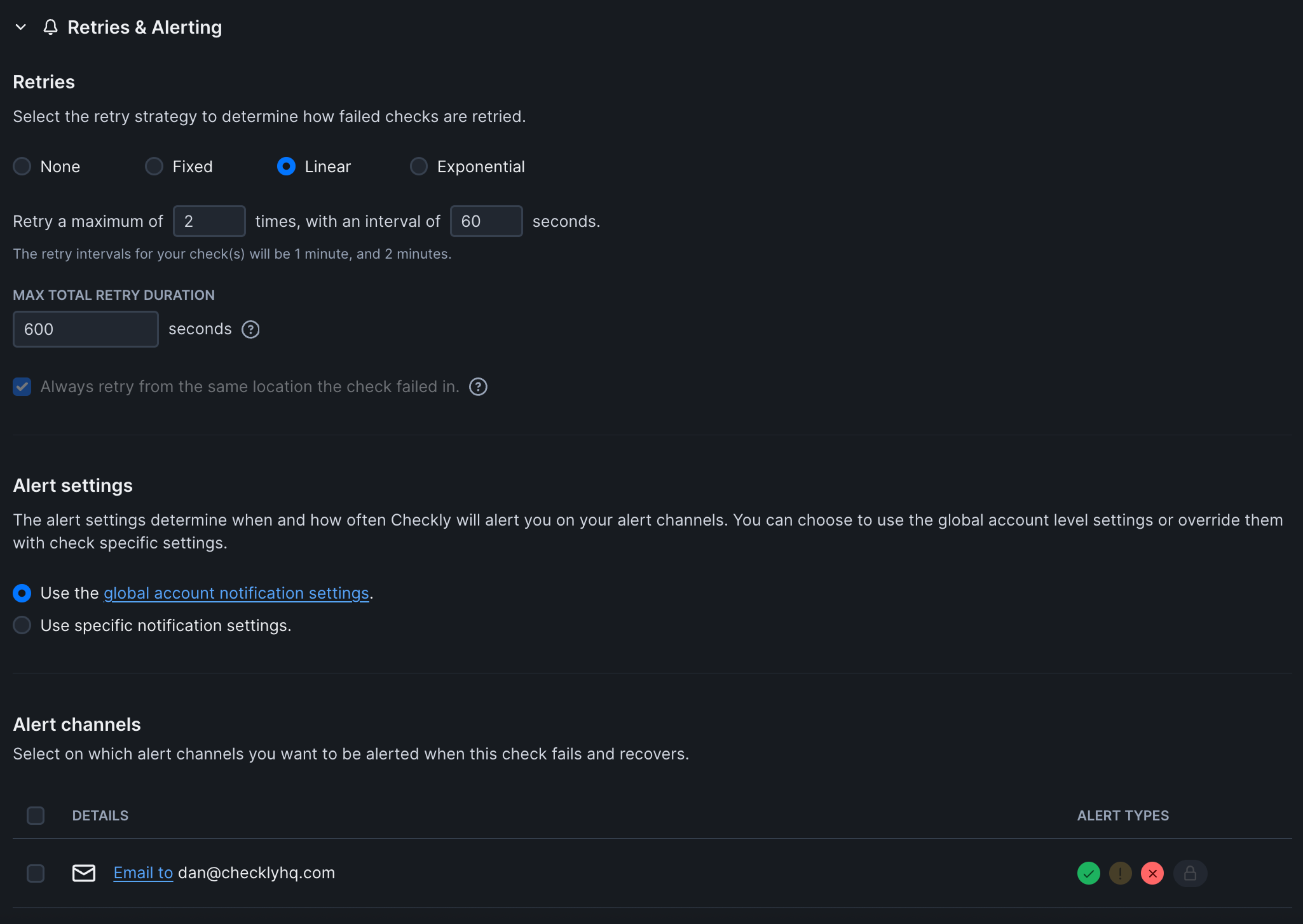
 Configure who gets notified when issues are detected:
 Before activating your check:
1. **Click "Test Check"** to run it once and verify it works
2. **Review the results** to ensure your website loads correctly
3. **Check for any errors** in the console or network tabs
4. **Click "Save and Activate"** to start continuous monitoring
Once your check is active:
Before activating your check:
1. **Click "Test Check"** to run it once and verify it works
2. **Review the results** to ensure your website loads correctly
3. **Check for any errors** in the console or network tabs
4. **Click "Save and Activate"** to start continuous monitoring
Once your check is active:
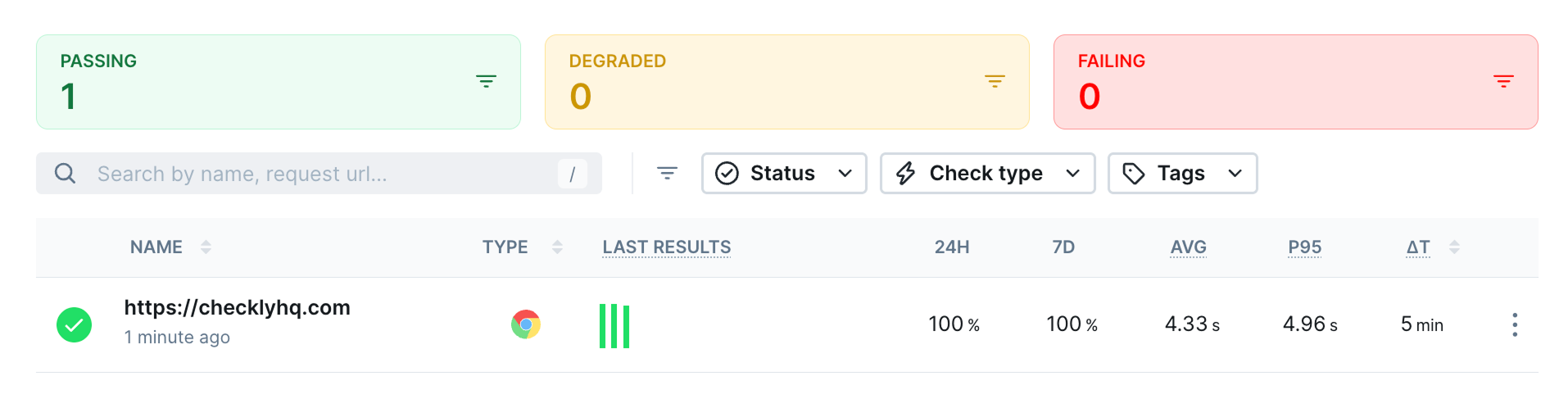
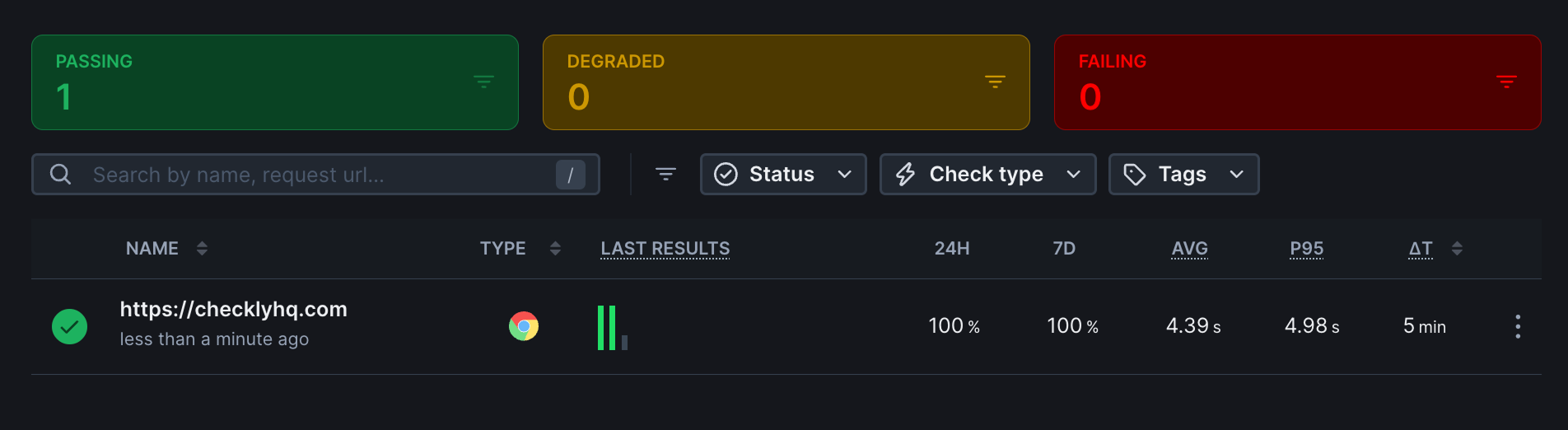 1. **Visit your dashboard** to see real-time results
2. **Check the results page** for detailed performance metrics
3. **Review screenshots** and timing information
4. **Set up additional checks** for other critical pages
## Next Steps
Now that you have your first check running:
* **Add API Checks**: Monitor your backend services and APIs
* **Create Check Groups**: Organize related checks together
* **Set up Status Pages**: Share uptime information with users
* **Explore Integrations**: Connect with Slack, PagerDuty, or other tools
## Upgrading to Monitoring as Code
As your monitoring needs grow, consider upgrading to our CLI approach:
* **Version Control**: Keep your monitoring configuration in Git
* **Team Collaboration**: Review changes through pull requests
* **CI/CD Integration**: Deploy monitoring alongside your applications
* **Advanced Scripting**: Write custom Playwright tests for complex flows
Ready to make the switch? Check out the **Monitoring as Code** tab above!
1. **Visit your dashboard** to see real-time results
2. **Check the results page** for detailed performance metrics
3. **Review screenshots** and timing information
4. **Set up additional checks** for other critical pages
## Next Steps
Now that you have your first check running:
* **Add API Checks**: Monitor your backend services and APIs
* **Create Check Groups**: Organize related checks together
* **Set up Status Pages**: Share uptime information with users
* **Explore Integrations**: Connect with Slack, PagerDuty, or other tools
## Upgrading to Monitoring as Code
As your monitoring needs grow, consider upgrading to our CLI approach:
* **Version Control**: Keep your monitoring configuration in Git
* **Team Collaboration**: Review changes through pull requests
* **CI/CD Integration**: Deploy monitoring alongside your applications
* **Advanced Scripting**: Write custom Playwright tests for complex flows
Ready to make the switch? Check out the **Monitoring as Code** tab above!