> ## Documentation Index
> Fetch the complete documentation index at: https://checklyhq.com/docs/llms.txt
> Use this file to discover all available pages before exploring further.
# Browser Check Snippets
Snippets are JavaScript files which can be reused across [Browser checks](/detect/synthetic-monitoring/browser-checks/overview), as well as [setup and teardown scripts](/detect/synthetic-monitoring/api-checks/setup-and-teardown) for API checks. By reusing code with snippets, checks can be made more maintainable and easier to develop.
Snippets can be useful for:
* a common login procedure
* a common navigation flow
* a common setup or teardown procedure
**Snippets are not supported in CLI-managed checks.** If you manage your checks with the [Checkly CLI](/cli/overview), use standard `import`/`require` against local files in your repo. See [local dependencies](/cli/dependencies#local-dependencies) for details.
## How to use snippets
To create a snippet, access the snippets section on the left side of the UI.
When creating a snippet, note that the snippet name will be used as its filename. It's not necessary to name the snippet with the `.js` file extension since this will be added automatically.
A snippet can be imported in Browser checks as well as setup and teardown scripts using the Node.js `require` function. When a check or script runs, snippets will be available in the `./snippets` directory.
Find simplified file and directory structures for API and Browser checks below.
```
├── script.js (the Browser check script or the API check setup / teardown script)
└── snippets
├── snippet1.js
└── snippet2.js
```
Snippets work like any Javascript file on your local disk in Node.js, making it possible to expose functions and properties on the `module.exports` object.
Require a snippet named `setup-library` from within a Browser check, a setup or teardown script as follows:
```ts theme={null}
import setupLibrary from './snippets/setup-library.js'
```
```js theme={null}
const setupLibrary = require('./snippets/setup-library.js')
```
Snippets can also import other snippets. Since snippets are stored in the same directory, it isn't necessary to include `./snippets` in the path when requiring.
For example, to import a snippet named `setup-library` from another snippet:
```ts theme={null}
import setupLibrary from './setup-library.js'
```
```js theme={null}
const setupLibrary = require('./setup-library.js')
```
Do you use [reusable code snippets for a setup or teardown script](/detect/synthetic-monitoring/api-checks/setup-and-teardown)?
In this case, the setup / teardown snippet will be executed as `script.js` rather than be placed in the snippets directory. To import other snippets, the setup / teardown snippet should include the `snippets` directory in the path.
For example, import a snippet named `setup-library` using `require('./snippets/helper.js')`.
## Example: GitHub login
Say we want to validate some parts of the GitHub website only available to logged in users. We want to have separate, small
Browser checks to have granular feedback whether each part functions.
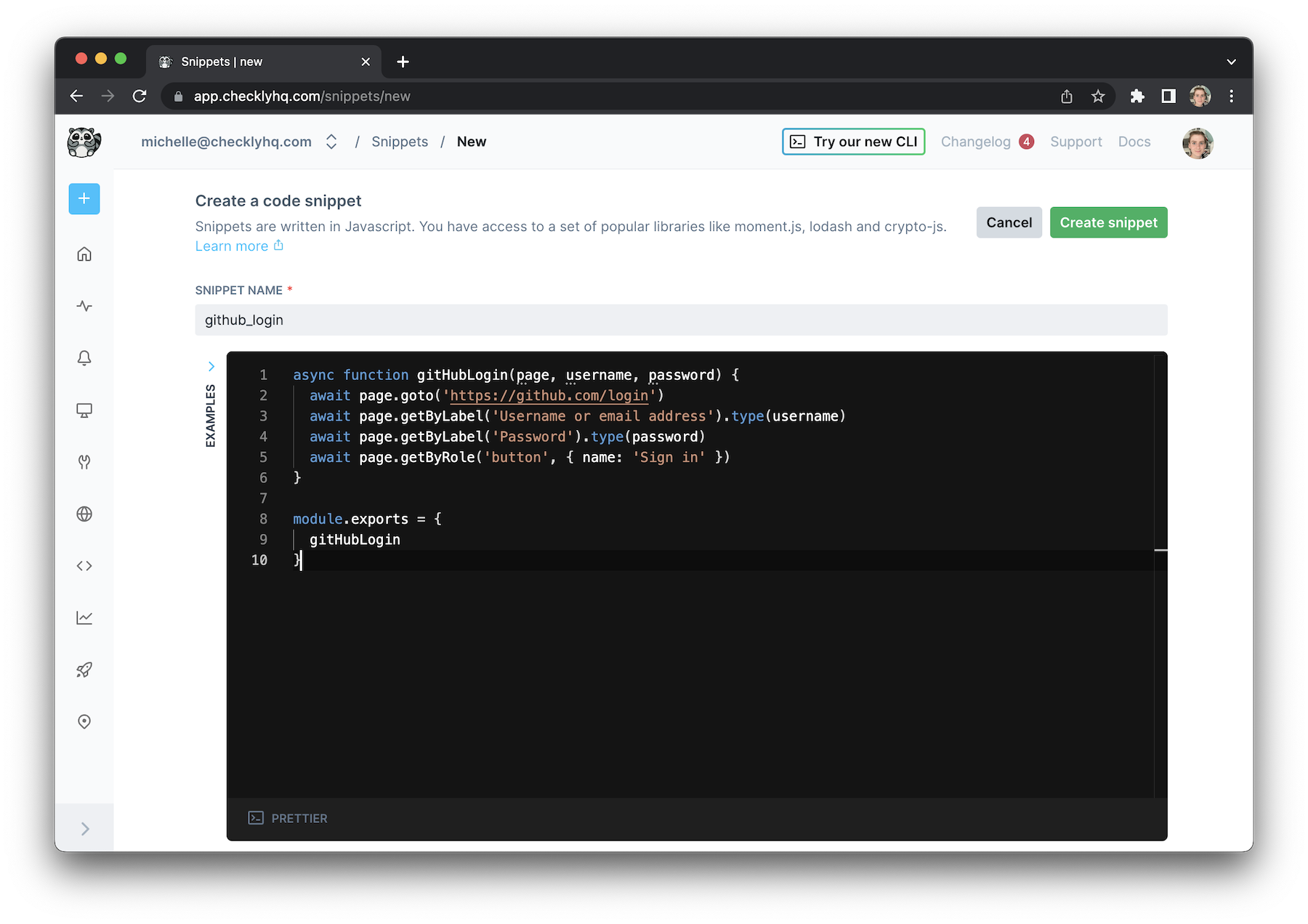
Create a snippet named `github_login` in the "code snippets" section with a function that executes the login routine.
```ts theme={null}
async function gitHubLogin (page, username, password) {
await page.goto('https://github.com/login')
await page.getByLabel('Username or email address').type(username)
await page.getByLabel('Password').type(password)
await page.getByRole('button', { name: 'Sign in' })
}
module.exports = {
gitHubLogin
}
```
```js theme={null}
async function gitHubLogin (page, username, password) {
await page.goto('https://github.com/login')
await page.getByLabel('Username or email address').type(username)
await page.getByLabel('Password').type(password)
await page.getByRole('button', { name: 'Sign in' })
}
module.exports = {
gitHubLogin
}
```
Notice three things:
* We created a standard `async` function that expects three parameters: the `page` object, a `username` and a `password` variable.
* We exported this function on the standard `module.exports` object.
* You now have a function you can call in any of your Browser checks to perform a login on GitHub.
Your snippet should look like this now.
 Create a new Browser check and import the code snippet you just created.
```ts theme={null}
import { test } from '@playwright/test'
import { gitHubLogin } from './snippets/github_login.js'
test('Github login', async ({ page }) => {
await gitHubLogin(page, process.env.GITHUB_USER, process.env.GITHUB_PWD)
// your normal check code
await page.click('.header-search-input')
})
```
```js theme={null}
const { test } = require('@playwright/test')
const { gitHubLogin } = require('./snippets/github_login.js')
test('Github login', async ({ page }) => {
await gitHubLogin(page, process.env.GITHUB_USER, process.env.GITHUB_PWD)
// your normal check code
await page.click('.header-search-input')
})
```
Notice we are referencing the `GITHUB_USER` and `GITHUB_PWD` environment variables and passing them to the `gitHubLogin()` function.
You should store these in [your environment variables](/platform/variables).
Create a new Browser check and import the code snippet you just created.
```ts theme={null}
import { test } from '@playwright/test'
import { gitHubLogin } from './snippets/github_login.js'
test('Github login', async ({ page }) => {
await gitHubLogin(page, process.env.GITHUB_USER, process.env.GITHUB_PWD)
// your normal check code
await page.click('.header-search-input')
})
```
```js theme={null}
const { test } = require('@playwright/test')
const { gitHubLogin } = require('./snippets/github_login.js')
test('Github login', async ({ page }) => {
await gitHubLogin(page, process.env.GITHUB_USER, process.env.GITHUB_PWD)
// your normal check code
await page.click('.header-search-input')
})
```
Notice we are referencing the `GITHUB_USER` and `GITHUB_PWD` environment variables and passing them to the `gitHubLogin()` function.
You should store these in [your environment variables](/platform/variables).