> ## Documentation Index
> Fetch the complete documentation index at: https://checklyhq.com/docs/llms.txt
> Use this file to discover all available pages before exploring further.
# DNS Monitors Overview
> Monitor the resolution and lookup times of DNS records
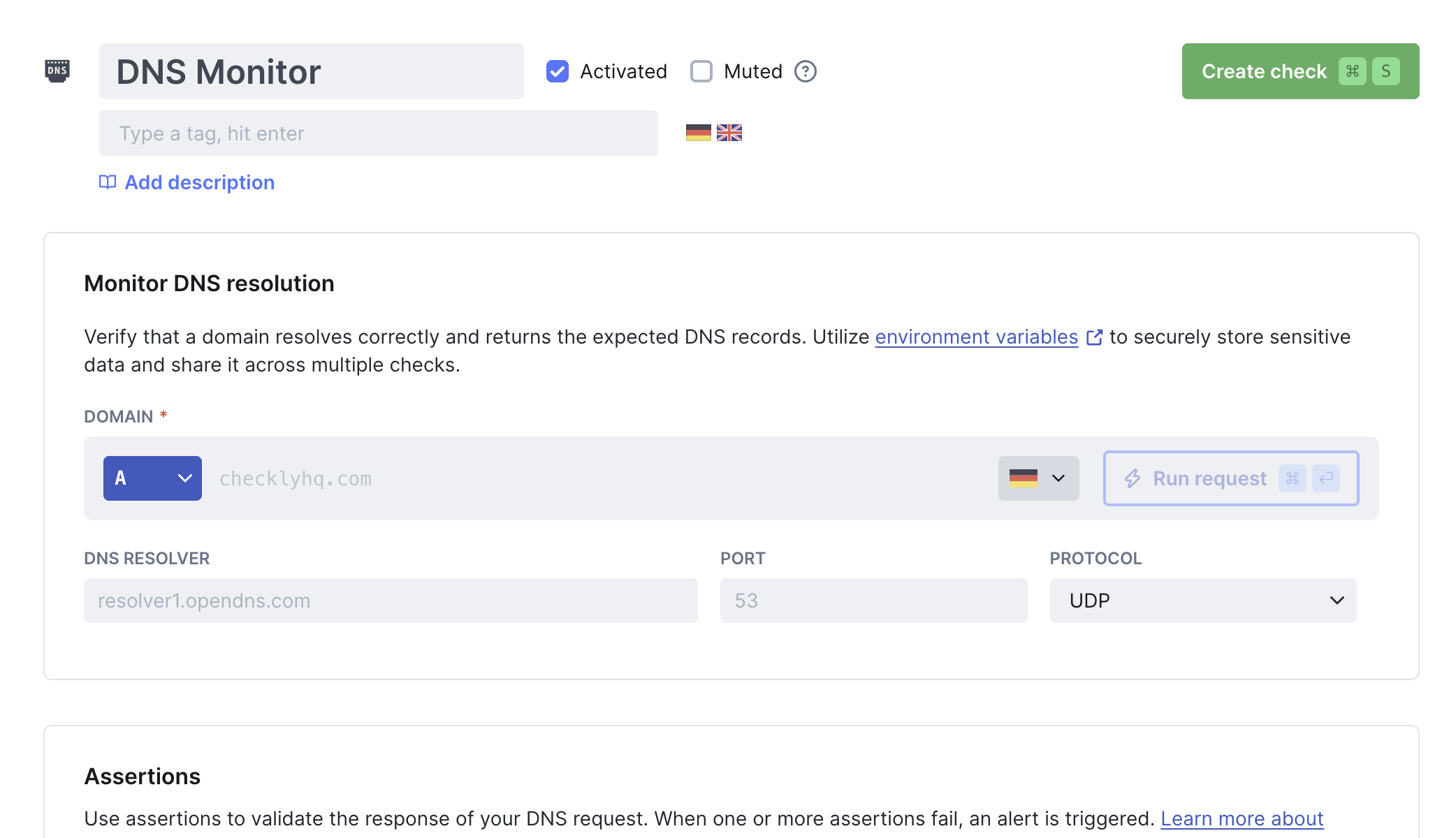
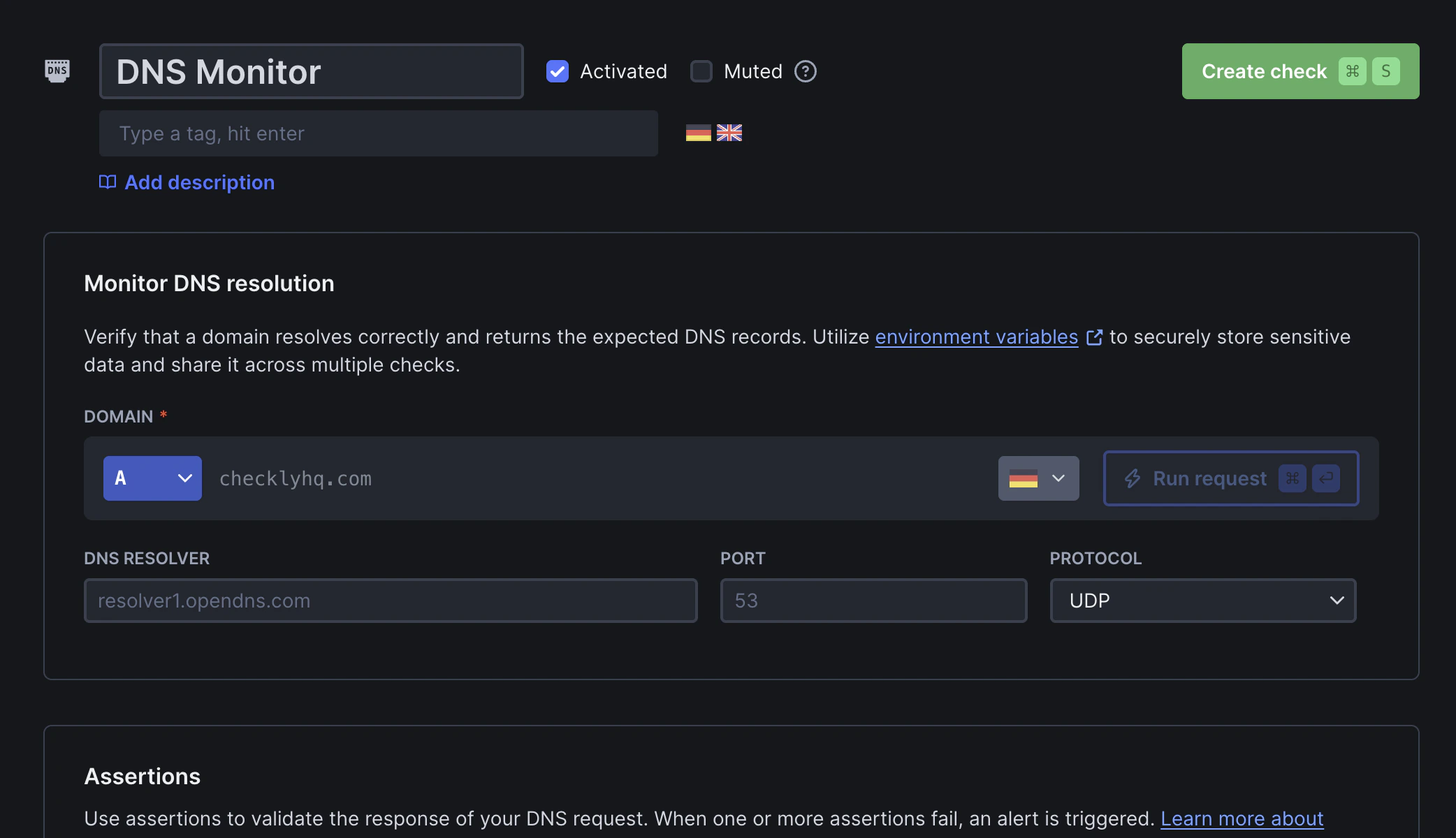 ## What are DNS Monitors?
DNS monitors check that your DNS records resolve as expected. They help you catch misconfigurations, expired records, or propagation issues before they impact your users.
**Typical use cases include:**
* Detecting if your domain stops resolving to its IP address to prevent downtime
* Verifying that records resolve correctly when queried against a specific nameserver (e.g. 208.67.222.222 for OpenDNS) to catch resolver-specific issues
* Monitoring DNS response times to detect performance degradation or resolver latency
* Spotting slow or inconsistent DNS resolution across different regions
## How do DNS monitors work?
DNS monitors perform lookups to verify your DNS configuration:
1. **Query initiation**: Checkly runs a DNS lookup from your configured location(s)
2. **Resolver selection**: The query is sent to a DNS resolver:
* **Default**: The query is sent to 8.8.8.8 (Google DNS). If that resolver returns an error (SERVFAIL, NXDOMAIN, etc.), Checkly automatically retries with 1.1.1.1 (Cloudflare DNS), then with an internal AWS resolver.
* **Custom resolver**: You can specify your own nameserver (and port) to test resolver-specific behavior. In this mode, the query is sent only to your resolver, no failover is applied.
3. **DNS chain resolution**: The resolver queries the authoritative nameserver and retrieves the requested record type
4. **Response validation**: The response is validated against your configured assertions
For example, querying the A record for `checklyhq.com` returns:
```
NOERROR 0ms
;; opcode: QUERY, status: NOERROR, id: 16122
;; flags: qr aa rd ra; QUERY: 1, ANSWER: 4, AUTHORITY: 0, ADDITIONAL: 0
;; QUESTION SECTION:
;checklyhq.com. IN A
;; ANSWER SECTION:
checklyhq.com. 6 IN A 18.66.102.127
checklyhq.com. 6 IN A 18.66.102.76
checklyhq.com. 6 IN A 18.66.102.10
checklyhq.com. 6 IN A 18.66.102.85
```
The query response appears on the results page as both raw output and parsed JSON. Use it as a reference to define [assertions](/detect/uptime-monitoring/dns-monitors/configuration#assertions) for expected values.
## Supported DNS record types
DNS monitors support the following DNS record types:
* **A**: IPv4 address records
* **AAAA**: IPv6 address records
* **CNAME**: Canonical name (alias) records
* **MX**: Mail exchange server records
* **NS**: Nameserver records
* **SOA**: Start of authority records
* **TXT**: Text records (SPF, DKIM, DMARC, etc.)
* **HTTPS**: HTTPS service binding records ([RFC 9460](https://www.rfc-editor.org/rfc/rfc9460)) — advertise HTTP/3 (`alpn`), address hints (`ipv4hint`/`ipv6hint`), and Encrypted Client Hello (`ech`)
## DNS Monitor Results
Select a specific check run to inspect its results:
## What are DNS Monitors?
DNS monitors check that your DNS records resolve as expected. They help you catch misconfigurations, expired records, or propagation issues before they impact your users.
**Typical use cases include:**
* Detecting if your domain stops resolving to its IP address to prevent downtime
* Verifying that records resolve correctly when queried against a specific nameserver (e.g. 208.67.222.222 for OpenDNS) to catch resolver-specific issues
* Monitoring DNS response times to detect performance degradation or resolver latency
* Spotting slow or inconsistent DNS resolution across different regions
## How do DNS monitors work?
DNS monitors perform lookups to verify your DNS configuration:
1. **Query initiation**: Checkly runs a DNS lookup from your configured location(s)
2. **Resolver selection**: The query is sent to a DNS resolver:
* **Default**: The query is sent to 8.8.8.8 (Google DNS). If that resolver returns an error (SERVFAIL, NXDOMAIN, etc.), Checkly automatically retries with 1.1.1.1 (Cloudflare DNS), then with an internal AWS resolver.
* **Custom resolver**: You can specify your own nameserver (and port) to test resolver-specific behavior. In this mode, the query is sent only to your resolver, no failover is applied.
3. **DNS chain resolution**: The resolver queries the authoritative nameserver and retrieves the requested record type
4. **Response validation**: The response is validated against your configured assertions
For example, querying the A record for `checklyhq.com` returns:
```
NOERROR 0ms
;; opcode: QUERY, status: NOERROR, id: 16122
;; flags: qr aa rd ra; QUERY: 1, ANSWER: 4, AUTHORITY: 0, ADDITIONAL: 0
;; QUESTION SECTION:
;checklyhq.com. IN A
;; ANSWER SECTION:
checklyhq.com. 6 IN A 18.66.102.127
checklyhq.com. 6 IN A 18.66.102.76
checklyhq.com. 6 IN A 18.66.102.10
checklyhq.com. 6 IN A 18.66.102.85
```
The query response appears on the results page as both raw output and parsed JSON. Use it as a reference to define [assertions](/detect/uptime-monitoring/dns-monitors/configuration#assertions) for expected values.
## Supported DNS record types
DNS monitors support the following DNS record types:
* **A**: IPv4 address records
* **AAAA**: IPv6 address records
* **CNAME**: Canonical name (alias) records
* **MX**: Mail exchange server records
* **NS**: Nameserver records
* **SOA**: Start of authority records
* **TXT**: Text records (SPF, DKIM, DMARC, etc.)
* **HTTPS**: HTTPS service binding records ([RFC 9460](https://www.rfc-editor.org/rfc/rfc9460)) — advertise HTTP/3 (`alpn`), address hints (`ipv4hint`/`ipv6hint`), and Encrypted Client Hello (`ech`)
## DNS Monitor Results
Select a specific check run to inspect its results:
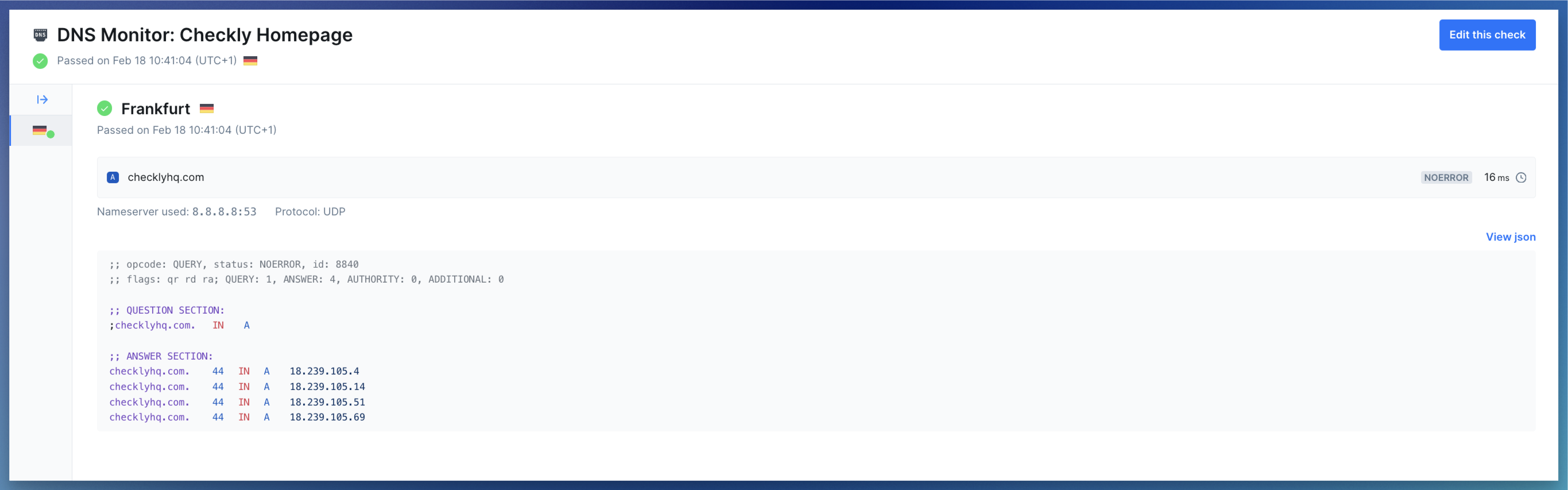 * **Summary:** Shows key request and response details:
* Target domain
* Monitor state (passed, degraded or failed), including the DNS status code
* Total check duration
* Nameserver used: Defaults to 8.8.8.8 (Google DNS) with automatic failover to 1.1.1.1 (Cloudflare) and an internal AWS resolver on errors. You can also configure a custom nameserver and port
* Protocol used (UDP or TCP)
* **Error details:** If a run fails, the DNS status code and error message are shown to help diagnose the issue
* **Response payload:** Displays the raw DNS response and the [parsed JSON output](/detect/uptime-monitoring/dns-monitors/configuration#json-response-schemas) for assertions and debugging
## Troubleshooting Common Issues
**Symptom**: DNS updated but users still reach old infrastructure
**Root causes**:
* **TTL caching**: Old records remain cached until TTL expires
* **Resolver differences**: Different DNS resolvers update at different times
* **CDN caching**: Content delivery networks may cache DNS responses independently
**How to detect and fix**:
1. **Verify new IP is resolving**: Use assertion `$.Answer[0].data` to check that the correct IP is returned
2. **Monitor TTL timing**: Add assertion `$.Answer[0].TTL` to track when records should fully propagate
3. **Test multiple resolvers**: Configure monitors with different nameservers (8.8.8.8, 1.1.1.1, custom) to verify all resolvers have updated
4. **Check multiple regions**: Run monitors from multiple Checkly locations to catch regional propagation issues
**Prevention tip**: Lower TTL values 24-48 hours before planned DNS changes to speed up propagation.
**Symptom**: Expected multiple records (A, MX, NS, etc.) but getting fewer or more than expected
**Root causes**:
* **Dynamic infrastructure**: Auto-scaling events add/remove instances
* **Health checks**: Load balancers automatically remove unhealthy instances from DNS
* **Configuration drift**: Manual changes not reflected in monitoring
**How to detect and fix**:
1. **Set exact count assertion**: Use `$.Answer.length` equals `X` for static infrastructure
2. **Use range assertions**: For auto-scaled systems, use `$.Answer.length` is greater than `2` and less than `10`
3. **Monitor specific records**: Use `$.Answer[?(@.data == '203.0.113.1')]` to verify critical IPs are present
4. **Alert on unexpected changes**: Set alerts to notify when record count deviates from baseline
**Example for MX records**: Ensure backup mail servers are configured with `$.Answer.length` equals `2` or greater.
**Symptom**: DNS resolves from your network but fails for certain users or regions
**Root causes**:
* **Resolver behavior differences**: Public resolvers (Google, Cloudflare, ISP) may have different caching policies or DNSSEC validation
* **Geographic DNS routing**: GeoDNS returns different results based on query location
* **Corporate/ISP filtering**: Organizations may block or redirect certain domains
* **DNSSEC validation failures**: Some resolvers enforce DNSSEC while others don't
**How to detect and fix**:
1. **Test multiple resolvers**: Create separate monitors with different nameservers:
* Google DNS: `8.8.8.8:53`
* Cloudflare DNS: `1.1.1.1:53`
* OpenDNS: `208.67.222.222:53`
* User-reported resolver: Custom IP
2. **Monitor from multiple locations**: Run monitors from regions where users report issues
3. **Validate DNSSEC**: Use `dig +dnssec` locally to check for DNSSEC issues
4. **Check for hijacking**: Compare responses across resolvers to detect DNS hijacking or filtering
**Pro tip**: If users report issues with specific ISPs, test against those ISP's DNS resolvers directly.
* **Summary:** Shows key request and response details:
* Target domain
* Monitor state (passed, degraded or failed), including the DNS status code
* Total check duration
* Nameserver used: Defaults to 8.8.8.8 (Google DNS) with automatic failover to 1.1.1.1 (Cloudflare) and an internal AWS resolver on errors. You can also configure a custom nameserver and port
* Protocol used (UDP or TCP)
* **Error details:** If a run fails, the DNS status code and error message are shown to help diagnose the issue
* **Response payload:** Displays the raw DNS response and the [parsed JSON output](/detect/uptime-monitoring/dns-monitors/configuration#json-response-schemas) for assertions and debugging
## Troubleshooting Common Issues
**Symptom**: DNS updated but users still reach old infrastructure
**Root causes**:
* **TTL caching**: Old records remain cached until TTL expires
* **Resolver differences**: Different DNS resolvers update at different times
* **CDN caching**: Content delivery networks may cache DNS responses independently
**How to detect and fix**:
1. **Verify new IP is resolving**: Use assertion `$.Answer[0].data` to check that the correct IP is returned
2. **Monitor TTL timing**: Add assertion `$.Answer[0].TTL` to track when records should fully propagate
3. **Test multiple resolvers**: Configure monitors with different nameservers (8.8.8.8, 1.1.1.1, custom) to verify all resolvers have updated
4. **Check multiple regions**: Run monitors from multiple Checkly locations to catch regional propagation issues
**Prevention tip**: Lower TTL values 24-48 hours before planned DNS changes to speed up propagation.
**Symptom**: Expected multiple records (A, MX, NS, etc.) but getting fewer or more than expected
**Root causes**:
* **Dynamic infrastructure**: Auto-scaling events add/remove instances
* **Health checks**: Load balancers automatically remove unhealthy instances from DNS
* **Configuration drift**: Manual changes not reflected in monitoring
**How to detect and fix**:
1. **Set exact count assertion**: Use `$.Answer.length` equals `X` for static infrastructure
2. **Use range assertions**: For auto-scaled systems, use `$.Answer.length` is greater than `2` and less than `10`
3. **Monitor specific records**: Use `$.Answer[?(@.data == '203.0.113.1')]` to verify critical IPs are present
4. **Alert on unexpected changes**: Set alerts to notify when record count deviates from baseline
**Example for MX records**: Ensure backup mail servers are configured with `$.Answer.length` equals `2` or greater.
**Symptom**: DNS resolves from your network but fails for certain users or regions
**Root causes**:
* **Resolver behavior differences**: Public resolvers (Google, Cloudflare, ISP) may have different caching policies or DNSSEC validation
* **Geographic DNS routing**: GeoDNS returns different results based on query location
* **Corporate/ISP filtering**: Organizations may block or redirect certain domains
* **DNSSEC validation failures**: Some resolvers enforce DNSSEC while others don't
**How to detect and fix**:
1. **Test multiple resolvers**: Create separate monitors with different nameservers:
* Google DNS: `8.8.8.8:53`
* Cloudflare DNS: `1.1.1.1:53`
* OpenDNS: `208.67.222.222:53`
* User-reported resolver: Custom IP
2. **Monitor from multiple locations**: Run monitors from regions where users report issues
3. **Validate DNSSEC**: Use `dig +dnssec` locally to check for DNSSEC issues
4. **Check for hijacking**: Compare responses across resolvers to detect DNS hijacking or filtering
**Pro tip**: If users report issues with specific ISPs, test against those ISP's DNS resolvers directly.