> ## Documentation Index
> Fetch the complete documentation index at: https://www.checklyhq.com/docs/llms.txt
> Use this file to discover all available pages before exploring further.
# Send Alerts to Discord
> Configure Discord integration to receive real-time alerts from Checkly monitors
Checkly integrates with [Discord](https://discord.com/) and can
deliver failure, degradation, and recovery messages to any project in your Discord server / channel.
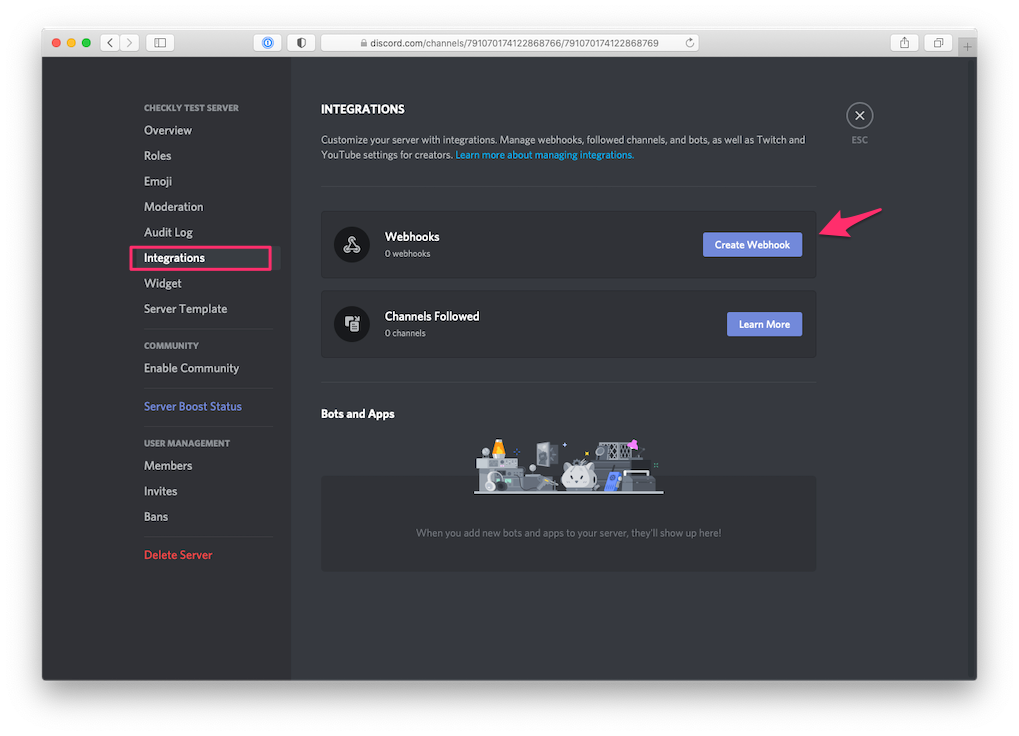
1. First, create a **Webhook**. Log in to Discord and go to "Server Settings" > "Integrations" and click "Create Webhook".
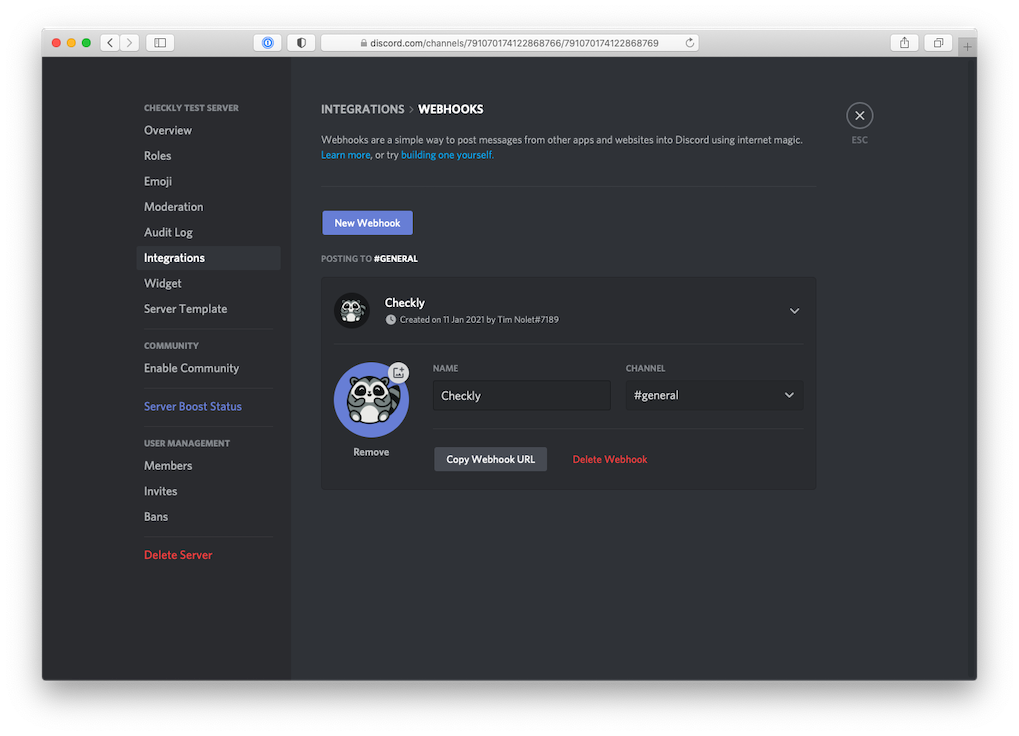
 2. **Choose a name** for your integration like "Checkly" and [add this Checkly icon](https://cdn.checklyhq.com/logos/fat_racoon_square.png).
Click the "Copy the Webhook URL" to...well...copy the Webhook URL
2. **Choose a name** for your integration like "Checkly" and [add this Checkly icon](https://cdn.checklyhq.com/logos/fat_racoon_square.png).
Click the "Copy the Webhook URL" to...well...copy the Webhook URL
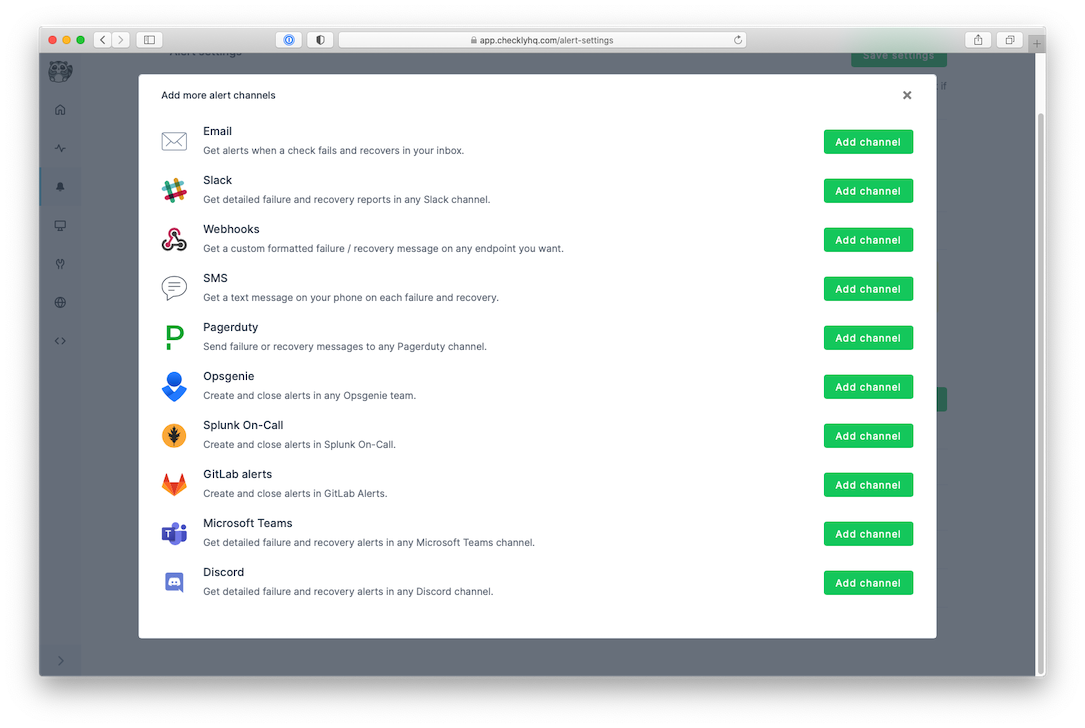
 3. Log in to Checkly and navigate to [Alert Settings](https://app.checklyhq.com/alert-settings/).
Click the "Add more channels" button, find Discord on the list, and click "Add channel".
3. Log in to Checkly and navigate to [Alert Settings](https://app.checklyhq.com/alert-settings/).
Click the "Add more channels" button, find Discord on the list, and click "Add channel".
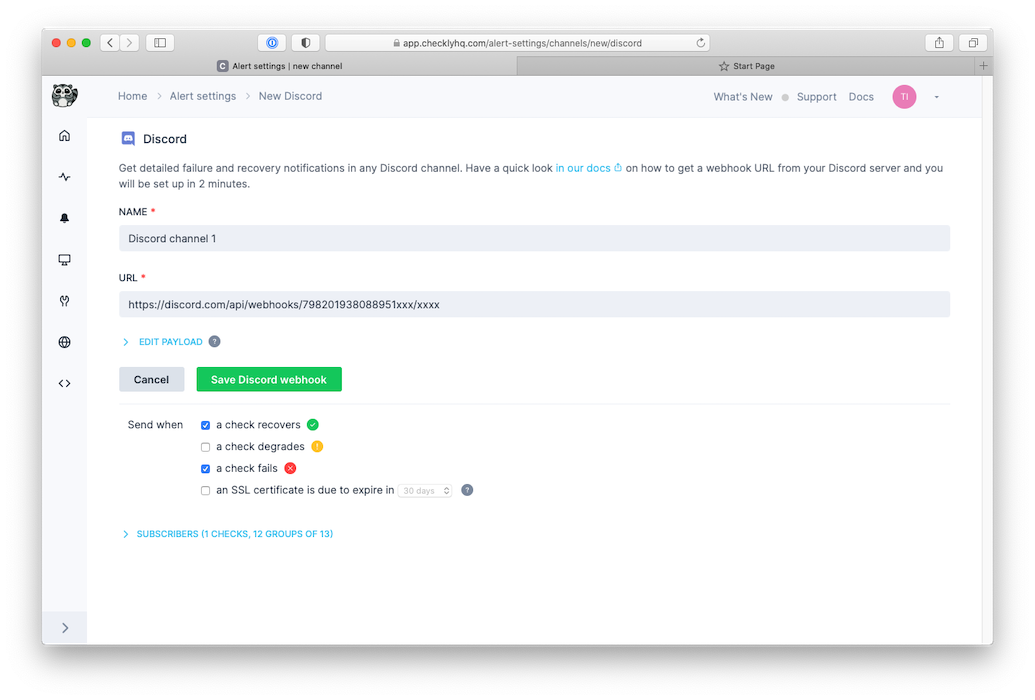
 4. Give the alert channel a name and **paste the Webhook URL** in their respective input fields. You can now also tweak
which alerts you want to be notified of and which checks or check groups should be subscribed to this channel.
4. Give the alert channel a name and **paste the Webhook URL** in their respective input fields. You can now also tweak
which alerts you want to be notified of and which checks or check groups should be subscribed to this channel.
 Note that we provide a preconfigured message payload but you are free to edit the payload and add more or different
variables. Just click the "Edit payload" button and reference the "Help & variables tab".
Congratulations! You have successfully integrated Checkly with Discord!
## Advanced Discord Configuration
### Custom Discord Alerts
For more control over Discord alert formatting, you can create custom webhook payloads using Discord's embed format:
```json theme={null}
{
"embeds": [
{
"title": "{{ALERT_TITLE}}",
"description": "**Check**: {{CHECK_NAME}}\n**Location**: {{RUN_LOCATION}}\n**Response Time**: {{RESPONSE_TIME}}ms",
"color": "{{#eq ALERT_TYPE 'ALERT_FAILURE'}}15158332{{else}}{{#eq ALERT_TYPE 'ALERT_DEGRADED'}}16776960{{else}}3066993{{/eq}}{{/eq}}",
"fields": [
{
"name": "Error",
"value": "{{CHECK_ERROR_MESSAGE}}",
"inline": false
},
{
"name": "Started At",
"value": "{{STARTED_AT}}",
"inline": true
},
{
"name": "Location",
"value": "{{RUN_LOCATION}}",
"inline": true
}
],
"footer": {
"text": "Checkly Monitoring"
},
"timestamp": "{{STARTED_AT}}",
"url": "{{RESULT_LINK}}"
}
]
}
```
### Discord Alert Colors
Use different colors to distinguish alert types:
* **Red (15158332)**: Failures and critical alerts
* **Orange (16776960)**: Degraded performance alerts
* **Green (3066993)**: Recovery notifications
### Discord Best Practices
* Use separate channels for different environments (production, staging, development)
* Configure appropriate notification settings to avoid alert fatigue
* Use Discord's thread feature for grouping related alerts
* Set up role mentions (@role) for critical alerts that require immediate attention
Note that we provide a preconfigured message payload but you are free to edit the payload and add more or different
variables. Just click the "Edit payload" button and reference the "Help & variables tab".
Congratulations! You have successfully integrated Checkly with Discord!
## Advanced Discord Configuration
### Custom Discord Alerts
For more control over Discord alert formatting, you can create custom webhook payloads using Discord's embed format:
```json theme={null}
{
"embeds": [
{
"title": "{{ALERT_TITLE}}",
"description": "**Check**: {{CHECK_NAME}}\n**Location**: {{RUN_LOCATION}}\n**Response Time**: {{RESPONSE_TIME}}ms",
"color": "{{#eq ALERT_TYPE 'ALERT_FAILURE'}}15158332{{else}}{{#eq ALERT_TYPE 'ALERT_DEGRADED'}}16776960{{else}}3066993{{/eq}}{{/eq}}",
"fields": [
{
"name": "Error",
"value": "{{CHECK_ERROR_MESSAGE}}",
"inline": false
},
{
"name": "Started At",
"value": "{{STARTED_AT}}",
"inline": true
},
{
"name": "Location",
"value": "{{RUN_LOCATION}}",
"inline": true
}
],
"footer": {
"text": "Checkly Monitoring"
},
"timestamp": "{{STARTED_AT}}",
"url": "{{RESULT_LINK}}"
}
]
}
```
### Discord Alert Colors
Use different colors to distinguish alert types:
* **Red (15158332)**: Failures and critical alerts
* **Orange (16776960)**: Degraded performance alerts
* **Green (3066993)**: Recovery notifications
### Discord Best Practices
* Use separate channels for different environments (production, staging, development)
* Configure appropriate notification settings to avoid alert fatigue
* Use Discord's thread feature for grouping related alerts
* Set up role mentions (@role) for critical alerts that require immediate attention