> ## Documentation Index
> Fetch the complete documentation index at: https://www.checklyhq.com/docs/llms.txt
> Use this file to discover all available pages before exploring further.
# Webhook Integrations
> Create custom webhook integrations to send Checkly alerts to any API endpoin
**Monitoring as Code**: Learn more about the [Webhook Alert Channel Construct](/constructs/webhook-alert-channel).
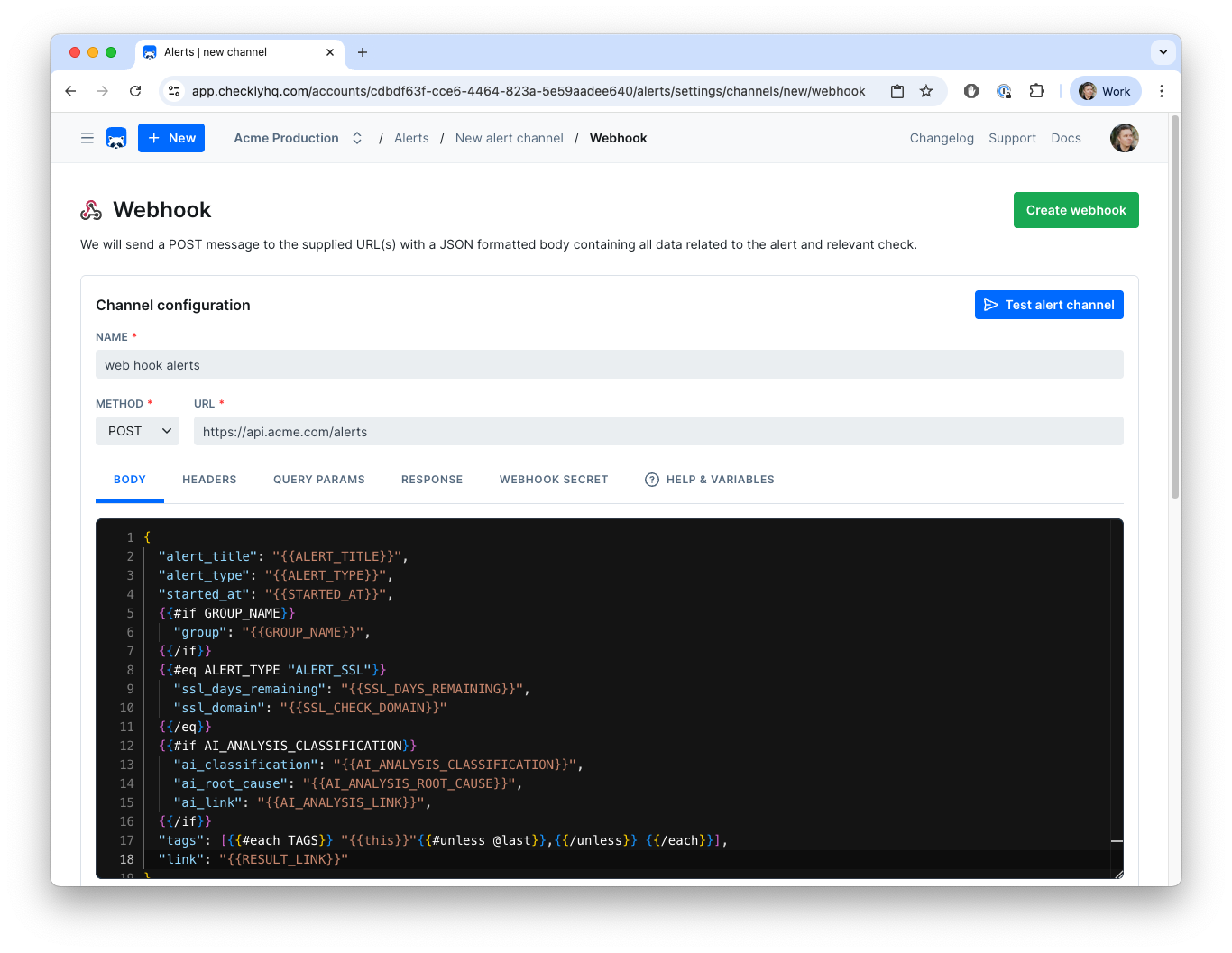 Webhooks allow you to POST custom payloads to any endpoint in your own infrastructure or a third party provider. In a nutshell, you can:
* Create a **custom URL** by adding in authentication tokens or other secrets.
* Create a **custom payload body** using any environment variables and specific instance variables per event. Note: that means that if you are attaching the webhook to a Group, you will be able to access Group-level variables, too.
* **Debug and test the webhook** in the editor by sending test messages.
## Using Variables
The example above shows a webhook configured to create a Jira ticket on each event. Notice the following:
* We use the variable `JIRA_INSTANCE_URL` in the URL. We previously stored this variable in the [environment variables section](https://app.checklyhq.com/environment-variables). Alert-channel configurations accept both [environment variables](/platform/variables) and [secrets](/platform/secrets) using the same `{{NAME}}` syntax.
* We use the variable `CHECK_ID` in the payload. This is one of many event-based variables that will change with each call. See below for the complete list.
In both cases we use the familiar Handlebars templating braces, i.e. `{{ }}` to insert the variable.
To avoid encoding, you can access your environment variables with triple brackets, i.e. `{{{USER_API_KEY}}}`
**Using environment variables and secrets in this channel's config**
Any literal-secret field in this alert channel — webhook URL, API key, bearer token, service key, etc. — accepts a [variable](/platform/variables) or [secret](/platform/secrets) reference using the familiar Handlebars syntax: `{{MY_VARIABLE}}`.
You can also promote a value to a secret directly from the field: type the literal value, click the lock icon next to the input, and choose a name. The value is stored as an encrypted account secret and is never re-displayed in the UI.
You can use the following event-related variables in both URL and payload.
| Variable | Description |
| -------------------------------- | --------------------------------------------------------------------------------------------------------------------------------------------------------------------------------------- |
| `AI_ANALYSIS_CLASSIFICATION` | Classification of the failure / error. Available when Rocky AI automation is enabled. |
| `AI_ANALYSIS_CODE_FIX` | A code fix to resolve the analyzed problem. Available when Rocky AI automation is enabled. |
| `AI_ANALYSIS_LINK` | Direct link to full AI analysis. Available when Rocky AI automation is enabled. |
| `AI_ANALYSIS_ROOT_CAUSE` | Description of possible root cause. Available when Rocky AI automation is enabled. |
| `AI_ANALYSIS_USER_IMPACT` | Description of the user impact. Available when Rocky AI automation is enabled. |
| `ALERT_TITLE` | Human readable title, e.g. 'Check "My API check" has failed' |
| `ALERT_TYPE` | Type of alert, e.g. "ALERT\_FAILURE", "ALERT\_RECOVERY", "ALERT\_DEGRADED", "ALERT\_DEGRADED\_RECOVERY". See [alert states](/communicate/alerts/overview#alert-states) for all options. |
| `API_CHECK_RESPONSE_STATUS_CODE` | The response status code, e.g. 200. Only populated for API checks. |
| `API_CHECK_RESPONSE_STATUS_TEXT` | The response status text, e.g. "OK". Only populated for API checks. |
| `CHECK_ERROR_MESSAGE` | The check error message |
| `CHECK_ID` | The UUID of the check |
| `CHECK_DESCRIPTION` | The description of the check, if set |
| `CHECK_NAME` | Full name of the check |
| `CHECK_RESULT_ID` | The UUID of the result that triggered this message |
| `CHECK_TYPE` | The check type, e.g. API, BROWSER . |
| `GROUP_NAME` | The name of the group, if the check belongs to one. |
| `IS_REMINDER` | Whether this alert is a reminder (`true`) or the initial alert (`false`). |
| `REGION` | Region code where check ran, e.g. "us-east-1" |
| `REMINDER_SEQUENCE` | The reminder number (`0` for initial alerts, `1`+ for reminders). |
| `RESPONSE_TIME` | The reported response time for this result |
| `RESULT_LINK` | The full link to the check result |
| `RUN_LOCATION` | The location where the check ran, i.e. "N. California" |
| `SSL_CHECK_DOMAIN` | The domain of the SSL certificate. For ALERT\_SSL only. |
| `SSL_DAYS_REMAINING` | How many days remain on the SSL certificate. For ALERT\_SSL only. |
| `STARTED_AT` | The ISO timestamp from when this check run started |
| `TAGS` | An array of tags assigned to the check. Have a look at our Opsgenie example below on how to render this to a JSON array. |
### Using AI analysis data in alerts
When [automatic Rocky AI analysis](/resolve/ai-root-cause-analysis/overview#automatic-analysis) is enabled, you can include AI-generated root cause and user impact data in your webhook payloads. Use `{{#if}}` guards so the payload works whether AI analysis data is available or not.
```json theme={null}
{
"message": "{{ALERT_TITLE}}",
"link": "{{RESULT_LINK}}",
{{#if AI_ANALYSIS_ROOT_CAUSE}}
"root_cause": "{{AI_ANALYSIS_ROOT_CAUSE}}",
{{/if}}
{{#if AI_ANALYSIS_USER_IMPACT}}
"user_impact": "{{AI_ANALYSIS_USER_IMPACT}}",
{{/if}}
{{#if AI_ANALYSIS_LINK}}
"ai_analysis_link": "{{AI_ANALYSIS_LINK}}",
{{/if}}
"classification": "{{AI_ANALYSIS_CLASSIFICATION}}"
}
```
### Handlebars Helpers
| Helper | Description |
| -------------------- | ------------------------------------------------------------------------- |
| `{{$UUID}}` | Generates a random UUID/v4 (e.g., `9b1deb4d-3b7d-4bad-9bdd-2b0d7b3dcb6d`) |
| `{{$RANDOM_NUMBER}}` | Generates a random decimal number between 0 and 1000 (e.g., `345`) |
| `{{moment}}` | Generates dates/times using **moment.js** with formatting: |
* `{{moment "YYYY-MM-DD"}}` → `2020-08-26`
* `{{moment "2 days ago" "YYYY-MM-DD"}}` → `2020-08-24`
* `{{moment "last week" "X"}}` → `1597924480`
You can find the [full list of helpers in the README.md file](https://github.com/checkly/handlebars) of the underlying library we are using. For a full overview of date formatting option, check the [moment.js docs](https://momentjs.com/docs/#/displaying/format/).
You can also use conditional helpers like `{{#eq}}` statements. Here is an example:
```json theme={null}
{
"message": "Check is {{#eq ALERT_TYPE 'ALERT_FAILURE'}}DOWN{{/eq}} {{#eq ALERT_TYPE 'ALERT_RECOVERY'}}UP{{/eq}}"
}
```
The above webhook body uses the `{{#eq}}` helper to execute the logic
*If the ALERT\_TYPE variable equals 'ALERT\_FAILURE', print 'DOWN', if it equals 'ALERT\_RECOVERY' print 'UP'*
So in the case of a failure event, the body would render to:
```json theme={null}
{
"message": "Check is DOWN"
}
```
Two clear benefits here:
* You only need to create one webhook to inform a 3rd party system.
* You can translate Checkly terms to your 3rd party tool's term for the same concept, i.e. the "up status" of a check.
You can find the [full list of helpers in the README.md file](https://github.com/checkly/handlebars) of the underlying library we are using.
## Webhook Secrets
You can validate each webhook we deliver to your endpoint(s). Using the optional webhook secret, you can:
1. Check if the webhook was sent by Checkly.
2. Check if the payload was not altered in any way during transmission.
When you create a webhook secret, we proceed to use that secret token to cryptographically sign the webhook payload using the SHA256 hash algorithm. We add the resulting hash to the HTTP header `x-checkly-signature` on each webhook.
On the receiving end, you can then use the value of the `x-checkly-signature` header to assert the validity and authenticity of the webhook and its payload.
Have a look at the code examples below on how to use the header and your favourite web framework.
```javascript Node.js theme={null}
// We store the webhook secret in an environment variable called CHECKLY_WEBHOOK_SECRET
const app = require('express')();
const bodyParser = require('body-parser');
const crypto = require('crypto');
function isVerifiedPayload (payload, signature) {
const secret = process.env.CHECKLY_WEBHOOK_SECRET
const hmac = crypto.createHmac('sha256', secret)
const digest = hmac.update(payload).digest('hex')
return crypto.timingSafeEqual(Buffer.from(digest), Buffer.from(signature))
}
app.post('/webhook', bodyParser.json({ type: 'application/json' }), (request, response) => {
const signature = request.headers['x-checkly-signature'];
const payload = JSON.stringify(request.body)
if (isVerifiedPayload(payload, signature)) {
console.log('Signature is valid')
response.status(200).send();
} else {
console.error('Signature does not match')
response.status(400).send();
}
});
app.listen(4242, () => console.log('Running on port 4242'))
```
```ruby Ruby theme={null}
# We store the webhook secret in an environment variable called CHECKLY_WEBHOOK_SECRET
require 'sinatra'
set :port, 4242
post '/webhook' do
signature = request.env['HTTP_X_CHECKLY_SIGNATURE']
payload = request.body.read
digest = OpenSSL::HMAC.hexdigest(OpenSSL::Digest.new('sha256'), ENV['CHECKLY_WEBHOOK_SECRET'], payload)
if Rack::Utils.secure_compare(digest, signature)
status 200
return
else
status 400
return
end
end
```
```python Python theme={null}
# This example assumes you use Django
import hmac
from hashlib import sha256
from django.conf import settings
from django.http import HttpResponse, HttpResponseBadRequest
from django.views.decorators.csrf import csrf_exempt
from django.utils.encoding import force_bytes
import json
@csrf_exempt
def webhook(request):
signature = request.META.get('HTTP_X_CHECKLY_SIGNATURE')
mac = hmac.new(settings.CHECKLY_WEBHOOK_SECRET.encode('utf-8'), msg=request.body, digestmod=sha256)
print(mac.hexdigest())
if not hmac.compare_digest(mac.hexdigest(), signature):
return HttpResponseBadRequest()
return HttpResponse()
```
## Webhook Retries
Checkly will retry your webhook up to **5 times** if we get an HTTP response higher than 399, e.g. a 404 or 503. Each retry is backed off 20 seconds for a total retry period of `5 * 20 = 100 seconds`.
This means that for checks on a 1 minute schedule, there is a potential overlap between a failure alert and recovery alert. For this reason every webhook we send has a timestamp in the `x-checkly-timestamp` header. You can use this timestamp on the receiving end to ignore any webhooks that come in "late".
## Webhook Examples
The following examples give an idea how to integrate Checkly with 3rd party alerting and issue tracking systems.
### OpsGenie
You can create an OpsGenie
alert by POST-ing the following body
```json theme={null}
{
"message": "{{ALERT_TITLE}}",
"description": "{{ALERT_TYPE}}
Webhooks allow you to POST custom payloads to any endpoint in your own infrastructure or a third party provider. In a nutshell, you can:
* Create a **custom URL** by adding in authentication tokens or other secrets.
* Create a **custom payload body** using any environment variables and specific instance variables per event. Note: that means that if you are attaching the webhook to a Group, you will be able to access Group-level variables, too.
* **Debug and test the webhook** in the editor by sending test messages.
## Using Variables
The example above shows a webhook configured to create a Jira ticket on each event. Notice the following:
* We use the variable `JIRA_INSTANCE_URL` in the URL. We previously stored this variable in the [environment variables section](https://app.checklyhq.com/environment-variables). Alert-channel configurations accept both [environment variables](/platform/variables) and [secrets](/platform/secrets) using the same `{{NAME}}` syntax.
* We use the variable `CHECK_ID` in the payload. This is one of many event-based variables that will change with each call. See below for the complete list.
In both cases we use the familiar Handlebars templating braces, i.e. `{{ }}` to insert the variable.
To avoid encoding, you can access your environment variables with triple brackets, i.e. `{{{USER_API_KEY}}}`
**Using environment variables and secrets in this channel's config**
Any literal-secret field in this alert channel — webhook URL, API key, bearer token, service key, etc. — accepts a [variable](/platform/variables) or [secret](/platform/secrets) reference using the familiar Handlebars syntax: `{{MY_VARIABLE}}`.
You can also promote a value to a secret directly from the field: type the literal value, click the lock icon next to the input, and choose a name. The value is stored as an encrypted account secret and is never re-displayed in the UI.
You can use the following event-related variables in both URL and payload.
| Variable | Description |
| -------------------------------- | --------------------------------------------------------------------------------------------------------------------------------------------------------------------------------------- |
| `AI_ANALYSIS_CLASSIFICATION` | Classification of the failure / error. Available when Rocky AI automation is enabled. |
| `AI_ANALYSIS_CODE_FIX` | A code fix to resolve the analyzed problem. Available when Rocky AI automation is enabled. |
| `AI_ANALYSIS_LINK` | Direct link to full AI analysis. Available when Rocky AI automation is enabled. |
| `AI_ANALYSIS_ROOT_CAUSE` | Description of possible root cause. Available when Rocky AI automation is enabled. |
| `AI_ANALYSIS_USER_IMPACT` | Description of the user impact. Available when Rocky AI automation is enabled. |
| `ALERT_TITLE` | Human readable title, e.g. 'Check "My API check" has failed' |
| `ALERT_TYPE` | Type of alert, e.g. "ALERT\_FAILURE", "ALERT\_RECOVERY", "ALERT\_DEGRADED", "ALERT\_DEGRADED\_RECOVERY". See [alert states](/communicate/alerts/overview#alert-states) for all options. |
| `API_CHECK_RESPONSE_STATUS_CODE` | The response status code, e.g. 200. Only populated for API checks. |
| `API_CHECK_RESPONSE_STATUS_TEXT` | The response status text, e.g. "OK". Only populated for API checks. |
| `CHECK_ERROR_MESSAGE` | The check error message |
| `CHECK_ID` | The UUID of the check |
| `CHECK_DESCRIPTION` | The description of the check, if set |
| `CHECK_NAME` | Full name of the check |
| `CHECK_RESULT_ID` | The UUID of the result that triggered this message |
| `CHECK_TYPE` | The check type, e.g. API, BROWSER . |
| `GROUP_NAME` | The name of the group, if the check belongs to one. |
| `IS_REMINDER` | Whether this alert is a reminder (`true`) or the initial alert (`false`). |
| `REGION` | Region code where check ran, e.g. "us-east-1" |
| `REMINDER_SEQUENCE` | The reminder number (`0` for initial alerts, `1`+ for reminders). |
| `RESPONSE_TIME` | The reported response time for this result |
| `RESULT_LINK` | The full link to the check result |
| `RUN_LOCATION` | The location where the check ran, i.e. "N. California" |
| `SSL_CHECK_DOMAIN` | The domain of the SSL certificate. For ALERT\_SSL only. |
| `SSL_DAYS_REMAINING` | How many days remain on the SSL certificate. For ALERT\_SSL only. |
| `STARTED_AT` | The ISO timestamp from when this check run started |
| `TAGS` | An array of tags assigned to the check. Have a look at our Opsgenie example below on how to render this to a JSON array. |
### Using AI analysis data in alerts
When [automatic Rocky AI analysis](/resolve/ai-root-cause-analysis/overview#automatic-analysis) is enabled, you can include AI-generated root cause and user impact data in your webhook payloads. Use `{{#if}}` guards so the payload works whether AI analysis data is available or not.
```json theme={null}
{
"message": "{{ALERT_TITLE}}",
"link": "{{RESULT_LINK}}",
{{#if AI_ANALYSIS_ROOT_CAUSE}}
"root_cause": "{{AI_ANALYSIS_ROOT_CAUSE}}",
{{/if}}
{{#if AI_ANALYSIS_USER_IMPACT}}
"user_impact": "{{AI_ANALYSIS_USER_IMPACT}}",
{{/if}}
{{#if AI_ANALYSIS_LINK}}
"ai_analysis_link": "{{AI_ANALYSIS_LINK}}",
{{/if}}
"classification": "{{AI_ANALYSIS_CLASSIFICATION}}"
}
```
### Handlebars Helpers
| Helper | Description |
| -------------------- | ------------------------------------------------------------------------- |
| `{{$UUID}}` | Generates a random UUID/v4 (e.g., `9b1deb4d-3b7d-4bad-9bdd-2b0d7b3dcb6d`) |
| `{{$RANDOM_NUMBER}}` | Generates a random decimal number between 0 and 1000 (e.g., `345`) |
| `{{moment}}` | Generates dates/times using **moment.js** with formatting: |
* `{{moment "YYYY-MM-DD"}}` → `2020-08-26`
* `{{moment "2 days ago" "YYYY-MM-DD"}}` → `2020-08-24`
* `{{moment "last week" "X"}}` → `1597924480`
You can find the [full list of helpers in the README.md file](https://github.com/checkly/handlebars) of the underlying library we are using. For a full overview of date formatting option, check the [moment.js docs](https://momentjs.com/docs/#/displaying/format/).
You can also use conditional helpers like `{{#eq}}` statements. Here is an example:
```json theme={null}
{
"message": "Check is {{#eq ALERT_TYPE 'ALERT_FAILURE'}}DOWN{{/eq}} {{#eq ALERT_TYPE 'ALERT_RECOVERY'}}UP{{/eq}}"
}
```
The above webhook body uses the `{{#eq}}` helper to execute the logic
*If the ALERT\_TYPE variable equals 'ALERT\_FAILURE', print 'DOWN', if it equals 'ALERT\_RECOVERY' print 'UP'*
So in the case of a failure event, the body would render to:
```json theme={null}
{
"message": "Check is DOWN"
}
```
Two clear benefits here:
* You only need to create one webhook to inform a 3rd party system.
* You can translate Checkly terms to your 3rd party tool's term for the same concept, i.e. the "up status" of a check.
You can find the [full list of helpers in the README.md file](https://github.com/checkly/handlebars) of the underlying library we are using.
## Webhook Secrets
You can validate each webhook we deliver to your endpoint(s). Using the optional webhook secret, you can:
1. Check if the webhook was sent by Checkly.
2. Check if the payload was not altered in any way during transmission.
When you create a webhook secret, we proceed to use that secret token to cryptographically sign the webhook payload using the SHA256 hash algorithm. We add the resulting hash to the HTTP header `x-checkly-signature` on each webhook.
On the receiving end, you can then use the value of the `x-checkly-signature` header to assert the validity and authenticity of the webhook and its payload.
Have a look at the code examples below on how to use the header and your favourite web framework.
```javascript Node.js theme={null}
// We store the webhook secret in an environment variable called CHECKLY_WEBHOOK_SECRET
const app = require('express')();
const bodyParser = require('body-parser');
const crypto = require('crypto');
function isVerifiedPayload (payload, signature) {
const secret = process.env.CHECKLY_WEBHOOK_SECRET
const hmac = crypto.createHmac('sha256', secret)
const digest = hmac.update(payload).digest('hex')
return crypto.timingSafeEqual(Buffer.from(digest), Buffer.from(signature))
}
app.post('/webhook', bodyParser.json({ type: 'application/json' }), (request, response) => {
const signature = request.headers['x-checkly-signature'];
const payload = JSON.stringify(request.body)
if (isVerifiedPayload(payload, signature)) {
console.log('Signature is valid')
response.status(200).send();
} else {
console.error('Signature does not match')
response.status(400).send();
}
});
app.listen(4242, () => console.log('Running on port 4242'))
```
```ruby Ruby theme={null}
# We store the webhook secret in an environment variable called CHECKLY_WEBHOOK_SECRET
require 'sinatra'
set :port, 4242
post '/webhook' do
signature = request.env['HTTP_X_CHECKLY_SIGNATURE']
payload = request.body.read
digest = OpenSSL::HMAC.hexdigest(OpenSSL::Digest.new('sha256'), ENV['CHECKLY_WEBHOOK_SECRET'], payload)
if Rack::Utils.secure_compare(digest, signature)
status 200
return
else
status 400
return
end
end
```
```python Python theme={null}
# This example assumes you use Django
import hmac
from hashlib import sha256
from django.conf import settings
from django.http import HttpResponse, HttpResponseBadRequest
from django.views.decorators.csrf import csrf_exempt
from django.utils.encoding import force_bytes
import json
@csrf_exempt
def webhook(request):
signature = request.META.get('HTTP_X_CHECKLY_SIGNATURE')
mac = hmac.new(settings.CHECKLY_WEBHOOK_SECRET.encode('utf-8'), msg=request.body, digestmod=sha256)
print(mac.hexdigest())
if not hmac.compare_digest(mac.hexdigest(), signature):
return HttpResponseBadRequest()
return HttpResponse()
```
## Webhook Retries
Checkly will retry your webhook up to **5 times** if we get an HTTP response higher than 399, e.g. a 404 or 503. Each retry is backed off 20 seconds for a total retry period of `5 * 20 = 100 seconds`.
This means that for checks on a 1 minute schedule, there is a potential overlap between a failure alert and recovery alert. For this reason every webhook we send has a timestamp in the `x-checkly-timestamp` header. You can use this timestamp on the receiving end to ignore any webhooks that come in "late".
## Webhook Examples
The following examples give an idea how to integrate Checkly with 3rd party alerting and issue tracking systems.
### OpsGenie
You can create an OpsGenie
alert by POST-ing the following body
```json theme={null}
{
"message": "{{ALERT_TITLE}}",
"description": "{{ALERT_TYPE}}
{{STARTED_AT}} ({{RESPONSE_TIME}}ms)
{{RESULT_LINK}}",
"tags": [{{#each TAGS}} "{{this}}" {{#unless @last}},{{/unless}} {{/each}}]
}
```
to the OpsGenie `alerts` API endpoint
```
https://{{OPSGENIE_API_KEY}}@api.opsgenie.com/v2/alerts
```
Or you can add the OpsGenie API key in the headers, e.g.
```
Authorization: GenieKey {{OPSGENIE_API_KEY}}
```
This is an example of a full alert body:
```json theme={null}
{
"message": "{{ALERT_TITLE}}",
"description": "{{ALERT_TYPE}}: {{CHECK_NAME}}
{{STARTED_AT}} ({{RESPONSE_TIME}}ms)
{{RESULT_LINK}}",
"responders": [
{
"id":"4513b7ea-3b91-438f-b7e4-e3e54af9147c",
"type":"team"
}
],
"tags": ["Critical", "Production"],
"priority":"P1",
"note": "Location: {{RUN_LOCATION}}"
}
```
In case you would like different teams to be responsible for different Check Groups, you could add a `CHECK_GROUP_TEAM` variable with a different value for each Group, then modify the above snippet with the following:
```json theme={null}
"responders": [
{
"id":"{{CHECK_GROUP_TEAM}}",
"type":"team"
}
]
```
### PagerDuty
Given an existing service on your PagerDuty account, create an incident for it by posting the following body
```json theme={null}
{
"incident": {
"type": "incident",
"title": "{{ALERT_TITLE}}",
"service": {
"id": "",
"type": "service_reference"
},
"body": {
"type": "incident_body",
"details": "Check {{CHECK_NAME}} with ID {{CHECK_ID}} has failed from location {{RUN_LOCATION}}. See check result for details: {{RESULT_LINK}}"
}
}
}
```
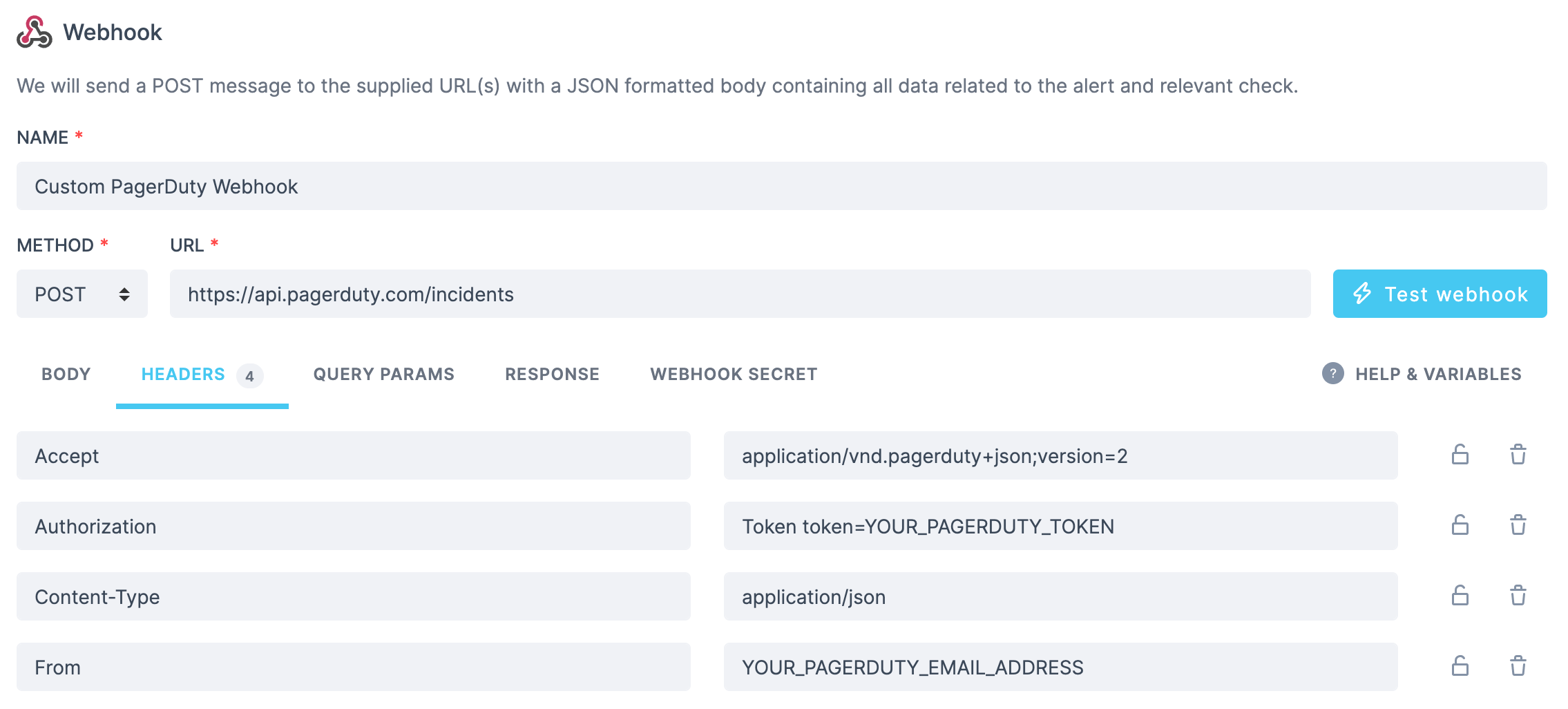
to `https://api.pagerduty.com/incidents`. You will need to set the following headers:
 ### Pushover
Send a message using [Pushover](https://pushover.net/) by posting this body:
```json theme={null}
{
"token":"YOUR_SECRET_TOKEN_FROM_PUSHOVER",
"user":"YOUR_USER_FROM_PUSHOVER",
"title":"{{ALERT_TITLE}}",
"html":1,
"priority":2,
"retry":30,
"expire":10800,
"message":"{{ALERT_TYPE}}
### Pushover
Send a message using [Pushover](https://pushover.net/) by posting this body:
```json theme={null}
{
"token":"YOUR_SECRET_TOKEN_FROM_PUSHOVER",
"user":"YOUR_USER_FROM_PUSHOVER",
"title":"{{ALERT_TITLE}}",
"html":1,
"priority":2,
"retry":30,
"expire":10800,
"message":"{{ALERT_TYPE}}
{{STARTED_AT}} ({{RESPONSE_TIME}}ms)
{{RESULT_LINK}}"
}
```
### Trello
You can create a [Trello](https://trello.com) card using just the URL and no payload:
```
https://api.trello.com/1/cards?idList=5b28c04aed47522097be8bc4&key={{TRELLO_KEY}}&token={{TRELLO_TOKEN}}&name={{CHECK_NAME}}
```
### SSL alert
You can send your SSL alerts using webhooks. Using the following body:
```json theme={null}
{
"message": "{{ALERT_TITLE}}",
"link":"{{RESULT_LINK}}"
}
```
Will yield the following output, where we customize the `ALERT_TITLE` to include the domain and the days remaining till your certificate expires.
```json theme={null}
{
"message": "The SSL certificate for api.checklyhq.com will expire in 14 days",
"link": "http://app-test.checklyhq.com/checks/08437f9c-df8c-45ed-975a-a3f9e24d626d"
}
```
### Twilio
You can configure a webhook to POST to a JavaScript snippet running in a [Twilio Function](https://www.twilio.com/docs/runtime/functions). This code receives the Checkly webhook JSON, then triggers a Twilio "Flow execution":
```javascript theme={null}
//"From" is the sender phone number
//"To" is the receiver phone number
exports.handler = async function (context, event, callback) {
const { From, To, Event, Link } = event;
const client = context.getTwilioClient();
try {
const execution = await client.studio.flows(FLOW_SID)
.executions
.create({ to: To, from: From, parameters: { Event, Link } })
console.log(`Created execution ${execution.sid}`);
return callback(null, "OK");
} catch (error) {
return callback(error);
}
};
```
### Jira
A webhook can be used to create a new issue on Jira via the [Jira API](https://developer.atlassian.com/cloud/jira/platform/rest/v3/intro/), for example in the case of a previously passing check that switches to failing state.
We will be creating a POST request to `{{JIRA_INSTANCE_URL}}/rest/api/3/issue`, where the content of your `JIRA_INSTANCE_URL` environment variable would look something like `https://your-jira-instance-name.atlassian.net`.
The required headers will be:
```bash theme={null}
Authorization: Basic
Accept: application/json
Content-Type: application/json
```
For more details on authenticating with the Jira API, refer to [Atlassian's guide on basic authentication](https://developer.atlassian.com/cloud/jira/software/basic-auth-for-rest-apis/).
An example body could look as follows:
```json theme={null}
{
"fields": {
"description": { // your Jira issue description, using Atlassian Document Format (ADF)
"version": 1,
"type": "doc",
"content": [
{
"type": "paragraph",
"content": [
{
"type": "text",
"text": "View check result",
"marks": [
{
"type": "link",
"attrs": {
"href": "{{RESULT_LINK}}"
}
}
]
}
]
}
]
},
"issuetype": {
"id": "10001" // your Jira issue type id
},
"labels": [
"needs_investigation"
],
"priority": { // dynamically set the issue priority, based on the check's tags
"id": {{#contains TAGS "P1"}} "1"
{{else}} {{#contains TAGS "P2"}} "2"
{{else}} {{#contains TAGS "P3"}} "3"
{{else}} {{#contains TAGS "P4"}} "4"
{{else}} {{#contains TAGS "P5"}} "5"
{{else}} "3"
{{/contains}} {{/contains}} {{/contains}} {{/contains}} {{/contains}}
},
"project": {
"key": "ABC" // your Jira project key
},
"summary": "{{ALERT_TITLE}}"
}
}
```
For full details on creating issues via the Jira API, see [Atlassian's documentation for this endpoint](https://developer.atlassian.com/cloud/jira/platform/rest/v3/api-group-issues/#api-rest-api-3-issue-post).
You can also use version 2 of the Jira API (i.e. `{{JIRA_INSTANCE_URL}}/rest/api/2/issue`). The only difference is that version 2 does not support [Atlassian Document Format (ADF)](https://developer.atlassian.com/cloud/jira/platform/apis/document/structure/).