> ## Documentation Index
> Fetch the complete documentation index at: https://www.checklyhq.com/docs/llms.txt
> Use this file to discover all available pages before exploring further.
# Integrating Checkly in Vercel
If you are using Vercel to develop, preview, and ship your application, you can natively integrate with Checkly by installing [the official integration](https://vercel.com/marketplace/checkly) from the Vercel Marketplace.
Checkly offers two integrations for Vercel users:
* Marketplace Integration, **for managing your Checkly account and users**. With the native integration, user access and billing is managed through Vercel. If you are new to Vercel's native integrations you can read more about them on the [Vercel documentation page](https://vercel.com/docs/integrations#native-integrations).
* Connected Integration, **to monitor your preview and production deployments**. The connected integration can be installed stand-alone or on top of the native integration and helps you by:
* Automatically creating a pre-scripted browser check to catch any errors and failed requests as your web page loads.
* Enabling you to run checks against preview and production deployments on Vercel.
Using Vercel deployment protection? Read [this section](/integrations/ci-cd/vercel/deployment-protection) on how to make this work with Checkly.
## Installing the Marketplace Integration
To install Checkly's managed Vercel integration, navigate to the [integration's marketplace listing](https://vercel.com/integrations/checkly) and click `Install`.
1. Select `Create new account` in the installation guide and click `Next` to accept the terms and conditions.
2. Select your plan type. You can read about our pricing plans [here](https://www.checklyhq.com/pricing/).
3. Name your account and review your plan selection. You can change your account name later.
4. Press `Create` to continue to the integration settings page. Select `Getting started` to go to the setup guide in Vercel. You can also click `Open in Checkly` to go through the Checkly + Vercel onboarding and get you started with an example project showcasing how to use Monitoring as Code together with Vercel. You can find the [example NextJS project on GitHub](https://github.com/checkly/nextjs-checkly-starter-template) which includes a guide on how to use Monitoring as Code with a NextJS project.
## Installing the connected integration
This integration has some [known limitations](/integrations/ci-cd/vercel/overview#limitations). We recommend using the [Checkly CLI](/cli/overview) in your CI/CD pipeline instead.
1. To install Checkly's connected Vercel integration, navigate to [Integrations](https://app.checklyhq.com/settings/account/integrations), under your account's dropdown menu and click the `Vercel marketplace` button, or go directly to the [integration listing on the Vercel marketplace](https://vercel.com/marketplace/checkly).
2. On the marketplace page for Checkly, click `Connect Account`.
3. Next, follow the installation wizard to grant the integration access to the right Vercel scope and projects.
4. You can choose to map your Vercel projects to existing checks on your Checkly account, to have them run on production and/or preview deployments.
5. Additionally, you can have new checks automatically generated for existing Vercel projects, and set them up to automatically run on preview and/or production deployments.
## Managing the connected integration
If you already have the connected Vercel integration set up, you might still want to connect new checks or groups. The procedure is the same for both: edit the check or group and select `Vercel` in the `Testing` tab, then select `Link Vercel project` and the project you want to link.
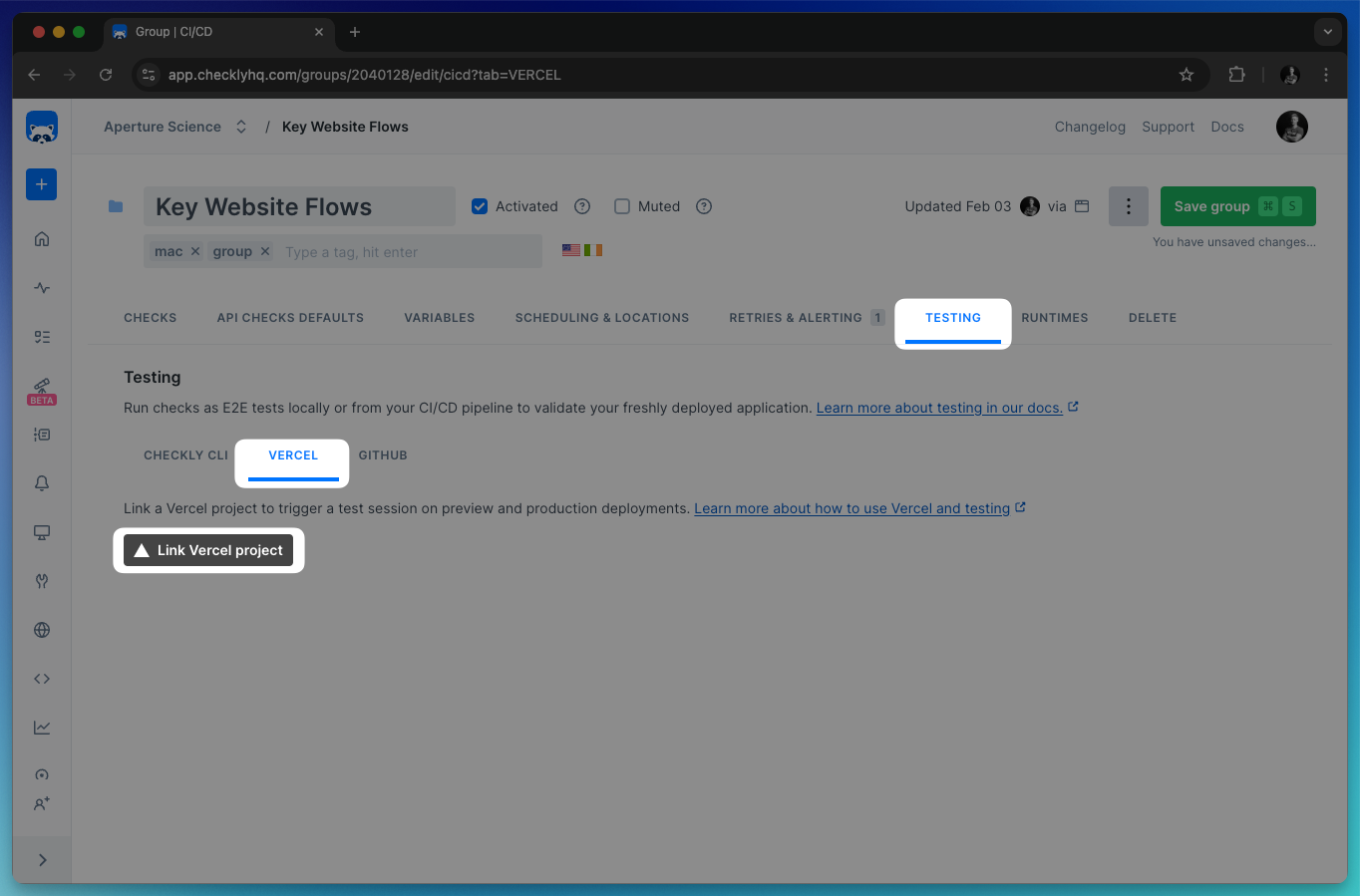 Once the project and the check/group have been linked, you are able to specify whether a new preview or production deployment should trigger a new execution. You will also have the chance to choose from which location this check will run.
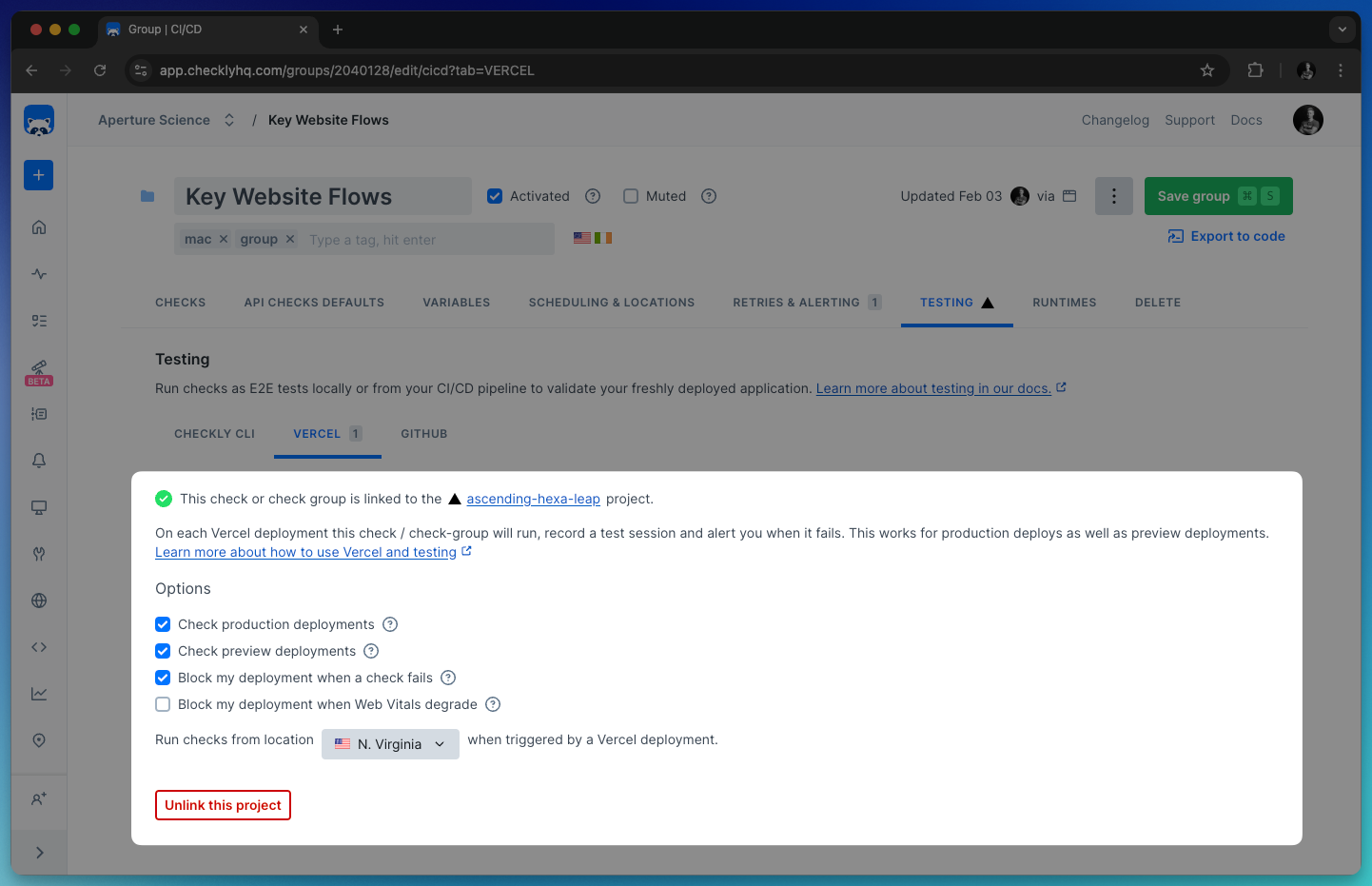 Should you wish to unlink the Vercel project, simply click `Unlink this project`.
### Targeting Preview deployments with `ENVIRONMENT_URL` and `ENVIRONMENT_NAME`
On each deployment triggered by Vercel, we inject the Checkly runtime with two variables:
1. `ENVIRONMENT_NAME`: This name is `preview` for preview deployments and `production` for production deployments.
2. `ENVIRONMENT_URL`: For **Preview deployments** this is the preview URL alias, e.g. `https://ecommerce-1wabp0sqy-acme.vercel.app`, for **Production deployments** it is the equivalent production URL alias.
3. `DEPLOYMENT_ID`: The unique deployment ID generated by Vercel.
You can access all these variables with the familiar `process.ENV` syntax.
### Browser checks
This means you can write a Browser check using Playwright Test or Playwright that automatically targets the Preview deploy whenever this URL is
available, but otherwise just defaults to the stable **production URL**.
Here is a full example that we use ourselves to monitor checklyhq.com which is actually also deployed to Vercel.
```typescript vercel.spec.ts theme={null}
import { expect, test } from '@playwright/test'
test('assert response status of page', async ({ page }) => {
const targetUrl = process.env.ENVIRONMENT_URL || 'https://www.checklyhq.com'
const response = await page.goto(targetUrl)
expect(response.status()).toBeLessThan(400)
})
```
```javascript vercel.spec.js theme={null}
const { expect, test } = require('@playwright/test')
test('assert response status of page', async ({ page }) => {
const targetUrl = process.env.ENVIRONMENT_URL || 'https://www.checklyhq.com'
const response = await page.goto(targetUrl)
expect(response.status()).toBeLessThan(400)
})
```
This way we are setting the `targetUrl` variable to either the `ENVIRONMENT_URL` or just our main production URL.
Whenever a **Preview** deploy happens on Vercel, this check gets called and runs the script against the preview environment. This check also runs on a 5 minute schedule, and checks our production environment.
This way, we kill two birds with one stone and don't need separate checks for separate environments.
### API checks
With API checks, we automatically replace the hostname part of your request URL with the host in the environment URL. For example:
* Your configured URL: [https://api.acme.com/v1/customers?page=1](https://api.acme.com/v1/customers?page=1)
* Environment URL: [https://now.customer-api.qis6va2z7.now.sh](https://now.customer-api.qis6va2z7.now.sh)
* Replaced URL: [https://now.customer-api.qis6va2z7.now.sh/v1/customers?page=1](https://now.customer-api.qis6va2z7.now.sh/v1/customers?page=1)
Notice we only replace the host part, not the URL path or any query parameters.
Just like for browser checks, the check will run on deploy against our preview environment, while also still running on a schedule against production.
### How Checkly checks maps to Vercel checks
Checkly integrates deeply with the Vercel [Checks functionality](https://vercel.com/docs/concepts/deployments/checks) API to link Checks in both tools.
Vercel uses a slightly different way in representing checks than Checkly does, specifically splitting individual check results into either:
1. **Reliability checks**
2. **Performance checks**
This is how a Checkly check maps to a Vercel check:
* **API checks** are always mapped 1:1 and marked as a **Reliability** check.
* **Browser checks** are split into a **Performance** and **Reliability** check, where the Performance part is populated with Web Vitals data\*.
* **Groups** of checks are "unfolded" in the Vercel user interface and all checks are shown individually.
\* *Web Vitals are only recorded for [Playwright-based Browser checks](/detect/synthetic-monitoring/browser-checks/performance-metrics#web-performance-vitals)*
### Blocking Vercel deployments
You can block your Vercel deployments if any of your checks fail or if the web vitals degrade:
1. **Block my deployment when a check fails** does what it says on the tin and only applies to Vercel **Reliability checks**.
2. **Block my deployment when Web Vitals degrade** is a bit special and only applies to Vercel **Performance checks** for our Browser checks.
This table will help you determine how blocking checks works. Note — again — that **Browser checks**, can fail a
Vercel deployment in two ways because the Reliability part and Performance part are evaluated separately.
| Checkly | Vercel | Blocking heuristic |
| ------------- | ----------------- | ------------------------------------------------------------------------------------------------------------------------------------------------------------------------------------------------------------ |
| API Check | Reliability Check | Blocks deployment when it fails due to > 399 HTTP response codes, assertions and other API check specific features. |
| Browser Check | Reliability Check | Blocks deployment when it fails due to > 399 HTTP response codes on the main HTML document, syntax errors in the script, or assertions using the `expect` or `assert` libraries in the browser check script. |
| | Performance Check | Blocks deployment when a degradation is registered in the aggregate **Virtual Experience Score** based on Web Vitals. Read below for more details. |
> Reliability and performance checks run against the [automatic deployment URL](https://vercel.com/docs/concepts/deployments/automatic-urls) Vercel generates. In case of failures or degradations, what *actually* gets blocked is the deployment to all other URLs, e.g. branch URLs and user-assigned domains.
### Virtual Experience Score & Web Vitals
Together with the team at Vercel, we developed the **Virtual Experience Score** (VES) that gives you one simple KPI to track.
The Virtual Experience Score does three things:
1. It aggregates your Web Vitals metrics into one number from 0 to 100, just like you might have seen with [Lighthouse scoring](https://web.dev/performance-scoring/).
2. It assigns a "weight" to each score, marking its impact on your UX.
3. It chops up the score into the top 10% (p10), the top 50% (median) and the rest.
In the table below you can see the exact numbers and their weight in the Virtual Experience Score.
| Web Vitals metrics | p10 / 90% | median / 50% | weight |
| ------------------ | --------- | ------------ | ------ |
| FCP | 934ms | 1600ms | 0.20 |
| LCP | 1200ms | 2400ms | 0.35 |
| TBT | 150ms | 350ms | 0.30 |
| CLS | 0.1 | 0.25 | 0.15 |
So, what does this mean for the blocking heuristics? It means that we will mark a check as **blocking** when:
1. A check reports web vitals, and...
2. The VES has degraded in relation to the last available **Production** deploy. Degraded means they passed the range threshold, i.e from **p10** to **median**.
For more info on the **Virtual Experience Score** [check the documentation on the Vercel site](https://vercel.com/docs/concepts/analytics/web-vitals#virtual-experience-score).
### Skipping Performance checks
In some cases, Checkly will completely skip performance checks. You will see the "skipped" status in your Vercel deployment overview.
Checkly skips performance checks when the domain of the visited URL in the script does not match the domain of the **deployment URL**. In 9 out of 10 cases this should be the URL for your Preview and Production deployments.
### Vercel-linked test session results
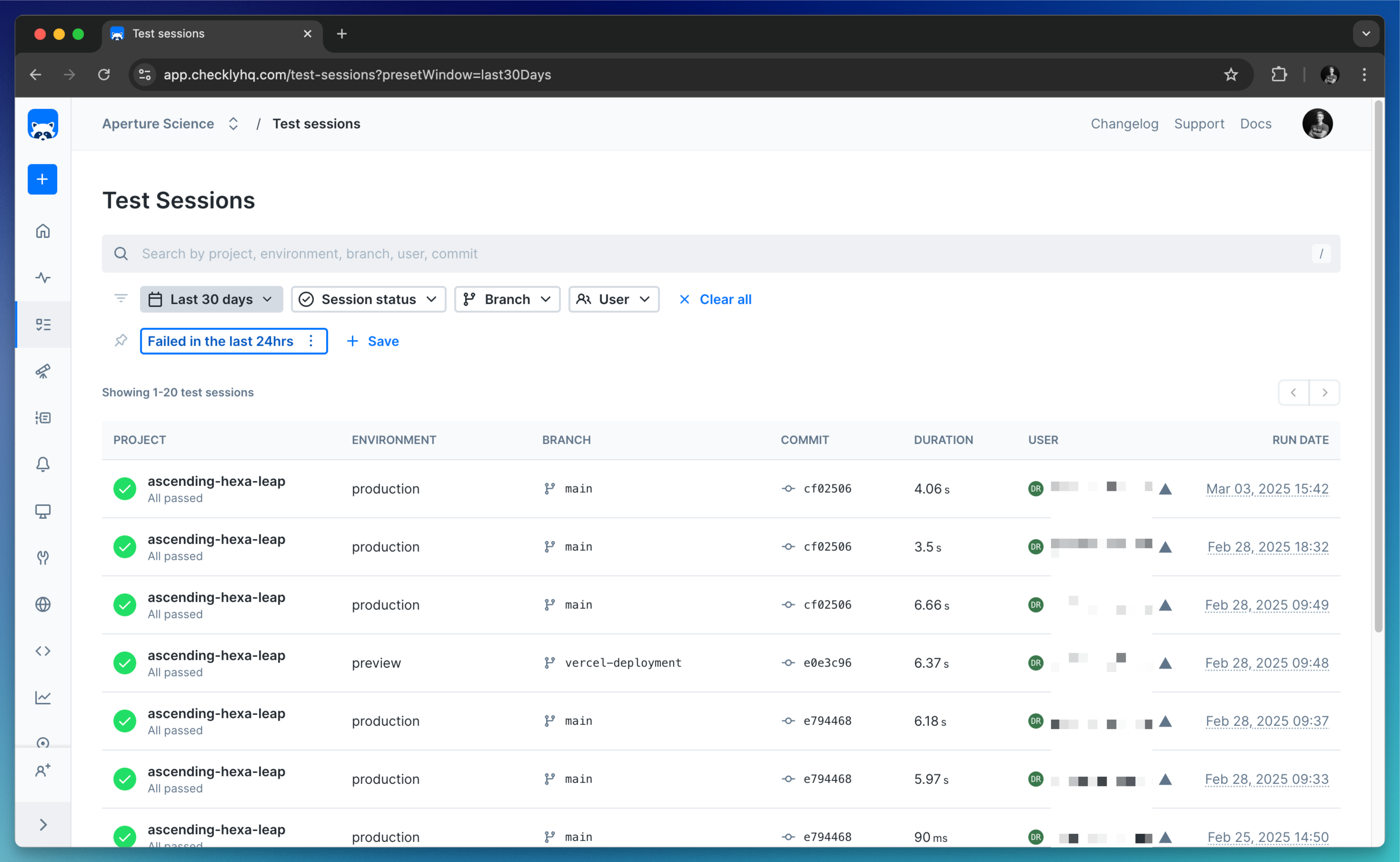
Any results triggered by a deployment can be viewed on the test sessions page in Checkly. Runs triggered by the Vercel integration have the Vercel logo next to the user name.
Should you wish to unlink the Vercel project, simply click `Unlink this project`.
### Targeting Preview deployments with `ENVIRONMENT_URL` and `ENVIRONMENT_NAME`
On each deployment triggered by Vercel, we inject the Checkly runtime with two variables:
1. `ENVIRONMENT_NAME`: This name is `preview` for preview deployments and `production` for production deployments.
2. `ENVIRONMENT_URL`: For **Preview deployments** this is the preview URL alias, e.g. `https://ecommerce-1wabp0sqy-acme.vercel.app`, for **Production deployments** it is the equivalent production URL alias.
3. `DEPLOYMENT_ID`: The unique deployment ID generated by Vercel.
You can access all these variables with the familiar `process.ENV` syntax.
### Browser checks
This means you can write a Browser check using Playwright Test or Playwright that automatically targets the Preview deploy whenever this URL is
available, but otherwise just defaults to the stable **production URL**.
Here is a full example that we use ourselves to monitor checklyhq.com which is actually also deployed to Vercel.
```typescript vercel.spec.ts theme={null}
import { expect, test } from '@playwright/test'
test('assert response status of page', async ({ page }) => {
const targetUrl = process.env.ENVIRONMENT_URL || 'https://www.checklyhq.com'
const response = await page.goto(targetUrl)
expect(response.status()).toBeLessThan(400)
})
```
```javascript vercel.spec.js theme={null}
const { expect, test } = require('@playwright/test')
test('assert response status of page', async ({ page }) => {
const targetUrl = process.env.ENVIRONMENT_URL || 'https://www.checklyhq.com'
const response = await page.goto(targetUrl)
expect(response.status()).toBeLessThan(400)
})
```
This way we are setting the `targetUrl` variable to either the `ENVIRONMENT_URL` or just our main production URL.
Whenever a **Preview** deploy happens on Vercel, this check gets called and runs the script against the preview environment. This check also runs on a 5 minute schedule, and checks our production environment.
This way, we kill two birds with one stone and don't need separate checks for separate environments.
### API checks
With API checks, we automatically replace the hostname part of your request URL with the host in the environment URL. For example:
* Your configured URL: [https://api.acme.com/v1/customers?page=1](https://api.acme.com/v1/customers?page=1)
* Environment URL: [https://now.customer-api.qis6va2z7.now.sh](https://now.customer-api.qis6va2z7.now.sh)
* Replaced URL: [https://now.customer-api.qis6va2z7.now.sh/v1/customers?page=1](https://now.customer-api.qis6va2z7.now.sh/v1/customers?page=1)
Notice we only replace the host part, not the URL path or any query parameters.
Just like for browser checks, the check will run on deploy against our preview environment, while also still running on a schedule against production.
### How Checkly checks maps to Vercel checks
Checkly integrates deeply with the Vercel [Checks functionality](https://vercel.com/docs/concepts/deployments/checks) API to link Checks in both tools.
Vercel uses a slightly different way in representing checks than Checkly does, specifically splitting individual check results into either:
1. **Reliability checks**
2. **Performance checks**
This is how a Checkly check maps to a Vercel check:
* **API checks** are always mapped 1:1 and marked as a **Reliability** check.
* **Browser checks** are split into a **Performance** and **Reliability** check, where the Performance part is populated with Web Vitals data\*.
* **Groups** of checks are "unfolded" in the Vercel user interface and all checks are shown individually.
\* *Web Vitals are only recorded for [Playwright-based Browser checks](/detect/synthetic-monitoring/browser-checks/performance-metrics#web-performance-vitals)*
### Blocking Vercel deployments
You can block your Vercel deployments if any of your checks fail or if the web vitals degrade:
1. **Block my deployment when a check fails** does what it says on the tin and only applies to Vercel **Reliability checks**.
2. **Block my deployment when Web Vitals degrade** is a bit special and only applies to Vercel **Performance checks** for our Browser checks.
This table will help you determine how blocking checks works. Note — again — that **Browser checks**, can fail a
Vercel deployment in two ways because the Reliability part and Performance part are evaluated separately.
| Checkly | Vercel | Blocking heuristic |
| ------------- | ----------------- | ------------------------------------------------------------------------------------------------------------------------------------------------------------------------------------------------------------ |
| API Check | Reliability Check | Blocks deployment when it fails due to > 399 HTTP response codes, assertions and other API check specific features. |
| Browser Check | Reliability Check | Blocks deployment when it fails due to > 399 HTTP response codes on the main HTML document, syntax errors in the script, or assertions using the `expect` or `assert` libraries in the browser check script. |
| | Performance Check | Blocks deployment when a degradation is registered in the aggregate **Virtual Experience Score** based on Web Vitals. Read below for more details. |
> Reliability and performance checks run against the [automatic deployment URL](https://vercel.com/docs/concepts/deployments/automatic-urls) Vercel generates. In case of failures or degradations, what *actually* gets blocked is the deployment to all other URLs, e.g. branch URLs and user-assigned domains.
### Virtual Experience Score & Web Vitals
Together with the team at Vercel, we developed the **Virtual Experience Score** (VES) that gives you one simple KPI to track.
The Virtual Experience Score does three things:
1. It aggregates your Web Vitals metrics into one number from 0 to 100, just like you might have seen with [Lighthouse scoring](https://web.dev/performance-scoring/).
2. It assigns a "weight" to each score, marking its impact on your UX.
3. It chops up the score into the top 10% (p10), the top 50% (median) and the rest.
In the table below you can see the exact numbers and their weight in the Virtual Experience Score.
| Web Vitals metrics | p10 / 90% | median / 50% | weight |
| ------------------ | --------- | ------------ | ------ |
| FCP | 934ms | 1600ms | 0.20 |
| LCP | 1200ms | 2400ms | 0.35 |
| TBT | 150ms | 350ms | 0.30 |
| CLS | 0.1 | 0.25 | 0.15 |
So, what does this mean for the blocking heuristics? It means that we will mark a check as **blocking** when:
1. A check reports web vitals, and...
2. The VES has degraded in relation to the last available **Production** deploy. Degraded means they passed the range threshold, i.e from **p10** to **median**.
For more info on the **Virtual Experience Score** [check the documentation on the Vercel site](https://vercel.com/docs/concepts/analytics/web-vitals#virtual-experience-score).
### Skipping Performance checks
In some cases, Checkly will completely skip performance checks. You will see the "skipped" status in your Vercel deployment overview.
Checkly skips performance checks when the domain of the visited URL in the script does not match the domain of the **deployment URL**. In 9 out of 10 cases this should be the URL for your Preview and Production deployments.
### Vercel-linked test session results
Any results triggered by a deployment can be viewed on the test sessions page in Checkly. Runs triggered by the Vercel integration have the Vercel logo next to the user name.
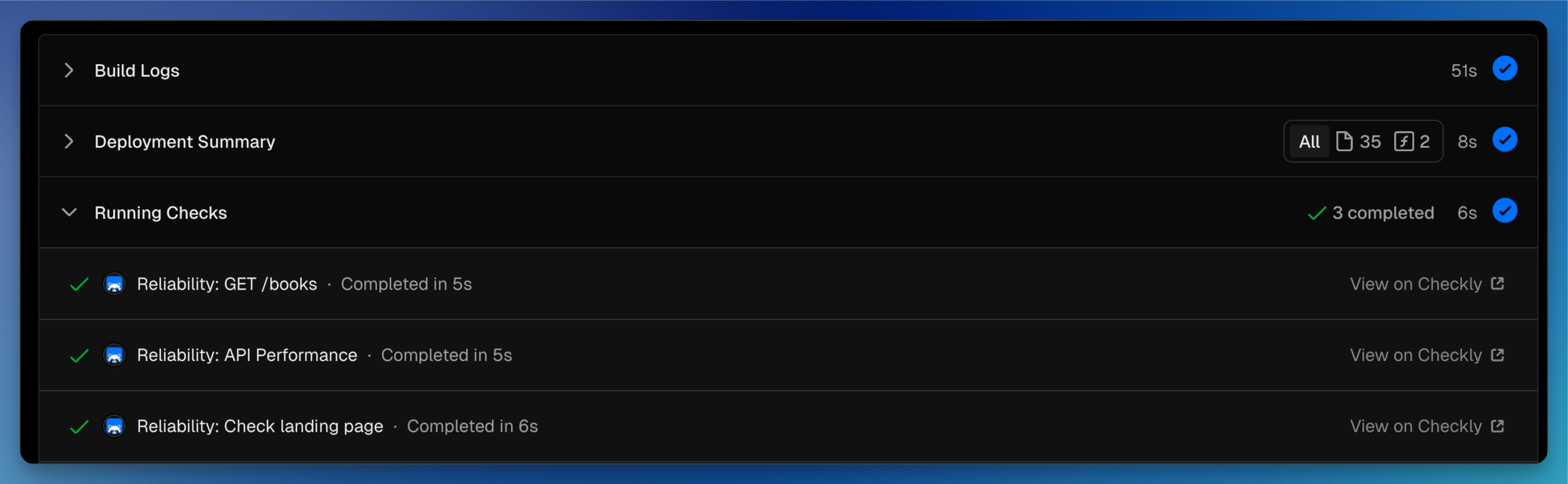
 On Vercel, you will also see a breakdown of checks that were executed on a given deployment, together with a breakdown of various key web vitals.
 ### Limitations
The Vercel connected integration lacks support for several features:
* Client certificates are not applied.
* OpenTelemetry integration headers are not applied.
* Private locations are not available.
As an alternative, we recommend using the [Checkly CLI](/cli/overview) in your CI/CD pipeline. The CLI is much more powerful and fully supported.
### Limitations
The Vercel connected integration lacks support for several features:
* Client certificates are not applied.
* OpenTelemetry integration headers are not applied.
* Private locations are not available.
As an alternative, we recommend using the [Checkly CLI](/cli/overview) in your CI/CD pipeline. The CLI is much more powerful and fully supported.