> ## Documentation Index
> Fetch the complete documentation index at: https://www.checklyhq.com/docs/llms.txt
> Use this file to discover all available pages before exploring further.
# Send Alerts to PagerDuty
> Learn how Checkly integrates seamlessly with PagerDuty, delivering real-time failure and recovery alerts to your PagerDuty account
**Using environment variables and secrets in this channel's config**
Any literal-secret field in this alert channel — webhook URL, API key, bearer token, service key, etc. — accepts a [variable](/docs/platform/variables) or [secret](/docs/platform/secrets) reference using the familiar Handlebars syntax: `{{MY_VARIABLE}}`.
You can also promote a value to a secret directly from the field: type the literal value, click the lock icon next to the input, and choose a name. The value is stored as an encrypted account secret and is never re-displayed in the UI.
The PagerDuty channel's `serviceKey` (integration key) accepts environment-variable references — e.g. `{{PAGERDUTY_SERVICE_KEY}}` — so you can store the integration key as an account secret instead of inline in the channel config.
Checkly integrates with [Pagerduty](https://pagerduty.com) and can deliver all failure and recovery events
to your Pagerduty account. After setting up the integration, Checkly will:
1. Trigger alerts in Pagerduty when a check fails.
2. Resolve alerts when a check recovers.
Setup is as simple as following the three-step Pagerduty connect process. You can add as many Pagerduty channels as
you wish.
1. Navigate to the **alert settings** tab on the account screen and click the 'Add channels' button.
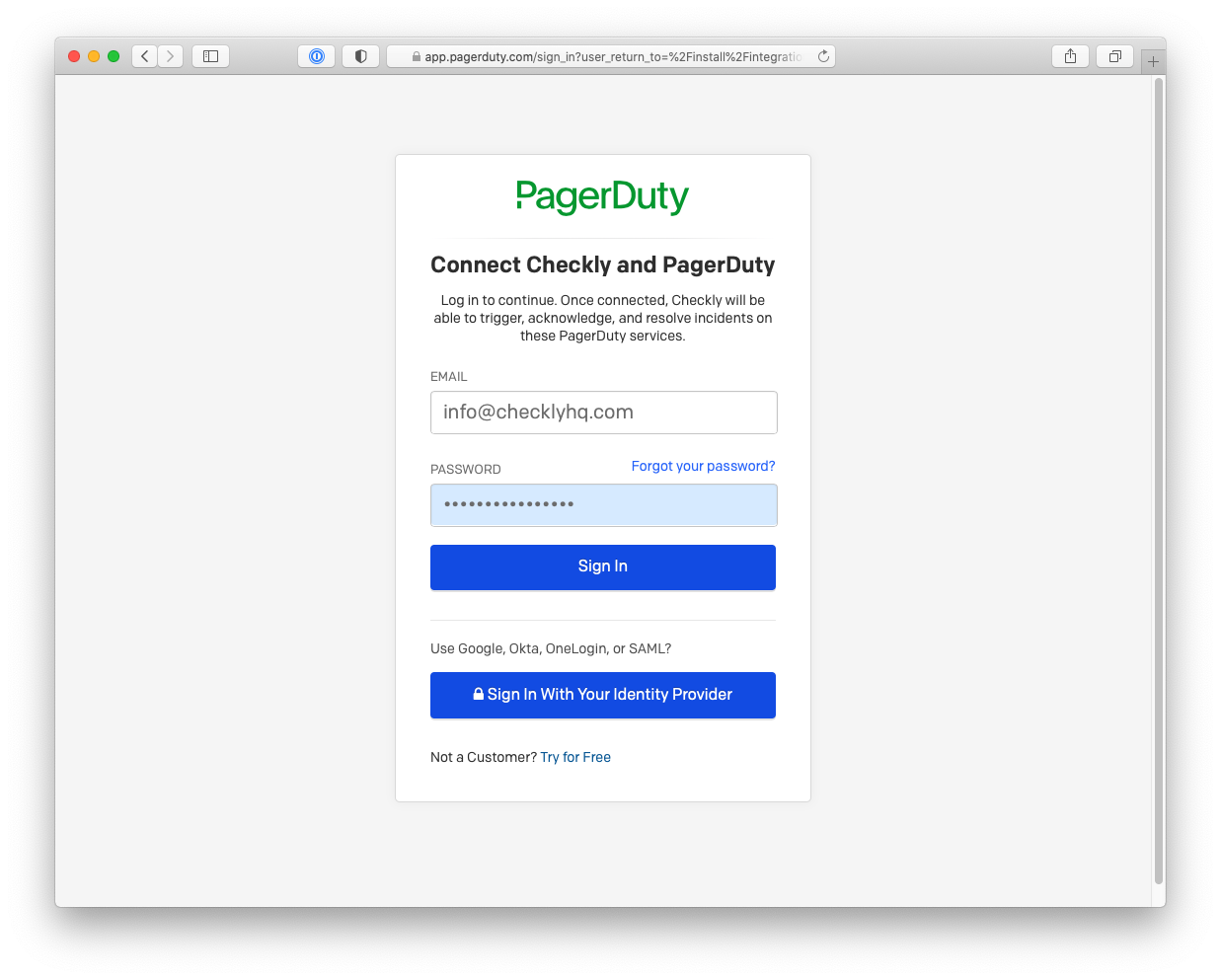
 2. Clicking the **Alert with Pagerduty** button will take you to a Pagerduty Connect screen. Provide your credentials and click
**Sign In** to allow Checkly to connect with Pagerduty.
2. Clicking the **Alert with Pagerduty** button will take you to a Pagerduty Connect screen. Provide your credentials and click
**Sign In** to allow Checkly to connect with Pagerduty.
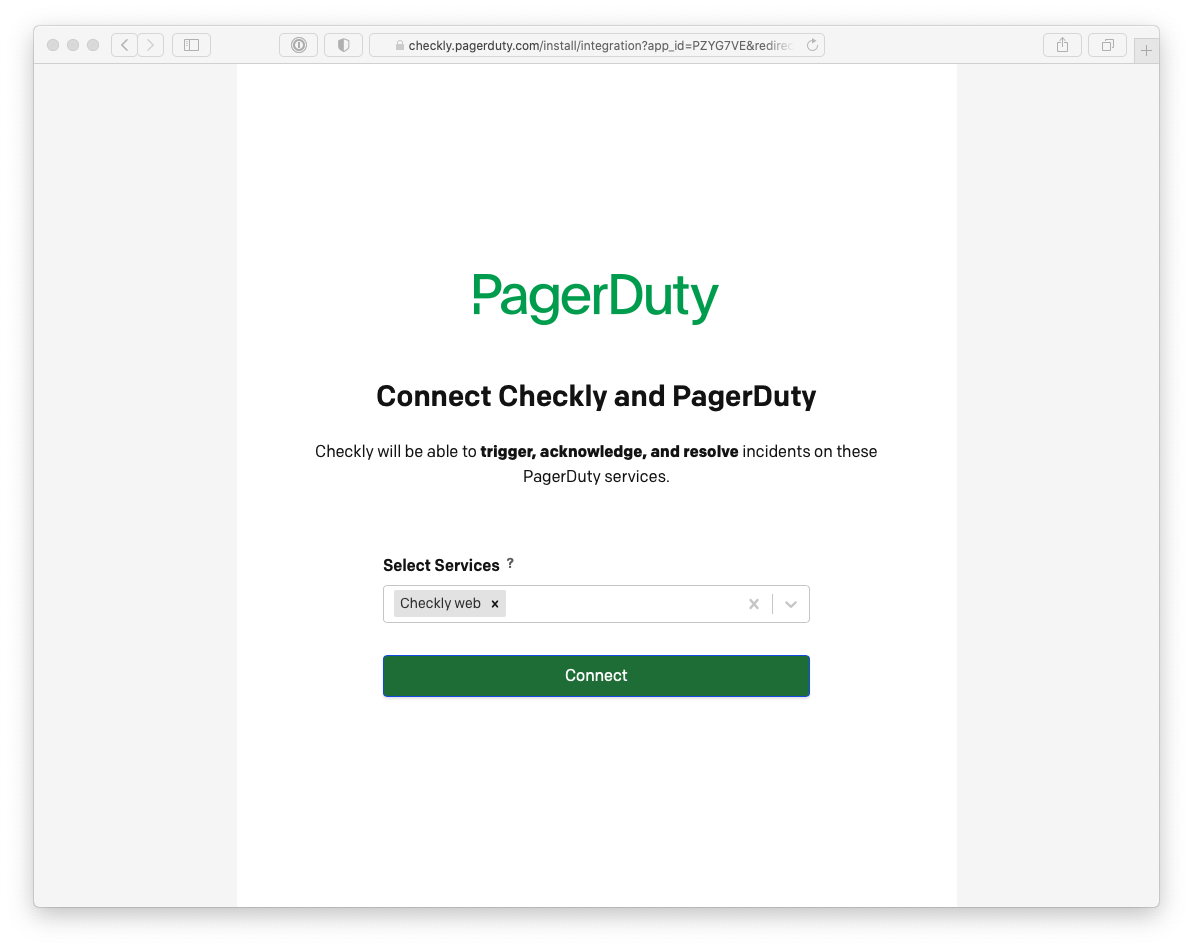
 3. On the next screen you can hook up Checkly to one or more existing services. If you select multiple services, we will
create multiple dedicated channels so you have more flexibility of muting, editing and managing the channels.
Click **Connect** to save your settings and redirect you back to Checkly.
3. On the next screen you can hook up Checkly to one or more existing services. If you select multiple services, we will
create multiple dedicated channels so you have more flexibility of muting, editing and managing the channels.
Click **Connect** to save your settings and redirect you back to Checkly.
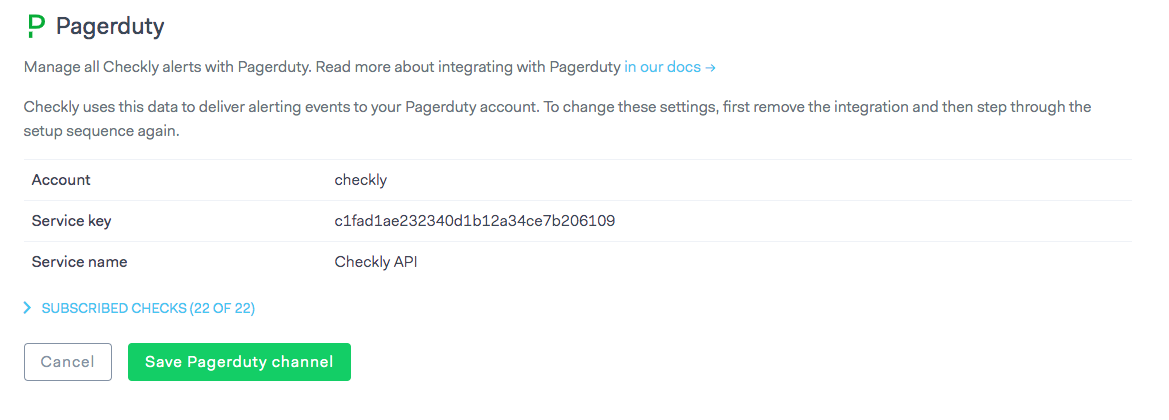
 4. Back in Checkly, you should see your Pagerduty **integration credentials** reflected in the alert settings. Don't forget
to hit **Save Pagerduty channel**.
4. Back in Checkly, you should see your Pagerduty **integration credentials** reflected in the alert settings. Don't forget
to hit **Save Pagerduty channel**.
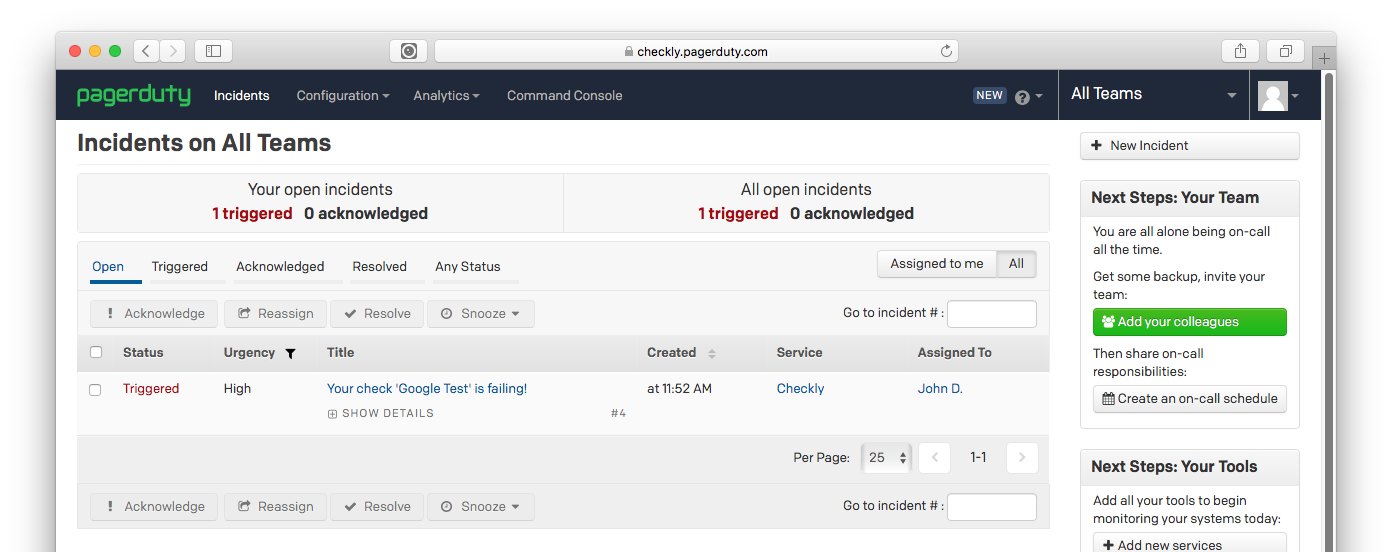
 5. Checkly will trigger an incident in Pagerduty when checks fail and also mark them as resolved when the checks are passing again.
 ## Advanced PagerDuty Configuration
### PagerDuty Alert Mapping
Configure how Checkly alerts map to PagerDuty incidents:
```yaml theme={null}
PagerDuty Configuration:
Service: Production Monitoring
Integration Type: Events API v2
Alert Mapping:
ALERT_FAILURE → Critical Incident
ALERT_DEGRADED → Warning Incident
ALERT_RECOVERY → Resolve Incident
Incident Details:
Title: "{{ALERT_TITLE}}"
Description: "Check {{CHECK_NAME}} from {{RUN_LOCATION}}"
Severity: Based on check tags and alert type
Component: Derived from check name or group
Custom Fields:
- Response Time: {{RESPONSE_TIME}}ms
- Check ID: {{CHECK_ID}}
- Location: {{RUN_LOCATION}}
```
### Advanced PagerDuty Features
Leverage PagerDuty's advanced incident management capabilities:
```json theme={null}
{
"incident": {
"type": "incident",
"title": "{{ALERT_TITLE}}",
"service": {
"id": "P123ABC",
"type": "service_reference"
},
"priority": {
"id": "{{#contains TAGS 'critical'}}P1{{else}}P2{{/contains}}",
"type": "priority_reference"
},
"body": {
"type": "incident_body",
"details": "Check {{CHECK_NAME}} failed from {{RUN_LOCATION}}.\n\nResponse Time: {{RESPONSE_TIME}}ms\nError: {{CHECK_ERROR_MESSAGE}}\n\nView details: {{RESULT_LINK}}"
},
"escalation_policy": {
"id": "{{#contains CHECK_NAME 'payment'}}P456DEF{{else}}P789GHI{{/contains}}",
"type": "escalation_policy_reference"
}
}
}
```
### PagerDuty Best Practices
* **Service Organization**: Create separate PagerDuty services for different applications or teams
* **Escalation Policies**: Set up appropriate escalation chains based on check criticality
* **Priority Mapping**: Use check tags to automatically assign appropriate incident priorities
* **Integration Keys**: Use different integration keys for different environments (production, staging)
* **Custom Fields**: Include relevant context like response times, error messages, and check locations
## Advanced PagerDuty Configuration
### PagerDuty Alert Mapping
Configure how Checkly alerts map to PagerDuty incidents:
```yaml theme={null}
PagerDuty Configuration:
Service: Production Monitoring
Integration Type: Events API v2
Alert Mapping:
ALERT_FAILURE → Critical Incident
ALERT_DEGRADED → Warning Incident
ALERT_RECOVERY → Resolve Incident
Incident Details:
Title: "{{ALERT_TITLE}}"
Description: "Check {{CHECK_NAME}} from {{RUN_LOCATION}}"
Severity: Based on check tags and alert type
Component: Derived from check name or group
Custom Fields:
- Response Time: {{RESPONSE_TIME}}ms
- Check ID: {{CHECK_ID}}
- Location: {{RUN_LOCATION}}
```
### Advanced PagerDuty Features
Leverage PagerDuty's advanced incident management capabilities:
```json theme={null}
{
"incident": {
"type": "incident",
"title": "{{ALERT_TITLE}}",
"service": {
"id": "P123ABC",
"type": "service_reference"
},
"priority": {
"id": "{{#contains TAGS 'critical'}}P1{{else}}P2{{/contains}}",
"type": "priority_reference"
},
"body": {
"type": "incident_body",
"details": "Check {{CHECK_NAME}} failed from {{RUN_LOCATION}}.\n\nResponse Time: {{RESPONSE_TIME}}ms\nError: {{CHECK_ERROR_MESSAGE}}\n\nView details: {{RESULT_LINK}}"
},
"escalation_policy": {
"id": "{{#contains CHECK_NAME 'payment'}}P456DEF{{else}}P789GHI{{/contains}}",
"type": "escalation_policy_reference"
}
}
}
```
### PagerDuty Best Practices
* **Service Organization**: Create separate PagerDuty services for different applications or teams
* **Escalation Policies**: Set up appropriate escalation chains based on check criticality
* **Priority Mapping**: Use check tags to automatically assign appropriate incident priorities
* **Integration Keys**: Use different integration keys for different environments (production, staging)
* **Custom Fields**: Include relevant context like response times, error messages, and check locations