> ## Documentation Index
> Fetch the complete documentation index at: https://checklyhq.com/docs/llms.txt
> Use this file to discover all available pages before exploring further.

# Playwright Debugging - Techniques for Script Troubleshooting

<Tip>
  If you're using Playwright for end-to-end testing, you should check out [Playwright Check Suites](/detect/synthetic-monitoring/playwright-checks/overview) and start testing in production.
</Tip>

Understanding why a script does not work as expected and finding the failure root cause are automation key skills. Given its importance and its sometimes deceptive complexity, debugging is a topic that should receive quite some attention.

This article will explore basic concepts and tools to point beginners in the right direction.

## Awareness comes first

Script debugging is firstly about observing and understanding. Finding out what is causing the failure (or misbehaviour) in your execution heavily depends on your knowledge of:

1. What the script you are looking at is *supposed* to do
2. How the application the script is running against is supposed to behave at each step of the script

When approaching a debugging session, make sure the above points are taken care of. Skipping this step is way more likely to cost you additional time than it is to save you any.

## The error message

Error messages are not present in every scenario: we might be trying to understand why a script *passes*, or why it takes longer than expected. But when we have access to an error message, we can use it to guide us.

The error, in and of its own, is not always enough to understand what is going wrong with your script. Oftentimes, there can be multiple degrees of separation between the error and its root cause. For example: an ["Element not found"](/learn/playwright/error-element-not-found/) error might be alerting you to the fact that an element is not being found on the page, but that itself might be because the browser was made to load the wrong URL in the first place.

Do not fall into the easy trap of reading the error message and immediately jumping to conclusions. Rather, take the error message, research it if needed, combine it with your [knowledge of script and app under test](#awareness-comes-first) and treat it as the first piece to the puzzle, rather than the point of arrival of your investigation.

> Good knowledge of the automation tool you are using will also help add more context to the error message itself.

## Gaining visibility

Given that Headless browser scripts will run without a GUI, a visual assessment of the state of the application needs additional steps.

One possibility is to adding screenshots in specific parts of the script, to validate our assumptions on what might be happening at a given moment of the execution. For example, before and after a problematic click or page transition:

```js theme={null}
...
await page.screenshot({ path: 'before_click.png' })
await page.click('#button')
await page.screenshot({ path: 'after_click.png' })
...
```

Another way to better observe our script's execution is to run in headful mode:

```js theme={null}
...
const browser = await chromium.launch({ headless: false, slowMo: 20 })
...
```

We can then tweak the `slowMo` option, which adds a delay in milliseconds between interactions, to make sure the execution is not too fast for us to follow.

## Increasing logging

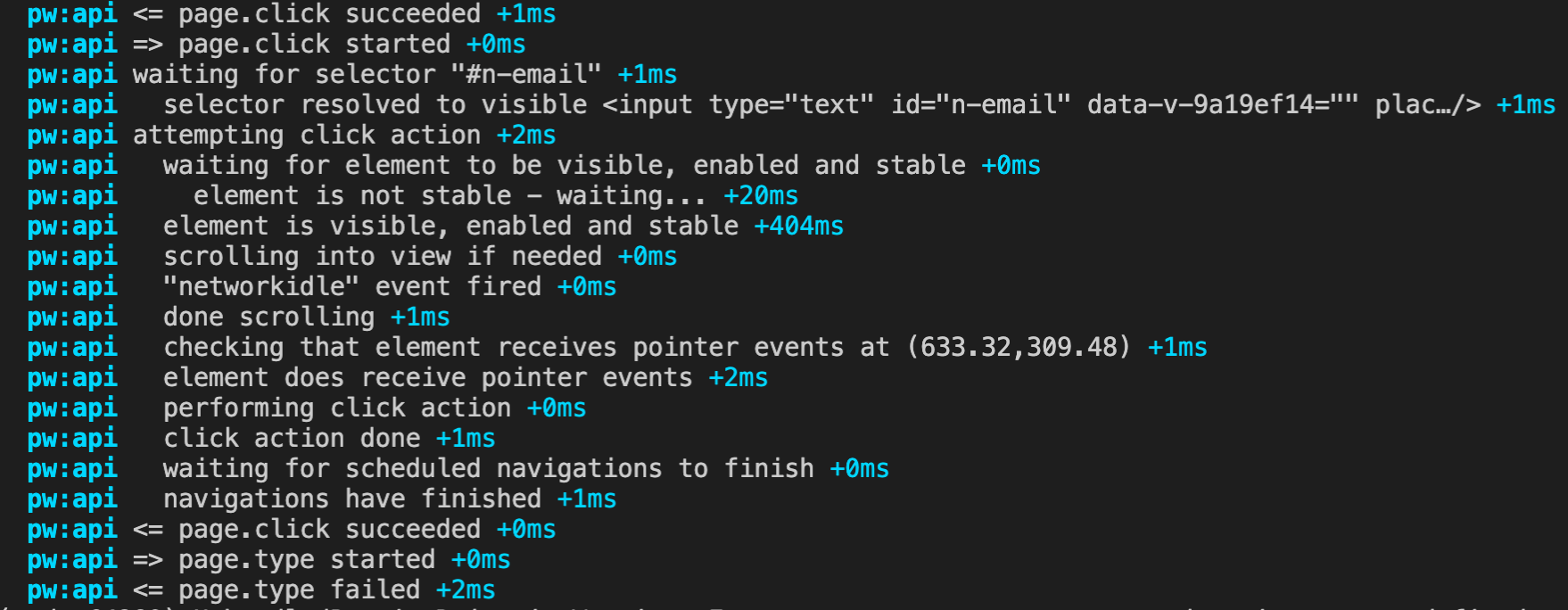
Sometimes we need to try and see the execution through our automation tool's eyes. Added logging can help by taking us step-by-step through every command as it is executed.

```shell theme={null}
DEBUG=pw:api node script.js
```

<img src="https://mintcdn.com/checkly-422f444a/PFNKka5JJJWLiGJ7/images/samples/images/debugging-logging.png?fit=max&auto=format&n=PFNKka5JJJWLiGJ7&q=85&s=d6827b430356368c02f8074a8314e6e6" alt="verbose playwright logs" width="1758" height="684" data-path="images/samples/images/debugging-logging.png" />

## Accessing DevTools

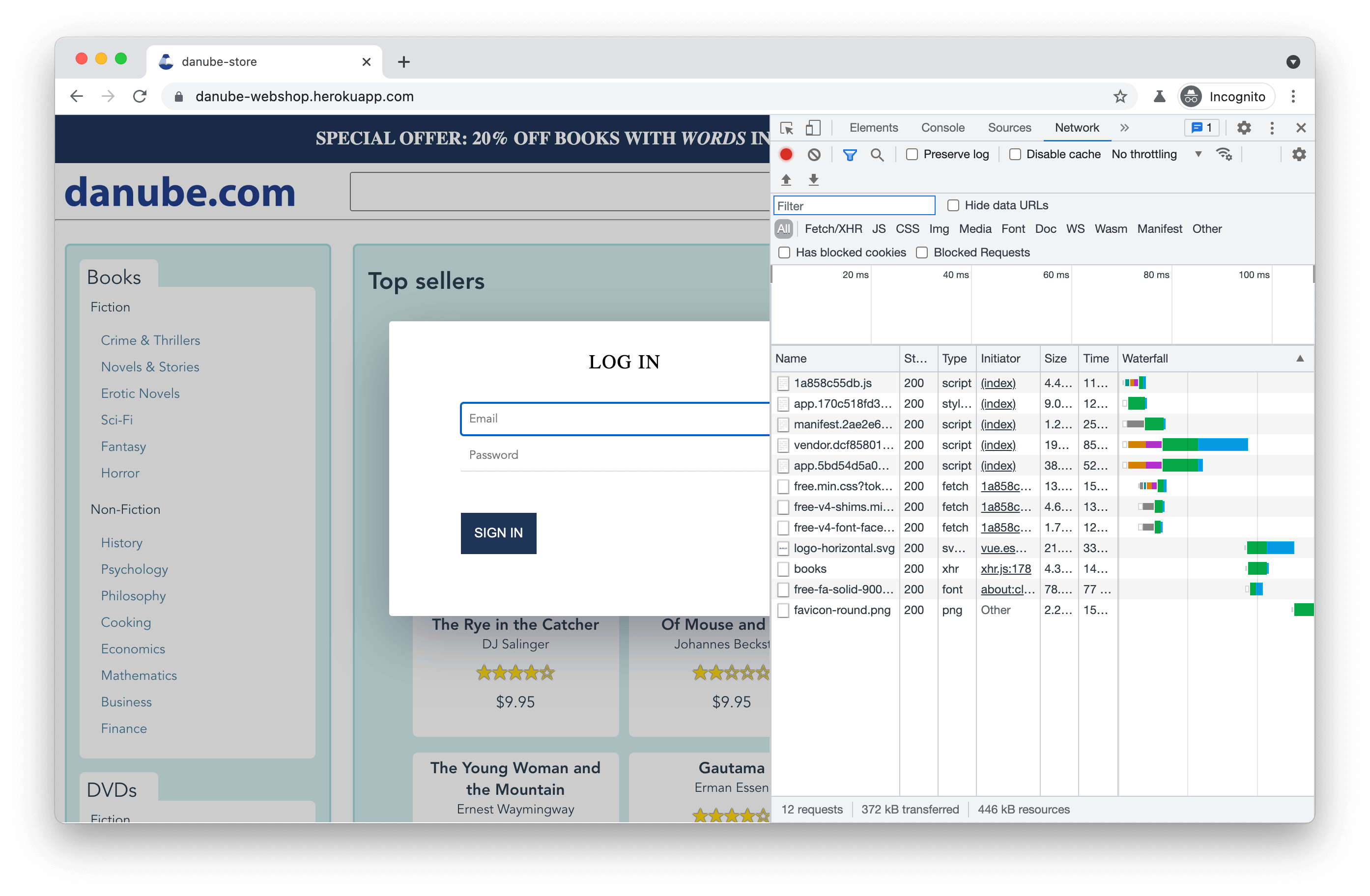
A wealth of information is available through the Chrome Developer Tools. We can configure our browser to start with the DevTools tab already open (this will automatically disable headless mode), which can be helpful when something is not working as expected. Careful inspection of the Console, Network and other tabs can reveal hidden errors and other important findings.

<img src="https://mintcdn.com/checkly-422f444a/PFNKka5JJJWLiGJ7/images/samples/images/debugging-devtools.png?fit=max&auto=format&n=PFNKka5JJJWLiGJ7&q=85&s=7092ec7edf62c0f97430313483f03052" alt="debugging with chrome devtools" width="2788" height="1824" data-path="images/samples/images/debugging-devtools.png" />

```js theme={null}
...
await chromium.launch({ devtools: true })
...
```

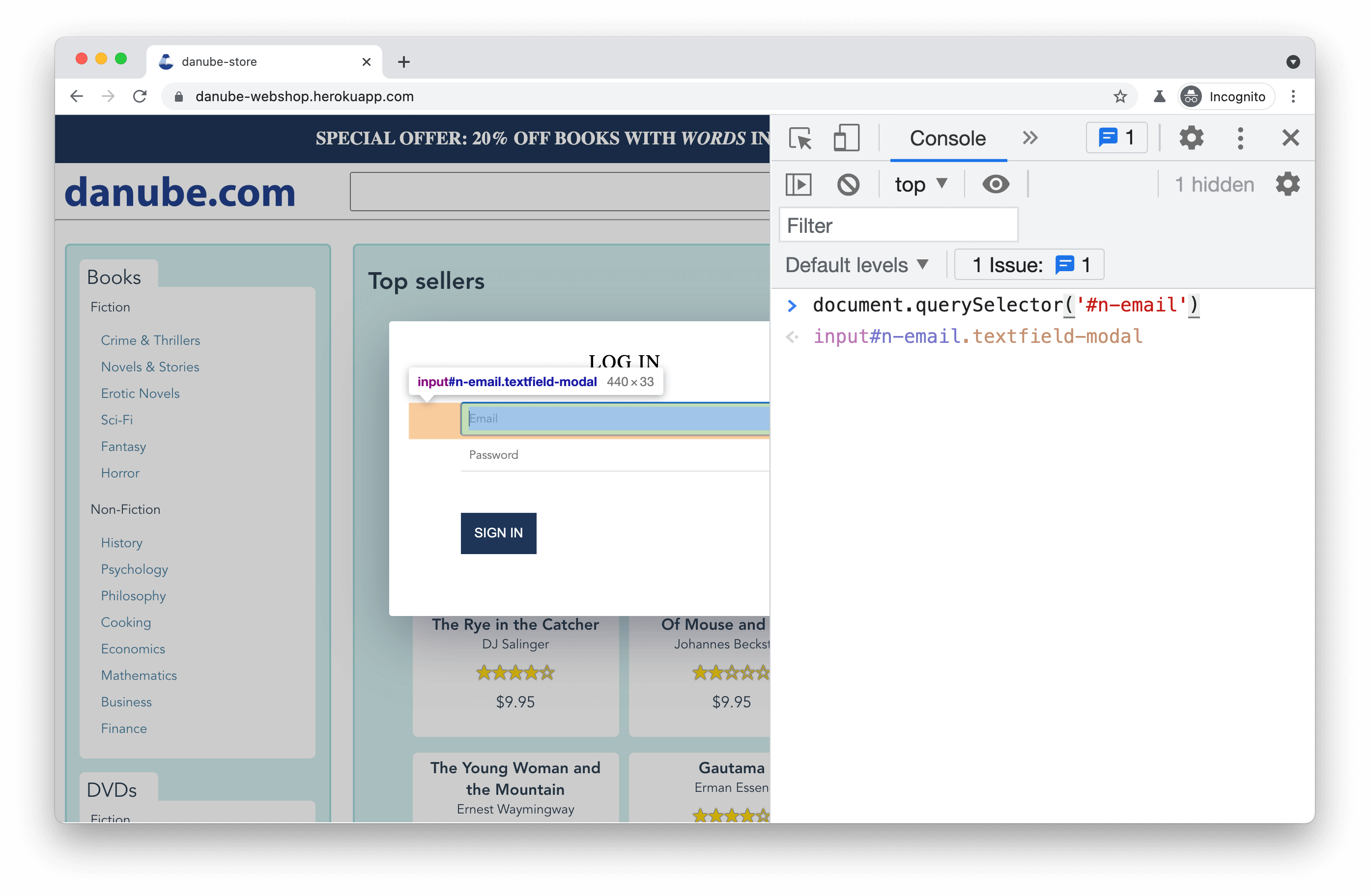
We can also use the console to directly try out a selector on the page in its current state, e.g. with `document.querySelector` or `document.querySelectorAll`.

<img src="https://mintcdn.com/checkly-422f444a/PFNKka5JJJWLiGJ7/images/samples/images/debugging-console.png?fit=max&auto=format&n=PFNKka5JJJWLiGJ7&q=85&s=da89f6ad3866db56e4fc5b0b79654b08" alt="debugging selectors in browser console" width="2788" height="1824" data-path="images/samples/images/debugging-console.png" />

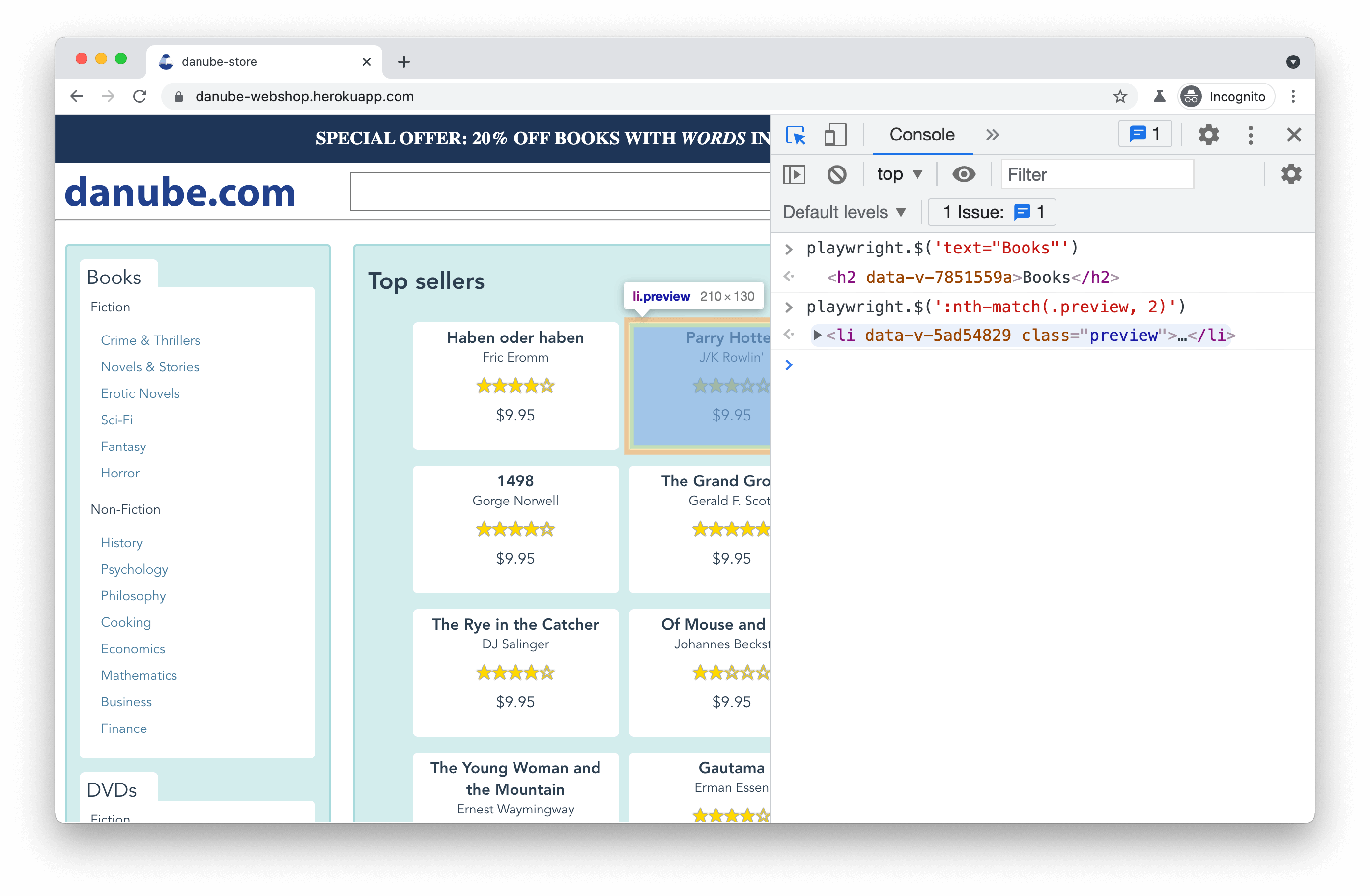
If we are using Playwright, we can also run in debug mode with `PWDEBUG=console node script.js`. This provisions a `playwright` object in the browser which allows us to also try out [Playwright-specific selectors](https://playwright.dev/docs/selectors).

<img src="https://mintcdn.com/checkly-422f444a/PFNKka5JJJWLiGJ7/images/samples/images/debugging-selectors.png?fit=max&auto=format&n=PFNKka5JJJWLiGJ7&q=85&s=d5ed594a6bf3691236ce5d957347a806" alt="debugging playwright-specific selectors in browser console" width="2788" height="1824" data-path="images/samples/images/debugging-selectors.png" />

## The Playwright Inspector

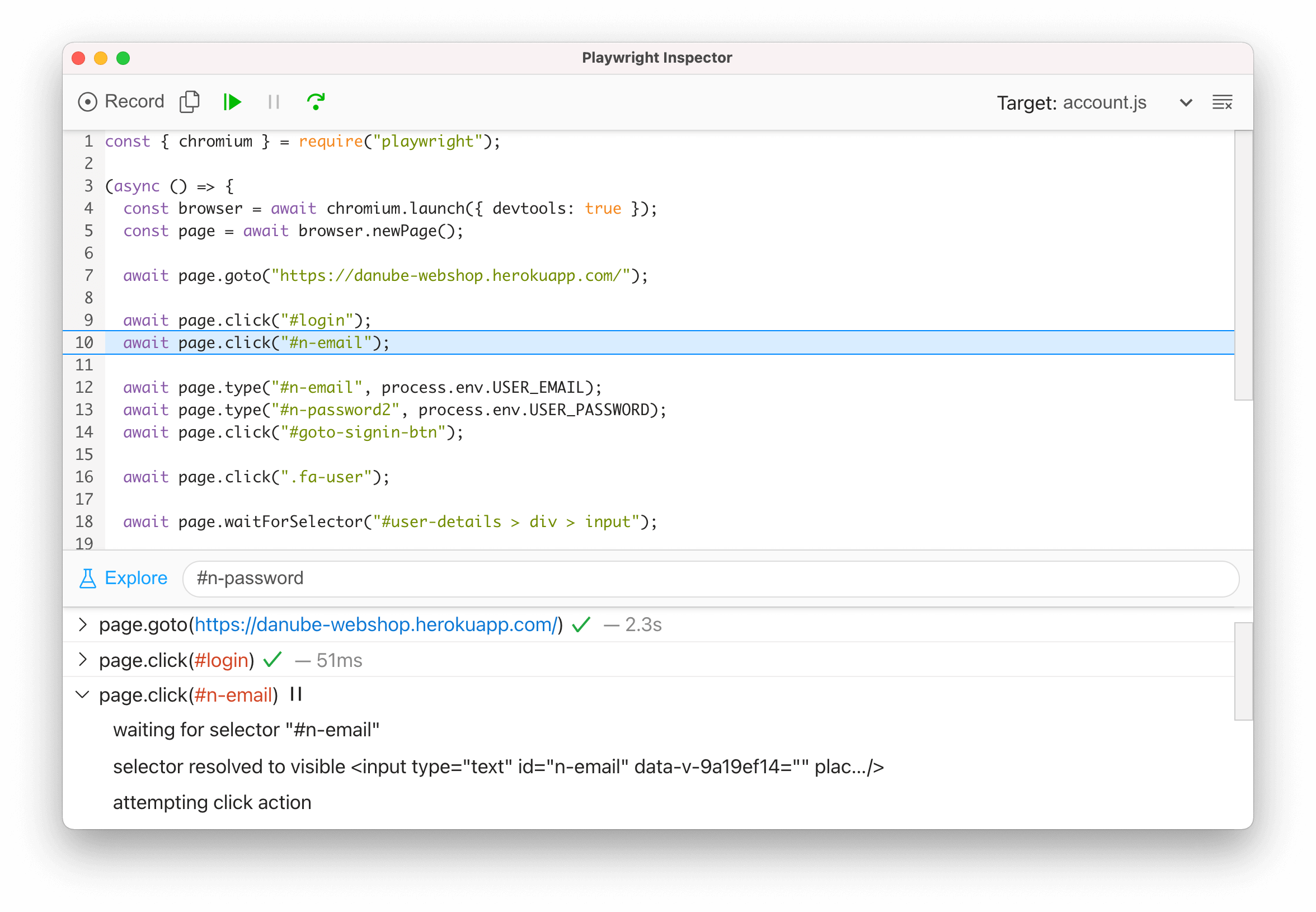
The Playwright Inspector is a GUI tool which exposes additional debugging functionality, and can be launched using `PWDEBUG=1 npm run test`.

The Inspector allows us to easily step through each instruction of our script, while giving us clear information on the duration, outcome, and functioning of each. This can be helpful in [getting to the root cause](/learn/playwright/debugging-errors/) of some of the more generic errors.

<img src="https://mintcdn.com/checkly-422f444a/PFNKka5JJJWLiGJ7/images/samples/images/debugging-inspector.png?fit=max&auto=format&n=PFNKka5JJJWLiGJ7&q=85&s=45cb02ce2518f82f0ed533ca716886b1" alt="playwright inspector debugging" width="2352" height="1630" data-path="images/samples/images/debugging-inspector.png" />

> The Inspector includes additional handy features such as selector generation and debugging, as well as script recording.

## Further reading

1. [Debugging challenges](/learn/playwright/debugging-errors/)
2. [Working with selectors](/learn/playwright/selectors/)

<div className="relative rounded-lg p-6 my-4 bg-gradient-to-b from-[#0c449a] to-[#062047] text-white">
  <div className="text-xl font-bold text-balance mb-1">
    Bugs don't stop at CI/CD. Why would Playwright? <img className="my-auto inline-block w-8 h-8 align-middle -mt-1" src="https://mintcdn.com/checkly-422f444a/EbiaOE1oHX_3_YEg/images/icons/playwright.svg?fit=max&auto=format&n=EbiaOE1oHX_3_YEg&q=85&s=7a281b91e55b4aa6c01bbb63be50402c" alt="Playwright logo" noZoom width="256" height="192" data-path="images/icons/playwright.svg" />

  </div>

  <div className="text-slate-200">
    <a href="https://app.checklyhq.com/signup" target="_blank" className="text-inherit before:content-[''] before:absolute before:inset-0">Sign up</a> and start using Playwright for end-to-end monitoring with Checkly.
  </div>
</div>