> ## Documentation Index
> Fetch the complete documentation index at: https://checklyhq.com/docs/llms.txt
> Use this file to discover all available pages before exploring further.

# Playwright Web Scraping - How to Extract Data from Websites

<Tip>
  If you're using Playwright for end-to-end testing, you should check out [Playwright Check Suites](/detect/synthetic-monitoring/playwright-checks/overview) and start testing in production.
</Tip>

We call the action of extracting data from web pages *web scraping*. Scraping is useful for a variety of use cases:

1. In testing and monitoring, asserting against the state of one or more elements on a page.
2. In general, gathering data for a variety of different purposes.

You can use Playwright as a library to scrape data from web pages, without also using Playwright for testing.

## Scraping element attributes & properties

Below is an example running against our [test site](https://danube-web.shop/), getting and printing out the `href` attribute of the first `a` element on the homepage.
That just happens to be our logo, which links right back to our homepage, and therefore will have an `href` value equal to the URL we navigate to using `page.goto()`:

```js title="basic-get-href-value.js" theme={null}
// Example code for getting href attribute
const { chromium } = require('playwright');

(async () => {
  const browser = await chromium.launch();
  const page = await browser.newPage();
  await page.goto('https://danube-web.shop/');

  const href = await page.getAttribute('a', 'href');
  console.log('First link href:', href);

  await browser.close();
})();
```

As an alternative, it is also possible to retrieve an [ElementHandle](https://playwright.dev/docs/api/class-elementhandle) and then retrieve a property value from it. Following is an example printing the `href` value of the first `a` element of our homepage:

```js title="basic-get-href-handle.js" theme={null}
// Example code for getting href using element handle
const { chromium } = require('playwright');

(async () => {
  const browser = await chromium.launch();
  const page = await browser.newPage();
  await page.goto('https://danube-web.shop/');

  const element = await page.$('a');
  const href = await element.getAttribute('href');
  console.log('First link href:', href);

  await browser.close();
})();
```

> The `innerText` property is often used in tests to assert that some element on the page contains the expected text.

## Scraping lists of elements

Scraping element lists is just as easy. For example, let's grab the `innerText` of each product category shown on the homepage:

```js title="basic-get-text-values.js" theme={null}
// Example code for getting text values from multiple elements
const { chromium } = require('playwright');

(async () => {
  const browser = await chromium.launch();
  const page = await browser.newPage();
  await page.goto('https://danube-web.shop/');

  const categories = await page.$$eval('.category-link', elements =>
    elements.map(element => element.innerText)
  );
  console.log('Categories:', categories);

  await browser.close();
})();
```

## Scraping images

Scraping images from a page is also possible. For example, we can easily get the logo of our test website and save it as a file:

```js title="basic-get-image.js" theme={null}
// Example code for scraping and saving images
const { chromium } = require('playwright');
const axios = require('axios');
const fs = require('fs');

(async () => {
  const browser = await chromium.launch();
  const page = await browser.newPage();
  await page.goto('https://danube-web.shop/');

  const imageSrc = await page.getAttribute('img[alt="logo"]', 'src');
  console.log('Image source:', imageSrc);

  const response = await axios.get(imageSrc, { responseType: 'stream' });
  const writer = fs.createWriteStream('logo.png');
  response.data.pipe(writer);

  await browser.close();
})();
```

We are using [axios](https://github.com/axios/axios) to make a `GET` request against the source URL of the image. The response body will contain the image itself, which can be written to a file using [fs](https://nodejs.org/api/fs.html).

## Generating JSON from scraping

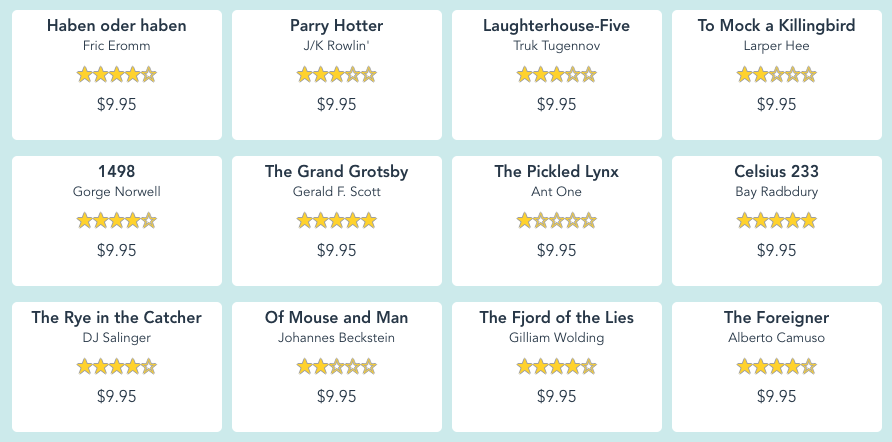
Once we start scraping more information, we might want to have it stored in a standard format for later use. Let's gather the title, author and price from each book that appears on the home page of our test site:

<img src="https://mintcdn.com/checkly-422f444a/PFNKka5JJJWLiGJ7/images/samples/images/basics-scraping-1.png?fit=max&auto=format&n=PFNKka5JJJWLiGJ7&q=85&s=bf7cd0feff3da5f92b93084719534696" alt="books with titles ready for scraping" width="892" height="442" data-path="images/samples/images/basics-scraping-1.png" />

The code for that could look like this:

```js title="basic-get-data-json.js" theme={null}
// Example code for scraping data and generating JSON
const { chromium } = require('playwright');
const fs = require('fs');

(async () => {
  const browser = await chromium.launch();
  const page = await browser.newPage();
  await page.goto('https://danube-web.shop/');

  const books = await page.$$eval('.book-item', elements =>
    elements.map(element => ({
      title: element.querySelector('.book-title').innerText,
      author: element.querySelector('.book-author').innerText,
      price: element.querySelector('.book-price').innerText
    }))
  );

  fs.writeFileSync('books.json', JSON.stringify(books, null, 2));
  console.log('Books data saved to books.json');

  await browser.close();
})();
```

The resulting `books.json` file will look like the following:

```json theme={null}
[
  { "title": "Haben oder haben",
    "author": "Fric Eromm",
    "price": "$9.95"
  },
  {
    "title": "Parry Hotter",
    "author": "J/K Rowlin'",
    "price": "$9.95"
  },
  {
    "title": "Laughterhouse-Five",
    "author": "Truk Tugennov",
    "price": "$9.95"
  },
  {
    "title": "To Mock a Killingbird",
    "author": "Larper Hee",
    "price": "$9.95"
  },
  ...
]
```

All the above examples can be run as follows:

```sh theme={null}
$ node scraping.js
```

## Further reading

1. [Playwright](https://playwright.dev/docs/assertions#text-content)'s official API reference on the topic
2. An [E2E example test](/learn/playwright/testing-coupons/) asserting against an element's `innerText`

<div className="relative rounded-lg p-6 my-4 bg-gradient-to-b from-[#0c449a] to-[#062047] text-white">
  <div className="text-xl font-bold text-balance mb-1">
    Bugs don't stop at CI/CD. Why would Playwright? <img className="my-auto inline-block w-8 h-8 align-middle -mt-1" src="https://mintcdn.com/checkly-422f444a/EbiaOE1oHX_3_YEg/images/icons/playwright.svg?fit=max&auto=format&n=EbiaOE1oHX_3_YEg&q=85&s=7a281b91e55b4aa6c01bbb63be50402c" alt="Playwright logo" noZoom width="256" height="192" data-path="images/icons/playwright.svg" />

  </div>

  <div className="text-slate-200">
    <a href="https://app.checklyhq.com/signup" target="_blank" className="text-inherit before:content-[''] before:absolute before:inset-0">Sign up</a> and start using Playwright for end-to-end monitoring with Checkly.
  </div>
</div>
