> ## Documentation Index
> Fetch the complete documentation index at: https://checklyhq.com/docs/llms.txt
> Use this file to discover all available pages before exploring further.
# Rocky AI Root Cause Analysis
> Automatically perform root cause and user impact analysis with Rocky AI
## What is Rocky AI Root Cause Analysis?
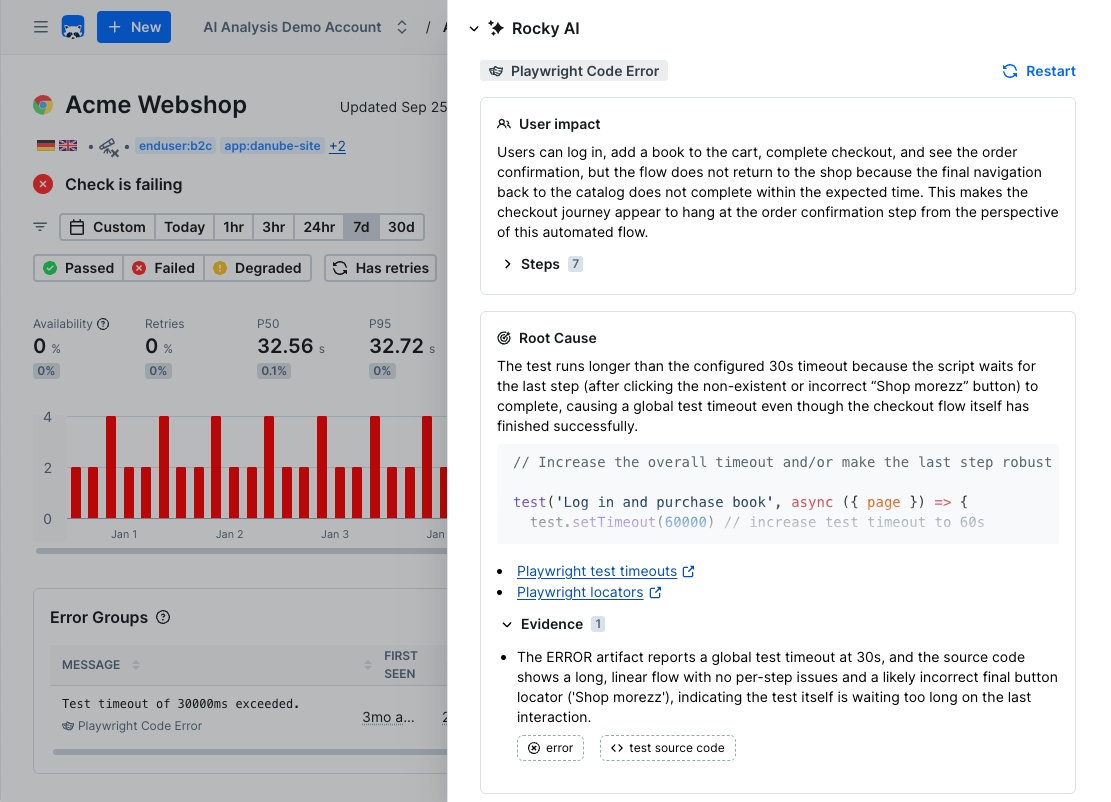
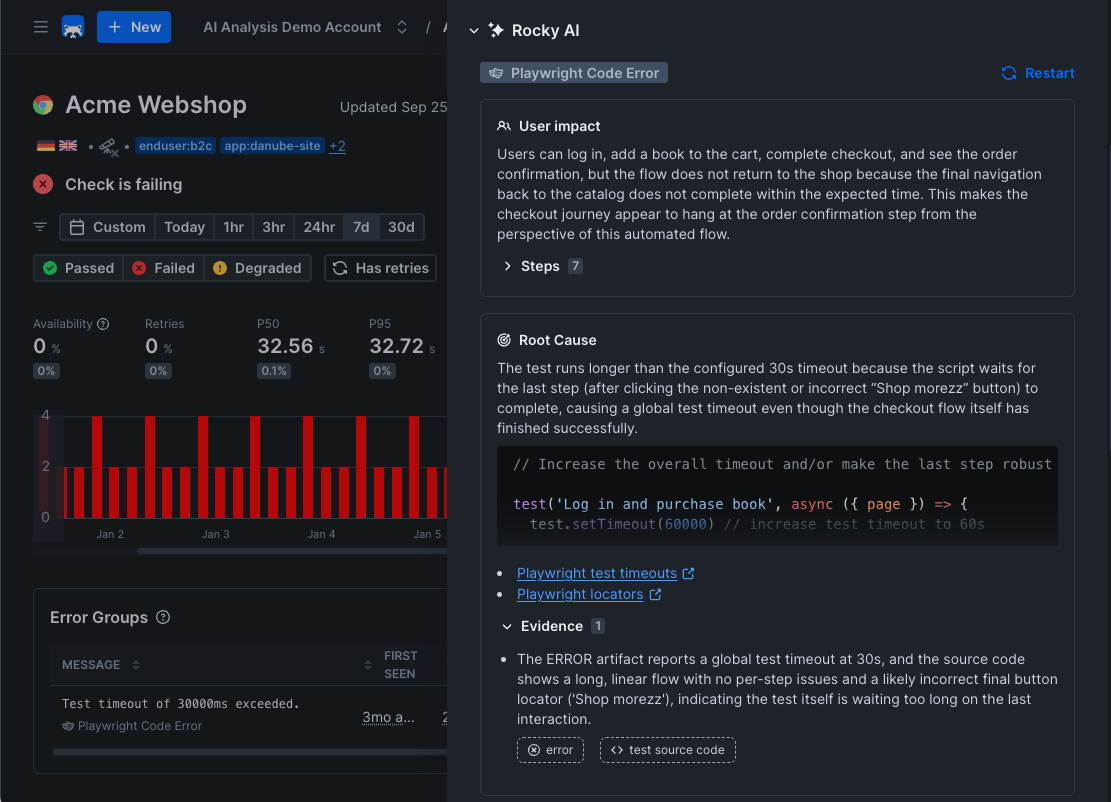
Rocky AI — Checkly's Agent — can automatically analyze, categorize and summarize any failure or error from one of Checkly's synthetic checks and / or monitoring checks.
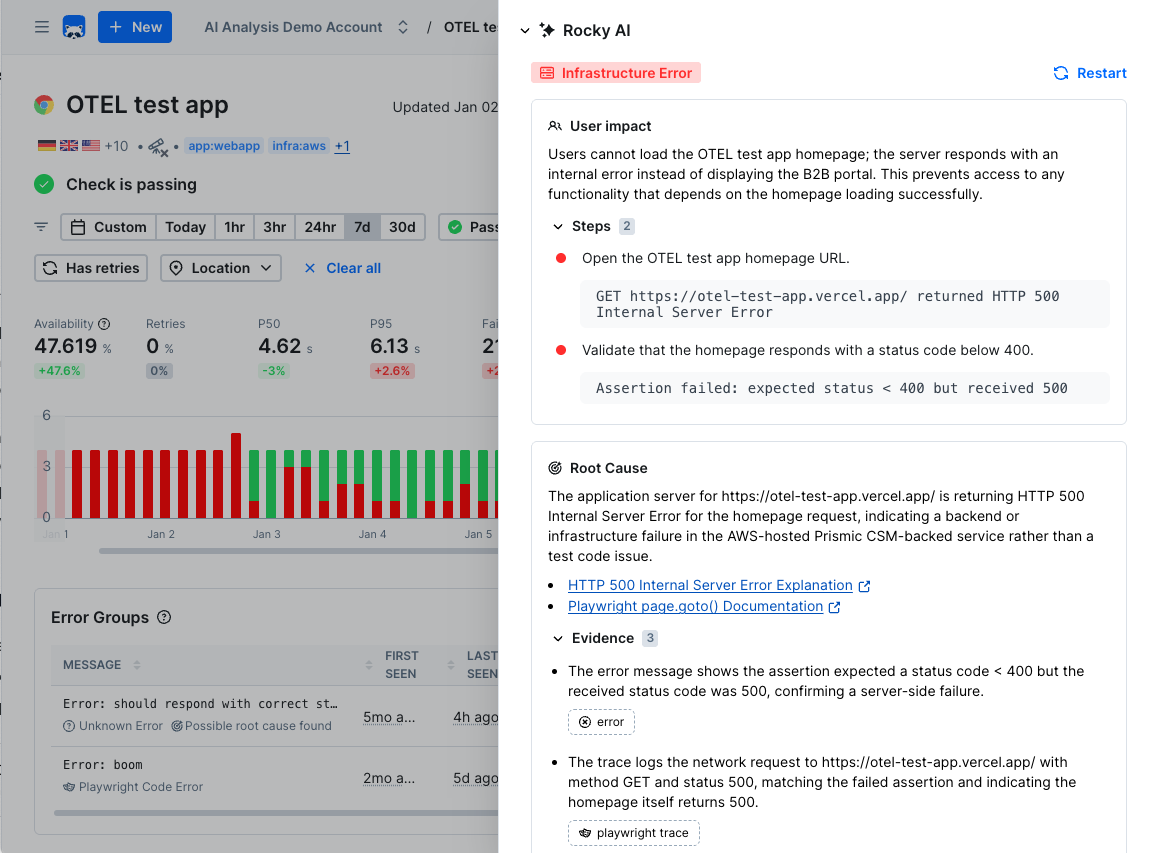
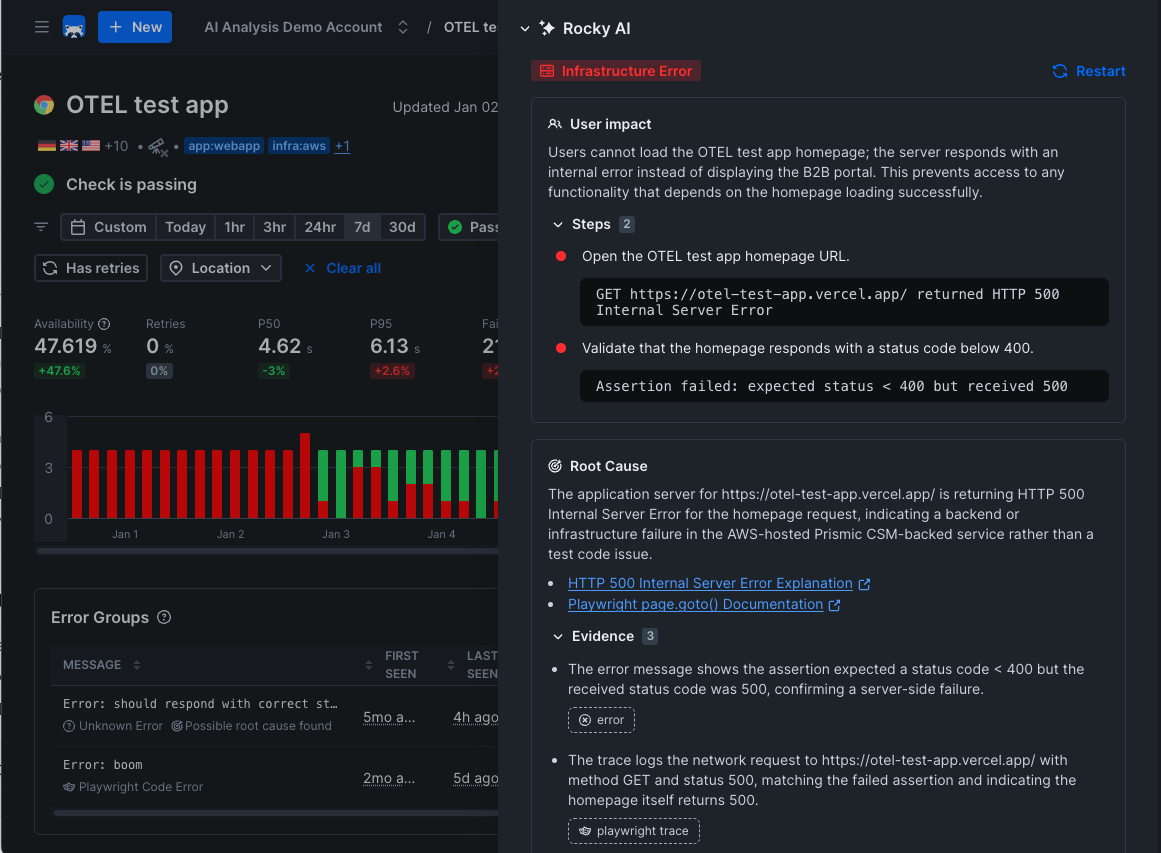 Using any available artifacts like error message, user code, check description, logs, metrics, trace routes, Open Telemetry traces, packet captures, Playwright traces, screenshots and other evidence, it will quickly assess what the impact is of a failure and what the underlying (possible) root cause is. It will also provide a suggested code fix for any check based on (Playwright) code.
## Getting Started with Rocky AI Root Cause Analysis
To use Rocky AI Root Cause Analysis, make sure [Rocky AI is enabled on its settings page](https://app.checklyhq.com/accounts/rocky-ai).
Rocky AI Root Cause Analysis is available for all synthetic and monitor check types in both testing and monitoring use cases.
### Automatic analysis
When Rocky AI is enabled, it automatically generates a root cause analysis for every new error group. This is **on by default** — no manual action is needed for new errors to be analyzed.
Each automatic analysis counts as **one AI invocation** against your [plan's invocation quota](/ai/rocky-ai#consumption-and-invocations). If the same analysis is sent to multiple alert channels, it still counts as a single invocation.
Note that this does not mean that if a check starts failing at midnight and you only resolve it in the morning you will blow through your invocation credits: **Rocky AI only triggers an automatic analysis the first time it sees a new error**, which results in an error group. Any subsequent, similar errors are just attributed to that error group.
You can disable automatic analysis in the [Rocky AI settings](https://app.checklyhq.com/accounts/rocky-ai) if you prefer to only run analyses manually.
When automatic analysis is enabled, AI-generated fields like root cause and user impact are included in your alert notifications. You can use these fields in custom webhook payloads — see [Using AI analysis data in webhooks](/integrations/alerts/webhooks#using-ai-analysis-data-in-alerts).
### On-demand analysis
#### Via the UI
Click the "Analyze root cause" button on any failing check result, test session result and / or error group.
Using any available artifacts like error message, user code, check description, logs, metrics, trace routes, Open Telemetry traces, packet captures, Playwright traces, screenshots and other evidence, it will quickly assess what the impact is of a failure and what the underlying (possible) root cause is. It will also provide a suggested code fix for any check based on (Playwright) code.
## Getting Started with Rocky AI Root Cause Analysis
To use Rocky AI Root Cause Analysis, make sure [Rocky AI is enabled on its settings page](https://app.checklyhq.com/accounts/rocky-ai).
Rocky AI Root Cause Analysis is available for all synthetic and monitor check types in both testing and monitoring use cases.
### Automatic analysis
When Rocky AI is enabled, it automatically generates a root cause analysis for every new error group. This is **on by default** — no manual action is needed for new errors to be analyzed.
Each automatic analysis counts as **one AI invocation** against your [plan's invocation quota](/ai/rocky-ai#consumption-and-invocations). If the same analysis is sent to multiple alert channels, it still counts as a single invocation.
Note that this does not mean that if a check starts failing at midnight and you only resolve it in the morning you will blow through your invocation credits: **Rocky AI only triggers an automatic analysis the first time it sees a new error**, which results in an error group. Any subsequent, similar errors are just attributed to that error group.
You can disable automatic analysis in the [Rocky AI settings](https://app.checklyhq.com/accounts/rocky-ai) if you prefer to only run analyses manually.
When automatic analysis is enabled, AI-generated fields like root cause and user impact are included in your alert notifications. You can use these fields in custom webhook payloads — see [Using AI analysis data in webhooks](/integrations/alerts/webhooks#using-ai-analysis-data-in-alerts).
### On-demand analysis
#### Via the UI
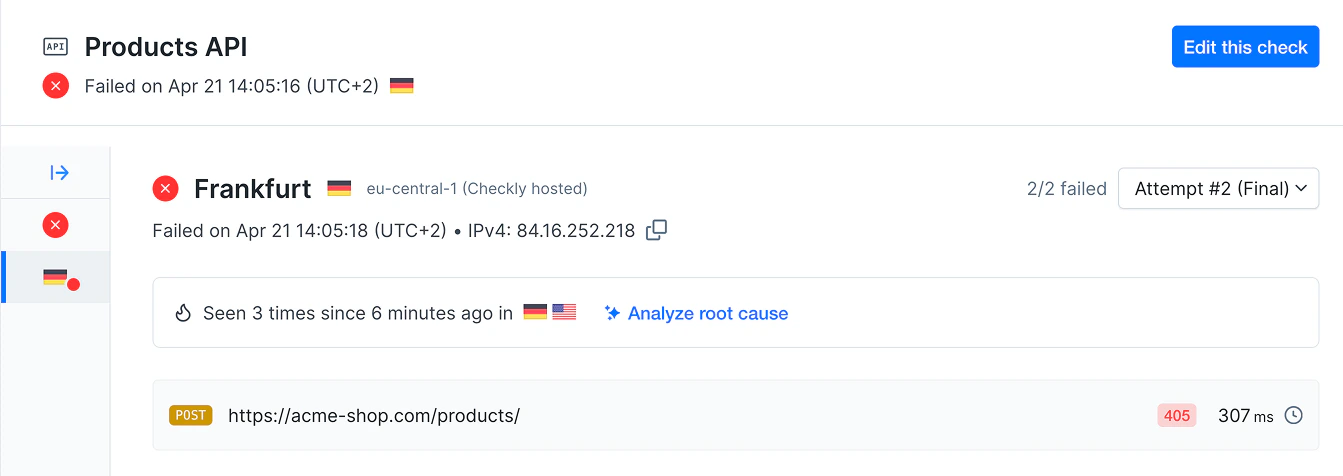
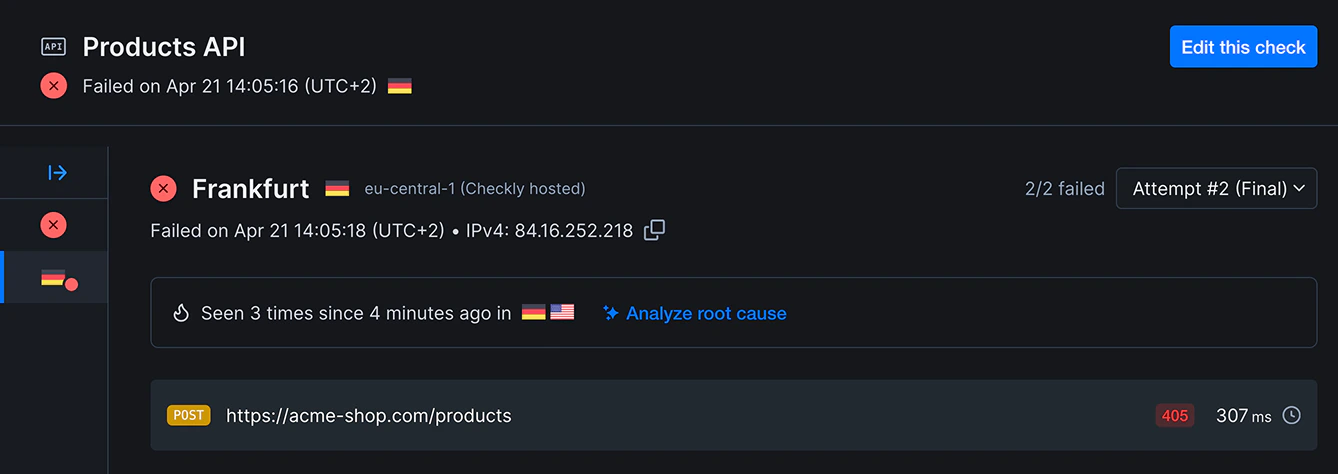
Click the "Analyze root cause" button on any failing check result, test session result and / or error group.
 #### Via the CLI
Use [`checkly rca run`](/cli/checkly-rca/#checkly-rca-run) to trigger a new analysis for an error group.
```bash theme={null}
$ npx checkly rca run --error-group 714... --watch
Root cause analysis triggered.
RCA ID: 8c3...
ROOT CAUSE ANALYSIS
Classification: CONFIGURATION_ERROR
Root cause: The check is calling a ...
```
Retrieve an existing analysis by error group with [`checkly checks get --error-group`](/cli/checkly-checks/#checkly-checks-get) or by RCA ID with [`checkly rca get`](/cli/checkly-rca/#checkly-rca-get).
```bash checkly checks get theme={null}
$ npx checkly checks get d3c... --error-group 714...
ERROR GROUP
HTTP 404 Not Found
First seen: 2026-04-21 11:39:15 UTC
Last seen: 2026-04-21 11:58:15 UTC
Error group: 714...
ROOT CAUSE ANALYSIS
Classification: CONFIGURATION_ERROR
Root cause: The check is calling a ...
```
```bash checkly rca get theme={null}
$ npx checkly rca get 8c3...
ROOT CAUSE ANALYSIS
Classification: CONFIGURATION_ERROR
Root cause: The check is calling a ...
```
## Key Capabilities
* **Categorize**: Rocky AI determines if an error is of a specific category. For example: is it a typo in your code or is it an infrastructure error?
* **Root cause**: Rocky AI analyzes the failure and provides you with a root cause analysis, helping you quickly remediate the issue. It uses any and all available artifacts to come to this analysis and list these artifacts as "evidence".
* **End-user impact**: Rocky AI analyzes the failure and provides you with a list of impacted user groups and features. The text used is generated by AI and can be enriched with organisation-specific domain knowledge using the **Tag description editor** the [AI settings screen](https://app.checklyhq.com/settings/account/ai).
* **Step summary**: Where applicable, Rocky AI summarizes the steps in the check script, making it easier to understand what the check is doing and where it failed. This typically works for any Playwright based check.
#### Via the CLI
Use [`checkly rca run`](/cli/checkly-rca/#checkly-rca-run) to trigger a new analysis for an error group.
```bash theme={null}
$ npx checkly rca run --error-group 714... --watch
Root cause analysis triggered.
RCA ID: 8c3...
ROOT CAUSE ANALYSIS
Classification: CONFIGURATION_ERROR
Root cause: The check is calling a ...
```
Retrieve an existing analysis by error group with [`checkly checks get --error-group`](/cli/checkly-checks/#checkly-checks-get) or by RCA ID with [`checkly rca get`](/cli/checkly-rca/#checkly-rca-get).
```bash checkly checks get theme={null}
$ npx checkly checks get d3c... --error-group 714...
ERROR GROUP
HTTP 404 Not Found
First seen: 2026-04-21 11:39:15 UTC
Last seen: 2026-04-21 11:58:15 UTC
Error group: 714...
ROOT CAUSE ANALYSIS
Classification: CONFIGURATION_ERROR
Root cause: The check is calling a ...
```
```bash checkly rca get theme={null}
$ npx checkly rca get 8c3...
ROOT CAUSE ANALYSIS
Classification: CONFIGURATION_ERROR
Root cause: The check is calling a ...
```
## Key Capabilities
* **Categorize**: Rocky AI determines if an error is of a specific category. For example: is it a typo in your code or is it an infrastructure error?
* **Root cause**: Rocky AI analyzes the failure and provides you with a root cause analysis, helping you quickly remediate the issue. It uses any and all available artifacts to come to this analysis and list these artifacts as "evidence".
* **End-user impact**: Rocky AI analyzes the failure and provides you with a list of impacted user groups and features. The text used is generated by AI and can be enriched with organisation-specific domain knowledge using the **Tag description editor** the [AI settings screen](https://app.checklyhq.com/settings/account/ai).
* **Step summary**: Where applicable, Rocky AI summarizes the steps in the check script, making it easier to understand what the check is doing and where it failed. This typically works for any Playwright based check.
 ## Benefits
* **Faster Triaging**: Determine if it is a typo in a script or an infrastructure error
* **Reduced Manual Work**: Automate routine analysis tasks
* **Better Understanding**: Gain deeper insights into system behavior
* **Proactive Management**: Identify issues before they become problems
For more information on AI, security and data privacy [see the general Rocky AI page](/ai/rocky-ai)
## Benefits
* **Faster Triaging**: Determine if it is a typo in a script or an infrastructure error
* **Reduced Manual Work**: Automate routine analysis tasks
* **Better Understanding**: Gain deeper insights into system behavior
* **Proactive Management**: Identify issues before they become problems
For more information on AI, security and data privacy [see the general Rocky AI page](/ai/rocky-ai)