> ## Documentation Index
> Fetch the complete documentation index at: https://checklyhq.com/docs/llms.txt
> Use this file to discover all available pages before exploring further.
# Django
> Learn how to instrument your Django code with OpenTelemetry.
This guide will help you instrument your Django application(s) with OpenTelemetry and send traces to Checkly.
## Step 1: Install the OpenTelemetry SDK
Install the relevant OpenTelemetry packages:
```bash Terminal theme={null}
pip install opentelemetry-sdk \
opentelemetry-exporter-otlp \
opentelemetry-instrumentation-django \
requests
```
## Step 2: Initialize the instrumentation
Based on the web server you are using, you need to initialize the OpenTelemetry SDK and set up the necessary instrumentation.
### Gunicorn
Open your `gunicorn.config.py` file and add the following code. This will initialize the OpenTelemetry SDK and set up the necessary
instrumentation.
Notice the `HttpHeaderSampler` class. This is a custom, head-based sampler that will only sample spans that are generated
by Checkly by inspecting the trace state. This way you only pay for the egress traffic generated by Checkly and not for
any other traffic.
Note the code in the `post_fork` function. This will instrument your Django app with OpenTelemetry.
```python gunicorn.config.py theme={null}
from opentelemetry import trace
from opentelemetry.exporter.otlp.proto.grpc.trace_exporter import OTLPSpanExporter
from opentelemetry.sdk.trace.sampling import Sampler, SamplingResult, Decision
from opentelemetry.sdk.trace import TracerProvider
from opentelemetry.sdk.trace.export import BatchSpanProcessor
from opentelemetry.instrumentation.django import DjangoInstrumentor
from requests import request
class HttpHeaderSampler(Sampler):
def get_description(self) -> str:
return "HttpHeaderSampler"
def should_sample(
parent_context, trace_id, name, kind=None, attributes=None, links=None, trace_state=None
) -> SamplingResult:
if request.headers.get('tracestate') == 'checkly=true':
return SamplingResult(Decision.RECORD_AND_SAMPLE)
else:
return SamplingResult(Decision.DROP )
trace.set_tracer_provider(TracerProvider(sampler=HttpHeaderSampler()))
trace.get_tracer_provider().add_span_processor(BatchSpanProcessor(OTLPSpanExporter()))
def post_fork(server, worker):
DjangoInstrumentor().instrument(tracer_provider=trace.get_tracer_provider())
```
### uWSGI
When using uWSGI, you can use the `post_fork` hook to instrument your Django app with OpenTelemetry.
Note you will need to install the `uwsgidecorators` package.
```bash Terminal theme={null}
pip install uwsgidecorators
```
And then add the following code to your `wsgi.py` file.
```python wsgi.py theme={null}
from uwsgidecorators import postfork
from opentelemetry import trace
from opentelemetry.exporter.otlp.proto.grpc.trace_exporter import OTLPSpanExporter
from opentelemetry.sdk.trace.sampling import Sampler, SamplingResult, Decision
from opentelemetry.sdk.trace import TracerProvider
from opentelemetry.sdk.trace.export import BatchSpanProcessor
from opentelemetry.instrumentation.django import DjangoInstrumentor
from requests import request
class HttpHeaderSampler(Sampler):
def get_description(self) -> str:
return "HttpHeaderSampler"
def should_sample(
parent_context, trace_id, name, kind=None, attributes=None, links=None, trace_state=None
) -> SamplingResult:
if request.headers.get('tracestate') == 'checkly=true':
return SamplingResult(Decision.RECORD_AND_SAMPLE)
else:
return SamplingResult(Decision.DROP )
trace.set_tracer_provider(TracerProvider(sampler=HttpHeaderSampler()))
trace.get_tracer_provider().add_span_processor(BatchSpanProcessor(OTLPSpanExporter()))
@postfork
def init_tracing():
DjangoInstrumentor().instrument(tracer_provider=trace.get_tracer_provider())
```
## Step 3: Start your app with the instrumentation
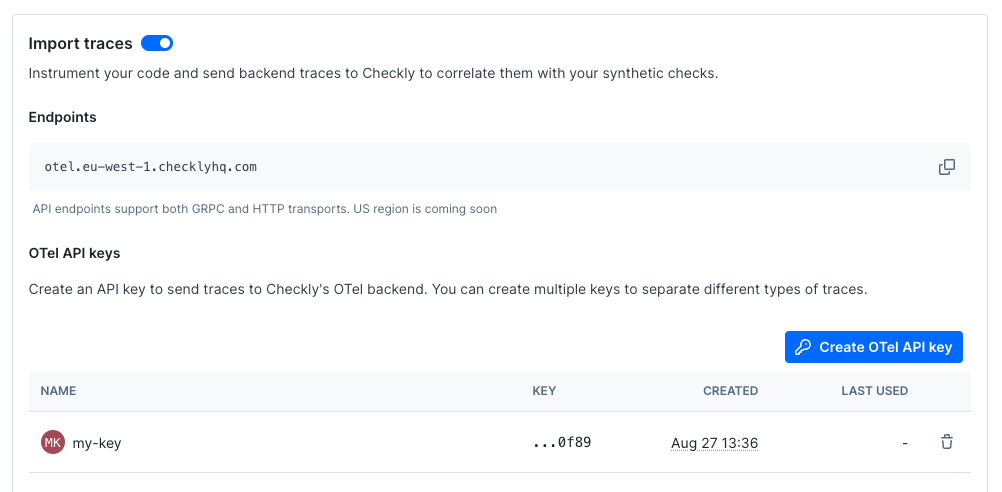
Toggle on **Import Traces** and grab your OTel API key in the **OTel API keys** section of the [Traces page in the Checkly app](https://app.checklyhq.com/settings/account/traces) and
take a note of the endpoint for the region you want to use.
 Now, export your API key in your shell by setting the `OTEL_EXPORTER_OTLP_HEADERS` environment variable.
```bash theme={null}
export OTEL_EXPORTER_OTLP_HEADERS="authorization="
```
Next, export the endpoint for the region you want to use and give your service a name.
```bash theme={null}
export OTEL_EXPORTER_OTLP_ENDPOINT="https://otel.eu-west-1.checklyhq.com"
export OTEL_SERVICE_NAME="your-service-name"
```
Then, explicitly set the protocol to use for the OTLP exporter.
```bash theme={null}
export OTEL_EXPORTER_OTLP_PROTOCOL="http/protobuf"
```
We are using the standard OpenTelemetry environment variables here to configure the OTLP exporter.
| Variable | Description |
| ----------------------------- | ---------------------------------------------------------------------- |
| `OTEL_EXPORTER_OTLP_HEADERS` | The `Authorization` HTTP header containing your Checkly OTel API key. |
| `OTEL_EXPORTER_OTLP_ENDPOINT` | The Checkly OTel API endpoint for the region you want to use. |
| `OTEL_EXPORTER_OTLP_PROTOCOL` | The protocol to use for the OTLP exporter. |
| `OTEL_SERVICE_NAME` | The name of your service to identify it among the spans in the web UI. |
Finally, start your app using the relevant command:
For Gunicorn, your startup command will look similar to
```bash Terminal theme={null}
gunicorn myapp.wsgi -c gunicorn.config.py --workers 2 --threads 2
```
For uWSGI, your startup command will look similar to
```bash Terminal theme={null}
uwsgi --http :8000 --wsgi-file myapp.wsgi --master --processes 4 --threads 2
```
🎉 You are done. Any interactions with your app that are triggered by a Checkly synthetic monitoring check will now generate
traces, which are sent back to Checkly and displayed in the Checkly UI.
Now, export your API key in your shell by setting the `OTEL_EXPORTER_OTLP_HEADERS` environment variable.
```bash theme={null}
export OTEL_EXPORTER_OTLP_HEADERS="authorization="
```
Next, export the endpoint for the region you want to use and give your service a name.
```bash theme={null}
export OTEL_EXPORTER_OTLP_ENDPOINT="https://otel.eu-west-1.checklyhq.com"
export OTEL_SERVICE_NAME="your-service-name"
```
Then, explicitly set the protocol to use for the OTLP exporter.
```bash theme={null}
export OTEL_EXPORTER_OTLP_PROTOCOL="http/protobuf"
```
We are using the standard OpenTelemetry environment variables here to configure the OTLP exporter.
| Variable | Description |
| ----------------------------- | ---------------------------------------------------------------------- |
| `OTEL_EXPORTER_OTLP_HEADERS` | The `Authorization` HTTP header containing your Checkly OTel API key. |
| `OTEL_EXPORTER_OTLP_ENDPOINT` | The Checkly OTel API endpoint for the region you want to use. |
| `OTEL_EXPORTER_OTLP_PROTOCOL` | The protocol to use for the OTLP exporter. |
| `OTEL_SERVICE_NAME` | The name of your service to identify it among the spans in the web UI. |
Finally, start your app using the relevant command:
For Gunicorn, your startup command will look similar to
```bash Terminal theme={null}
gunicorn myapp.wsgi -c gunicorn.config.py --workers 2 --threads 2
```
For uWSGI, your startup command will look similar to
```bash Terminal theme={null}
uwsgi --http :8000 --wsgi-file myapp.wsgi --master --processes 4 --threads 2
```
🎉 You are done. Any interactions with your app that are triggered by a Checkly synthetic monitoring check will now generate
traces, which are sent back to Checkly and displayed in the Checkly UI.