> ## Documentation Index
> Fetch the complete documentation index at: https://checklyhq.com/docs/llms.txt
> Use this file to discover all available pages before exploring further.
# Next.js
> Learn how to instrument your Next.js code with OpenTelemetry.
Next.js is now shipping with an experimental OpenTelemetry integration. This guide will help you instrument your Next.js
application(s) with OpenTelemetry and send traces to Checkly.
## Before you start
You need:
* A Next.js application using at least [Next.js 14](https://nextjs.org/blog/next-14).
## Step 1. Install the `@vercel/otel` package
For Next.js, Vercel has created a wrapper that should get you going very quickly. We're just adding some extra packages
so we can filter out the Checkly Traces.
```bash Terminal theme={null}
npm install --save \
@vercel/otel \
@opentelemetry/api \
@opentelemetry/sdk-trace-base \
@opentelemetry/exporter-trace-otlp-http
```
Make sure to install v1.9.1 or later of the `@vercel/otel` package as it contains a critical bug fix for Vercel's Edge runtime.
## Step 2. \[Only in Next.js 14]: Initialize the instrumentation
Set the `instrumentationHook` flag to `true` in your Next.js configuration file. This will enable the OpenTelemetry instrumentation.
```js next.config.js theme={null}
/** @type {import('next').NextConfig} */
const nextConfig = {
experimental: {
instrumentationHook: true
}
}
module.exports = nextConfig
```
## Step 3. Set up the instrumentation
Create an `instrumentation.ts` file in the root of your project, or, place it in the `src` directory if you are using one.
And add the following code:
```ts instrumentation.ts theme={null}
import { registerOTel } from '@vercel/otel'
import { SamplingDecision } from '@opentelemetry/sdk-trace-base'
import { trace, Context } from '@opentelemetry/api'
export function register() {
registerOTel({
serviceName: 'acme-next-app',
traceExporter: 'auto',
spanProcessors: ['auto'],
traceSampler: {
shouldSample: (context: Context) => {
const isChecklySpan = trace.getSpan(context)?.spanContext()?.traceState?.get('checkly')
if (isChecklySpan) {
console.log('Sampling decision for Checkly span:', SamplingDecision.RECORD_AND_SAMPLED)
return {
decision: SamplingDecision.RECORD_AND_SAMPLED
}
} else {
console.log('Sampling decision for non-Checkly span:', SamplingDecision.NOT_RECORD)
return {
decision: SamplingDecision.NOT_RECORD
}
}
},
},
})
}
```
Notice that we are using the default exporter and span processor from the `@vercel/otel` package, which is configured by using the `auto` value.
This package is compatible with Vercel's Edge runtime, in contrast to the `@opentelemetry/exporter-trace-otlp-http` package, which is not.
If you are not using Vercel or don't use Vercel's Edge runtime, you can also use the `@opentelemetry/exporter-trace-otlp-http`
and just follow [the regular Node.js instrumentation guide](/resolve/traces/instrumentation/nodejs#step-2-initialize-the-instrumentation).
This is however not required, the above configuration should work just fine on Node.js and Edge runtimes.
Also notice the `sampler` configuration. This is a custom, **head-based sampler** that will only sample spans that are generated by Checkly by
inspecting the trace state. This way you only pay for the egress traffic generated by Checkly and not for any other traffic.
## Step 5 (Local development). Start your app with the instrumentation
Toggle on **Import Traces** and grab your OTel API key in the **OTel API keys** section of the [Traces page in the Checkly app](https://app.checklyhq.com/settings/account/traces) and take a note of the endpoint for the region you want to use.
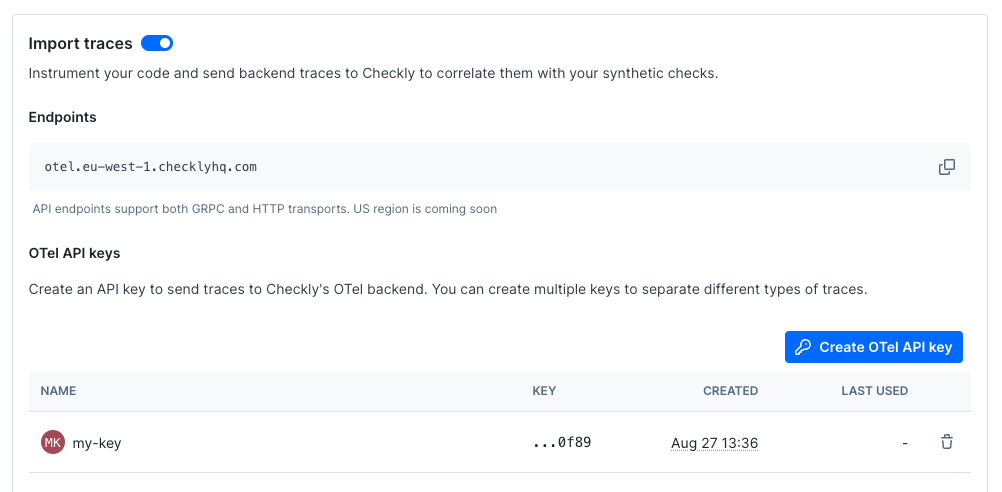 Now, export your API key in your shell by setting the `OTEL_EXPORTER_OTLP_HEADERS` environment variable.
```bash Terminal theme={null}
export OTEL_EXPORTER_OTLP_HEADERS="authorization="
```
Next, export the endpoint for the region you want to use and give your service a name.
```bash Terminal theme={null}
export OTEL_EXPORTER_OTLP_ENDPOINT="https://otel.eu-west-1.checklyhq.com"
export OTEL_SERVICE_NAME="your-service-name"
```
Then, explicitly set the protocol to use for the OTLP exporter.
```bash Terminal theme={null}
export OTEL_EXPORTER_OTLP_PROTOCOL="http/protobuf"
```
We are using the standard OpenTelemetry environment variables here to configure the OTLP exporter.
| Variable | Description |
| ----------------------------- | ---------------------------------------------------------------------- |
| `OTEL_EXPORTER_OTLP_HEADERS` | The `Authorization` HTTP header containing your Checkly OTel API key. |
| `OTEL_EXPORTER_OTLP_ENDPOINT` | The Checkly OTel API endpoint for the region you want to use. |
| `OTEL_EXPORTER_OTLP_PROTOCOL` | The protocol to use for the OTLP exporter. |
| `OTEL_SERVICE_NAME` | The name of your service to identify it among the spans in the web UI. |
## Step 6 (Vercel deployment). Set up environment variables.
When using Vercel to host your Next.js app,
### 5.1. First, add the environment variables to your Vercel project settings:
* `OTEL_EXPORTER_OTLP_HEADERS`, with the OTel API key you get in Traces settings, using the `authorization=ot_`.
* `OTEL_EXPORTER_OTLP_ENDPOINT`, use: [https://otel.eu-west-1.checklyhq.com](https://otel.eu-west-1.checklyhq.com), without `v1/traces`.
* `OTEL_SERVICE_NAME`, your applications' name.
* `OTEL_LOG_LEVEL`, set the log level to `debug` as to see the span sampling.
Now, export your API key in your shell by setting the `OTEL_EXPORTER_OTLP_HEADERS` environment variable.
```bash Terminal theme={null}
export OTEL_EXPORTER_OTLP_HEADERS="authorization="
```
Next, export the endpoint for the region you want to use and give your service a name.
```bash Terminal theme={null}
export OTEL_EXPORTER_OTLP_ENDPOINT="https://otel.eu-west-1.checklyhq.com"
export OTEL_SERVICE_NAME="your-service-name"
```
Then, explicitly set the protocol to use for the OTLP exporter.
```bash Terminal theme={null}
export OTEL_EXPORTER_OTLP_PROTOCOL="http/protobuf"
```
We are using the standard OpenTelemetry environment variables here to configure the OTLP exporter.
| Variable | Description |
| ----------------------------- | ---------------------------------------------------------------------- |
| `OTEL_EXPORTER_OTLP_HEADERS` | The `Authorization` HTTP header containing your Checkly OTel API key. |
| `OTEL_EXPORTER_OTLP_ENDPOINT` | The Checkly OTel API endpoint for the region you want to use. |
| `OTEL_EXPORTER_OTLP_PROTOCOL` | The protocol to use for the OTLP exporter. |
| `OTEL_SERVICE_NAME` | The name of your service to identify it among the spans in the web UI. |
## Step 6 (Vercel deployment). Set up environment variables.
When using Vercel to host your Next.js app,
### 5.1. First, add the environment variables to your Vercel project settings:
* `OTEL_EXPORTER_OTLP_HEADERS`, with the OTel API key you get in Traces settings, using the `authorization=ot_`.
* `OTEL_EXPORTER_OTLP_ENDPOINT`, use: [https://otel.eu-west-1.checklyhq.com](https://otel.eu-west-1.checklyhq.com), without `v1/traces`.
* `OTEL_SERVICE_NAME`, your applications' name.
* `OTEL_LOG_LEVEL`, set the log level to `debug` as to see the span sampling.
 ### 5.2. Run a check and confirm it works!
Schedule a check, you should see the Vercel logs reporting `Sampling decision for Checkly span: #` and soon the spans will show up in your check results page as well.
## Further reading
Have a look at the official Next.js docs on [how to enable the experimental OpenTelemetry integration](https://nextjs.org/docs/app/building-your-application/optimizing/open-telemetry).
### 5.2. Run a check and confirm it works!
Schedule a check, you should see the Vercel logs reporting `Sampling decision for Checkly span: #` and soon the spans will show up in your check results page as well.
## Further reading
Have a look at the official Next.js docs on [how to enable the experimental OpenTelemetry integration](https://nextjs.org/docs/app/building-your-application/optimizing/open-telemetry).