

Add a filter
Click the filter field to list every field you can filter on. Each field shows a short description. Pick a field, or type the start of its name and press Enter. Typing the name followed by a colon, such asname:, does the same.
A text field such as Name then waits for its value. Type it and press Enter.
A field with a fixed set of values, such as Status or Tags, starts with one of its values. Click the value to pick others. With the keyboard, move to the value and start typing.
Fields like Tags take several values. The filter then matches any of them. The block shows how many it holds, such as 3 tags. Long lists, such as your tags, have a search at the top of the picker.
Text that doesn’t start a field name searches by name when you press Enter. On Test sessions, it searches the project name. On Error Groups, it searches the error message.
Fields
- Text fields such as Name, Group and URL match when the text holds every word you type. The words can be in any order.
- On Monitors, Tags matches the tags of a check and the tags of its group.
- Project shows when the account has checks deployed with the Checkly CLI. Traces shows when the account imports traces.
- Period, Grace and Duration compare durations such as
30s,5m,1hor1d. Availability compares the percentage for the selected time range. These four take>,>=,<,<=and=. - On Test sessions, Commit matches the commit ID or its message. User matches the person or the API key that started the session. Has user is false when no person or API key is linked to the session. Duration is how long the session ran. A session still running never matches it.
- On Test sessions, Check, Check type, Tags and File match a session when any check that ran in it matches. Tags matches the tags of the check and of its group. File is the Playwright test file.
- On Error Groups, Count compares the number of errors in the time range. The time range filters error groups by when they were last seen.
- The Test Sessions and Error Groups tabs each have their own filters. Switching tabs clears them.
Pick the time range
The date picker left of the filter field sets the time range. Click it and pick a preset, such as Last 24 hours. To pick days on a calendar, open Custom. Set the start and end times, then click Apply. A custom range shows as its days, such as 21-22 Oct. The time range always applies on top of the filters. A view saves it with the filters.Join filters
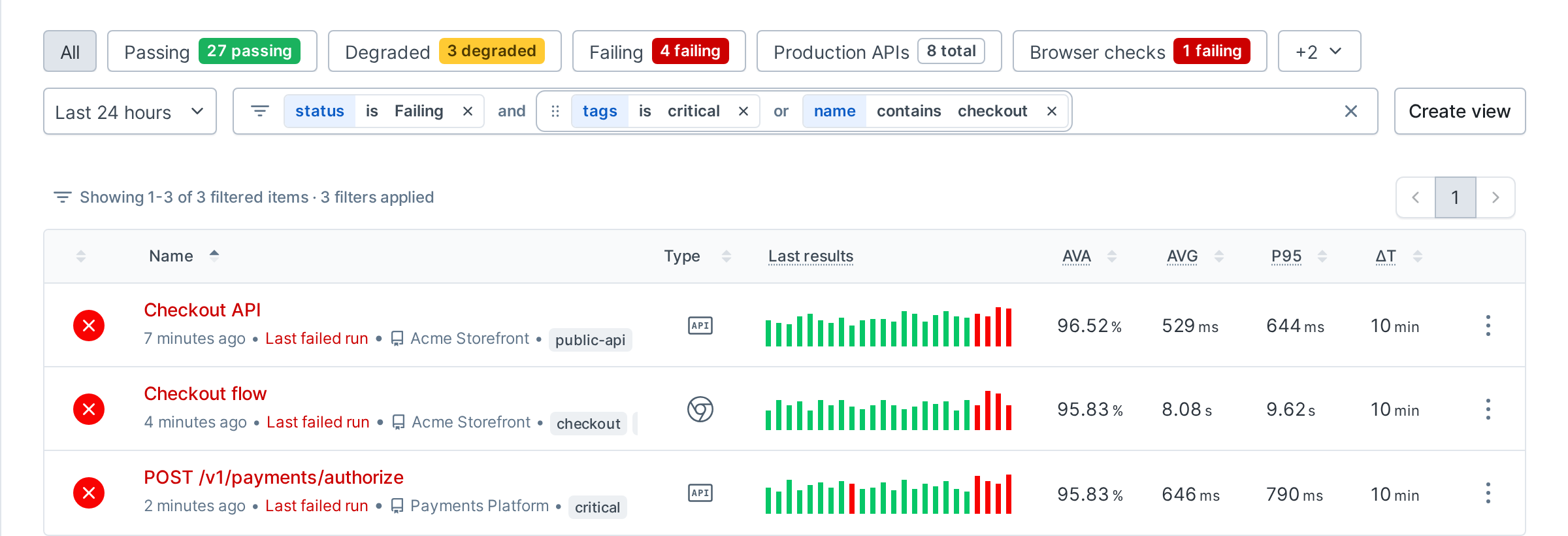
Filters join with and by default. The list then shows what matches every filter. Click the word between two filters to switch it to or. The list then shows what matches any filter. The switch applies to every join at that level. To join only the next filter with or, typeor and a space. The or shows at the end of the field. The next filter you add joins with it. For example, with status is failing and name contains api in the field, type or url and press Enter. Then type health and press Enter. The field now reads status is failing and (name contains api or url contains health). The new filter is grouped with the filter right before it. The other joins don’t change. Typing and works the same way. Without a typed join, a new filter joins with and. Press Backspace in the empty field to remove a typed join.
Group filters
A group holds filters joined by its own and or or. Click the word inside a group to switch it. To build a group from the keyboard, type( in the filter field. An empty group opens with the cursor inside it. The filters you add next go into it. Type or before a filter to join the group’s filters with or. Type ) to close the group and go back to the top level. Leaving the field or pressing Escape also closes it.
For example, to find checks with “checkout” in their name or in their URL:
- Type
(. - Type
nameand press Enter. Typecheckoutand press Enter. - Type
or urland press Enter. Typecheckoutand press Enter. - Type
).
- Make a group: drop a filter onto another one.
- Move filters: drag a filter to reorder it, or to move it into or out of a group.
- Move a group: drag it by its handle.
- On Heartbeats, status is failing and (period > 1h or availability < 99.9) finds failing heartbeats that either expect a ping less often than hourly or are below 99.9% available.
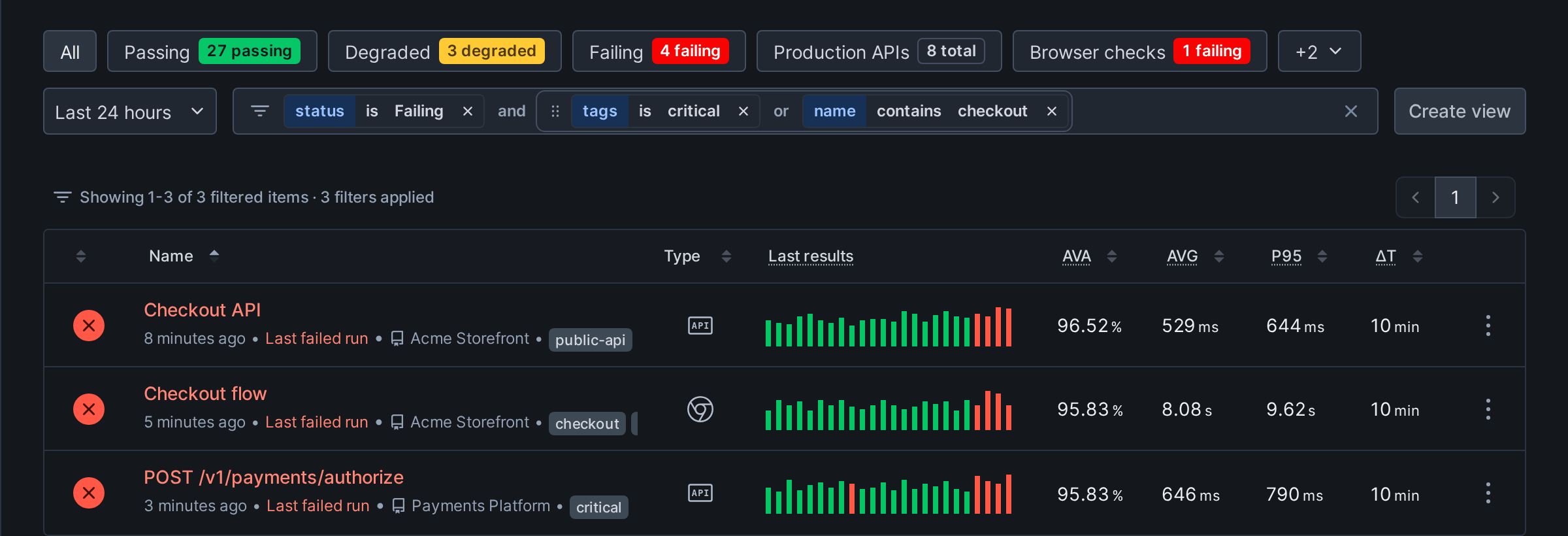
- On Monitors, status is failing or tags is critical lists every failing check and every check tagged
critical.
Use the keyboard
Every part of a filter is reachable from the keyboard.
In the empty filter field, Backspace removes a typed join first, then the last filter.