

Team Member Roles
When inviting a team member to join your account you can assign one of five roles: Owner, Admin, Read & Write, Read & Run, or Read Only. Each role inherits all permissions from the roles below it. Only the initial account creator has the Owner role. You can change assigned roles at any time after a teammate joins.Choosing the Right Role
Adding Team Members
Learn how to invite new users to your account and manage their access levels. Learn more about adding team membersTransferring Ownership
Owners can transfer ownership to another team member from the General section in account settings. Click “Transfer ownership” and follow the instructions. Your role will change to Admin after the transfer. If the current Owner is no longer at your company or can no longer access Checkly, reach out to support@checklyhq.com and we can transfer ownership for you. To verify that you’re authorized to request the change, we’ll ask you to provide a previous Checkly receipt or invoice.Account Management
Account name
The account Owner can change the account name from the General section in account settings. By default the account name is the Owner’s email address, but you can change it to reflect a department, product team, etc.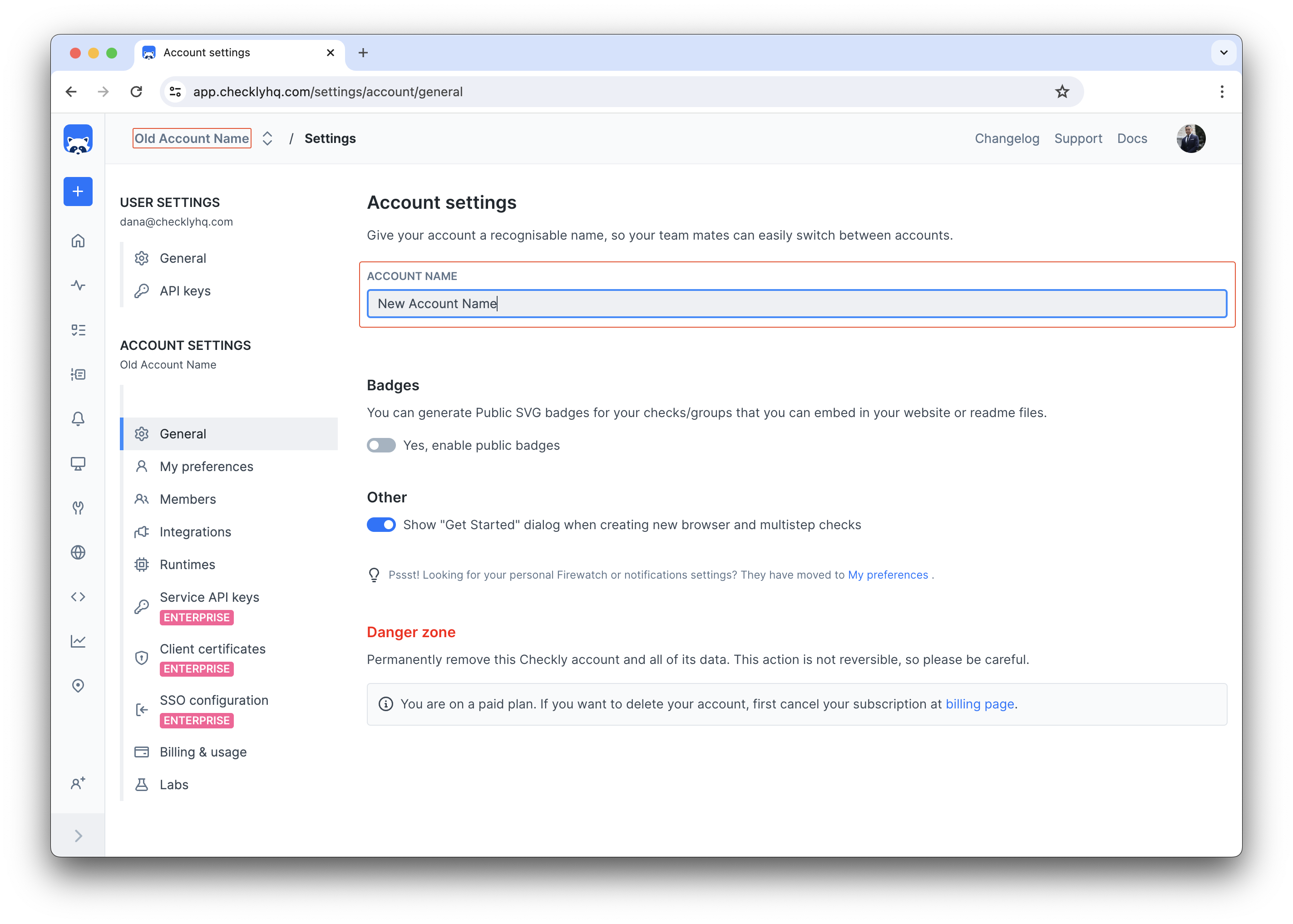
Email and Password Changes
Manage your login credentials and account information securely. Learn about changing your email or passwordSecurity
Multi-Factor Authentication
Add an extra layer of security to your account with MFA using authenticator apps. Set up multi-factor authenticationSingle Sign-On (SSO)
For enterprise customers, Checkly supports SSO integration with your existing identity provider. Learn about SSO optionsAPI Access
Creating API Keys
Generate API keys for programmatic access to your Checkly account through the REST API and CLI. Learn about creating and managing API keys API Key Types:- User API Keys - Tied to individual users with inherited permissions
- Service API Keys - Account-level keys for CI/CD and automation (Starter, Team, and Enterprise plans)