

Custom roles are in beta for Enterprise plans and not generally available yet. To take part in the beta, contact your customer success team.
The Roles page
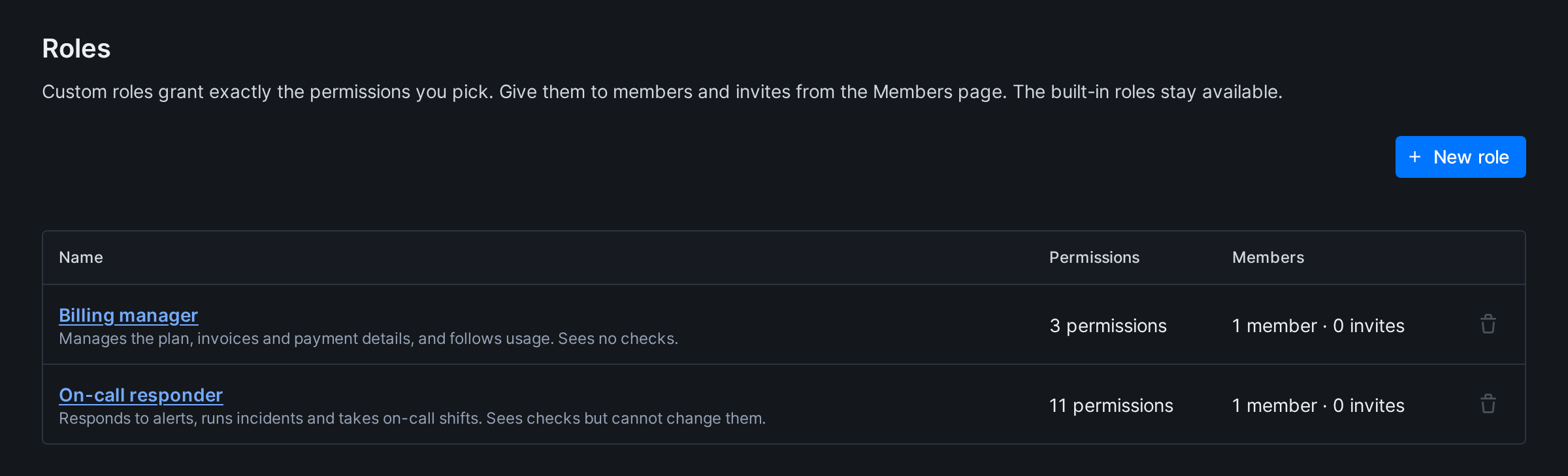
Account settings > Roles lists your account’s custom roles. It shows once custom roles are turned on for your account. Each row has the role’s name and description, how many permissions it grants, and how many members and pending invitations hold it. Click a role’s name to open it.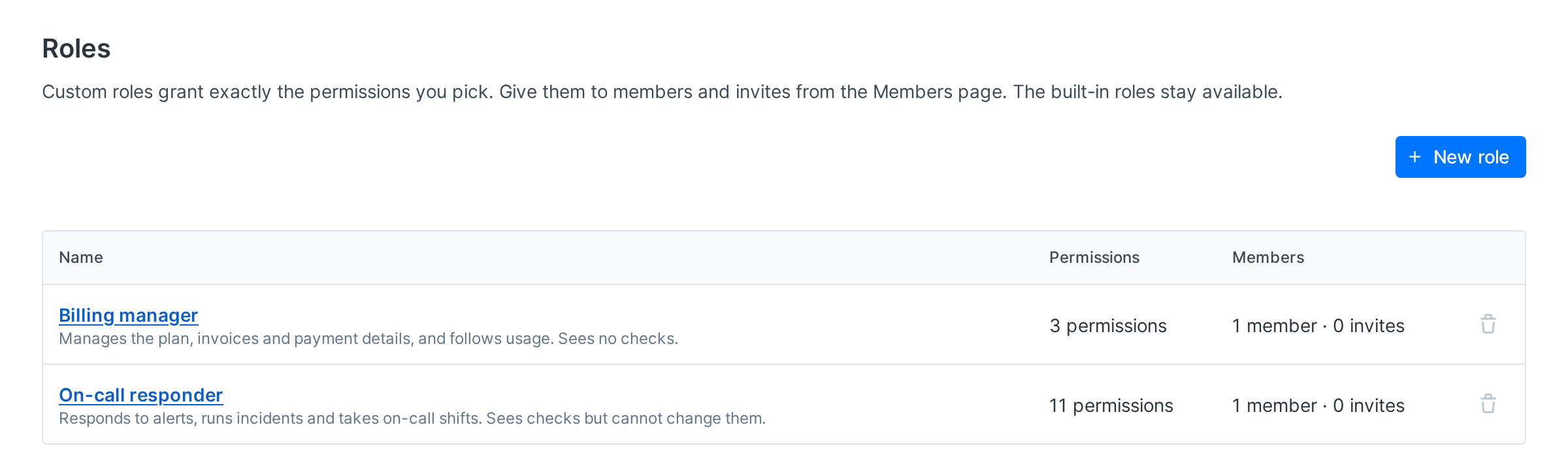
A custom role can hold these permissions too. They’re listed under Roles.
Create a role
- On the Roles page, click New role.
- Enter a Name and, if you like, a Description. The description shows in the role picker.
- Tick the permissions the role grants. To start from an existing role, pick it in Copy permissions from…: a built-in role other than Owner, or another custom role. Copying replaces what you ticked so far and leaves out the permissions you don’t hold, which a message lists.
- Click Create role.
- Names can be up to 100 characters. They must differ from every other role in the account, whatever the case, and can’t be the name of a built-in role.
- An account can have up to 50 custom roles.
The permission matrix
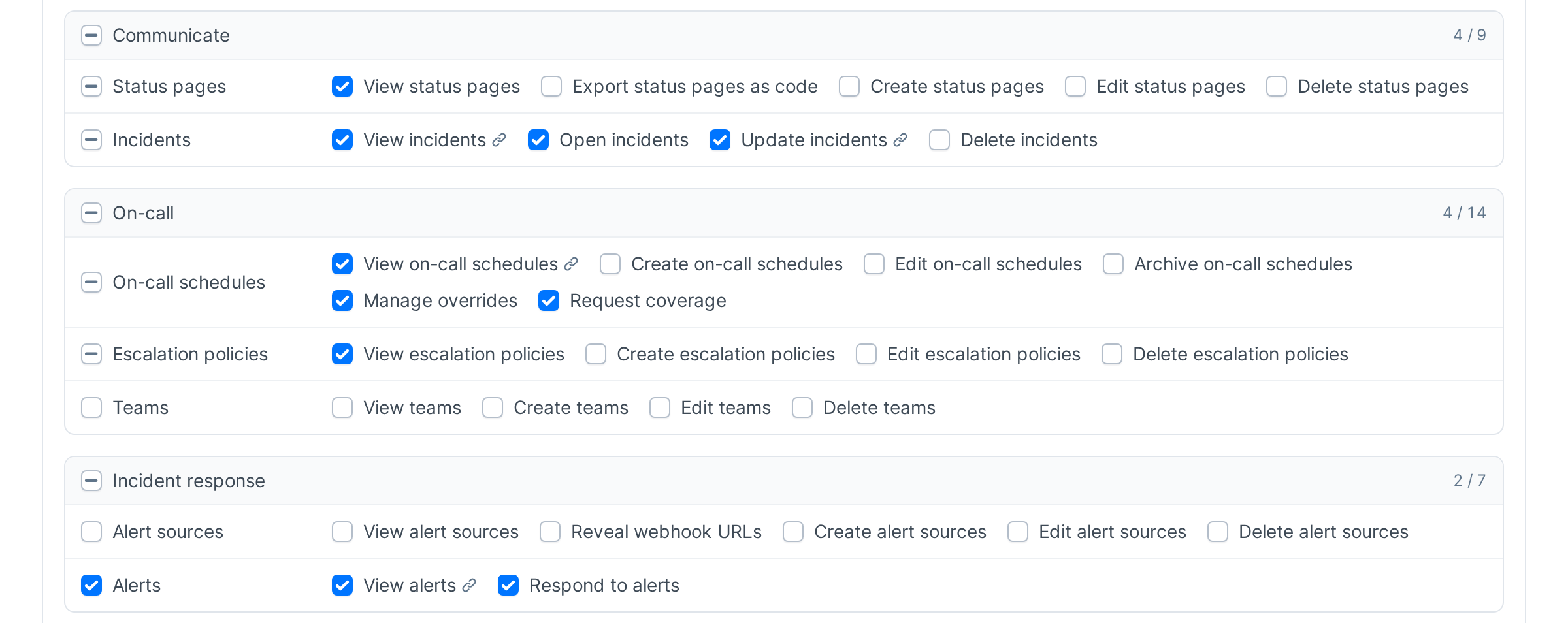
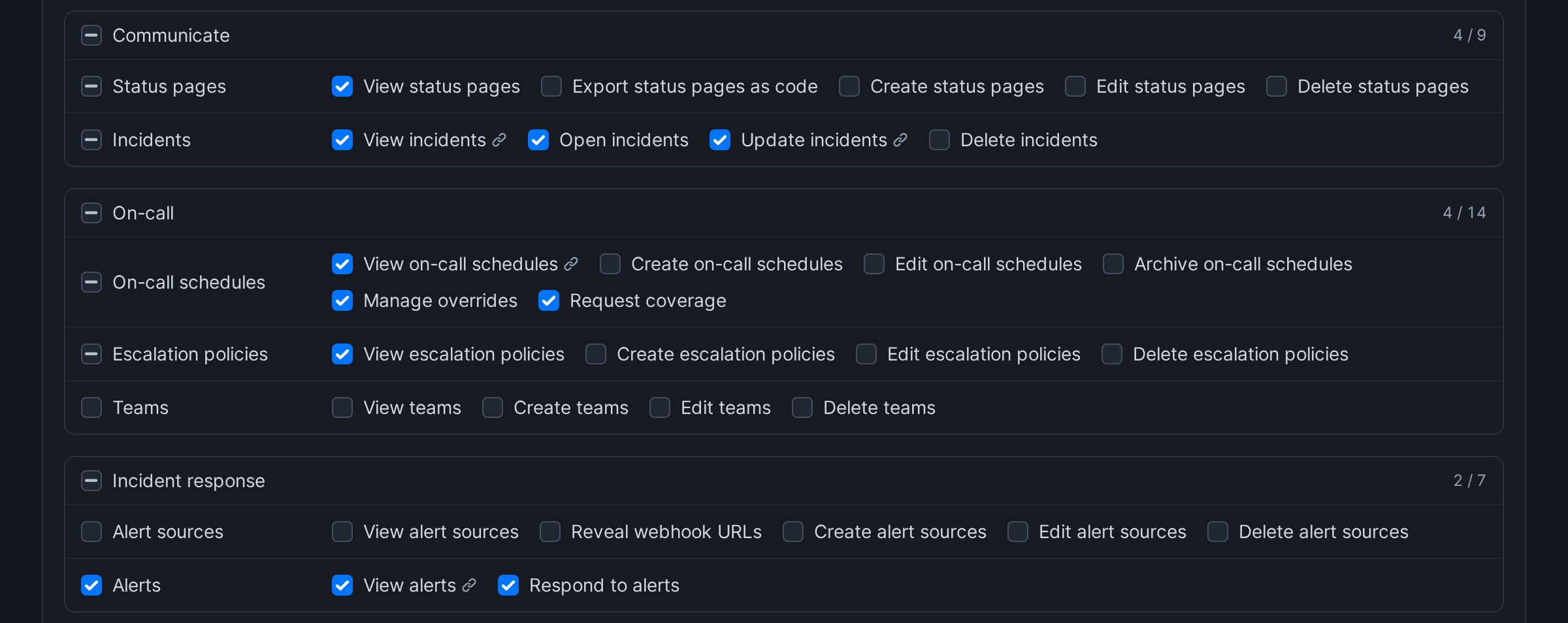
- Permissions are grouped by area, such as Monitoring, On-call and Account, with a row for each resource. The checkbox of a group or a row ticks or unticks everything in it that you can give.
- You can only give permissions you hold yourself. The others are disabled.
- Some permissions need others and bring them along. Ticking Create checks, for example, also ticks Edit checks, View checks and the other permissions the check editor needs. When a click changes more than the box you clicked, the group says how many more changed, with Undo.
- Unticking a permission that others need unticks them too. A link icon next to it names them, and when they’re in other rows, you confirm first.
- Every role can view the account, its members and maintenance windows, so those have no checkbox.
- Deleting the account and transferring ownership stay with the owner. No custom role can hold them.
Edit a role
Click the role’s name on the Roles page, make your changes and click Save role. The page says how many members and pending invitations hold the role. Changes apply to them right away.- You can only edit a role when you hold all of its permissions yourself.
- Without Edit roles, the role opens read-only.
Delete a role
Click the trash button in the role’s row and confirm. Deleting a role can’t be undone. You can only delete a role that no member or pending invitation holds. Until then, the button is disabled, and hovering it shows how many hold the role. Change those members’ roles and remove the invitations, since an invitation keeps the role it was sent with.Give a custom role
You pick custom roles wherever you pick a role: when you invite people, change members’ roles or change your own role. The picker lists the built-in roles first, then the custom roles by name.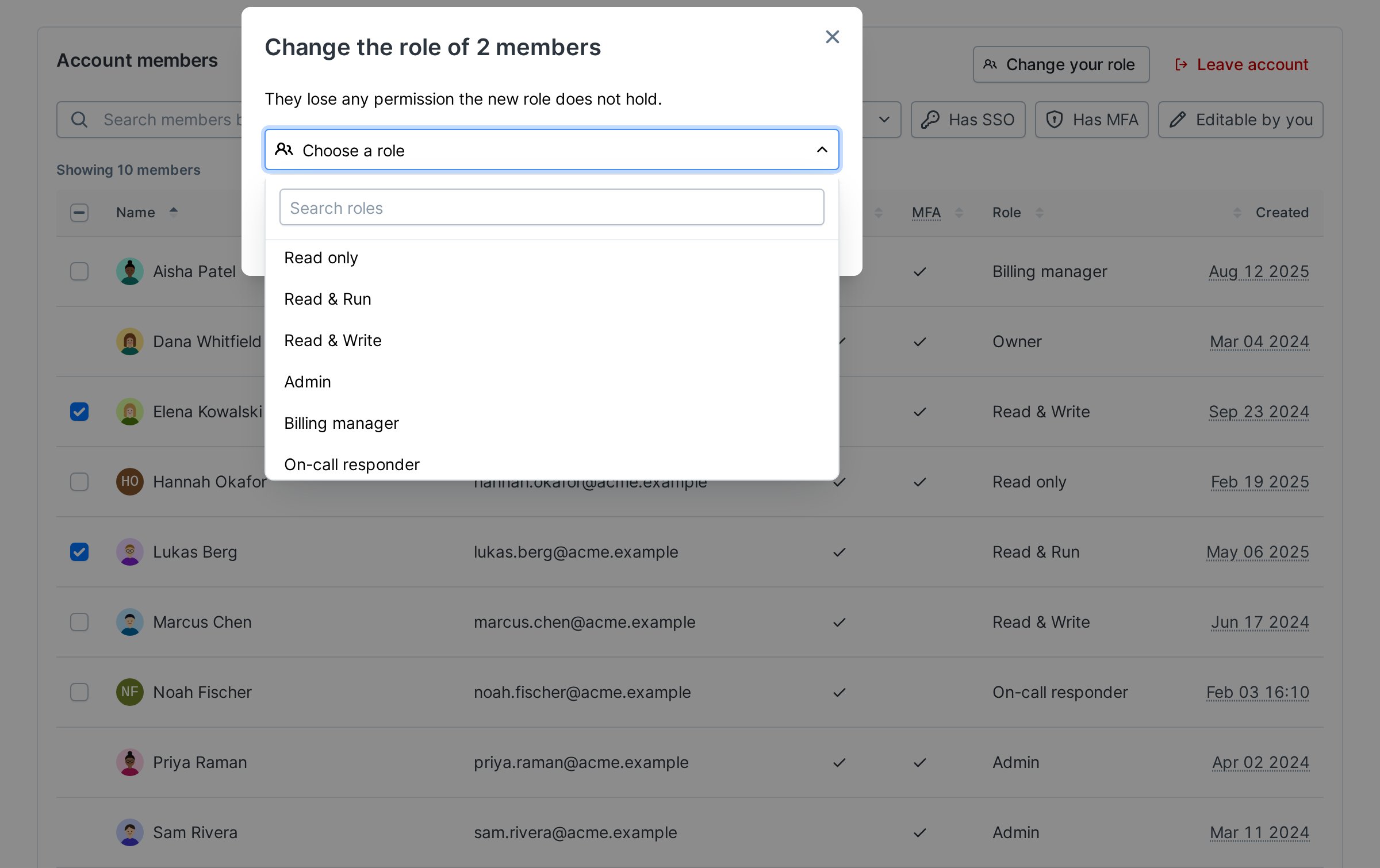
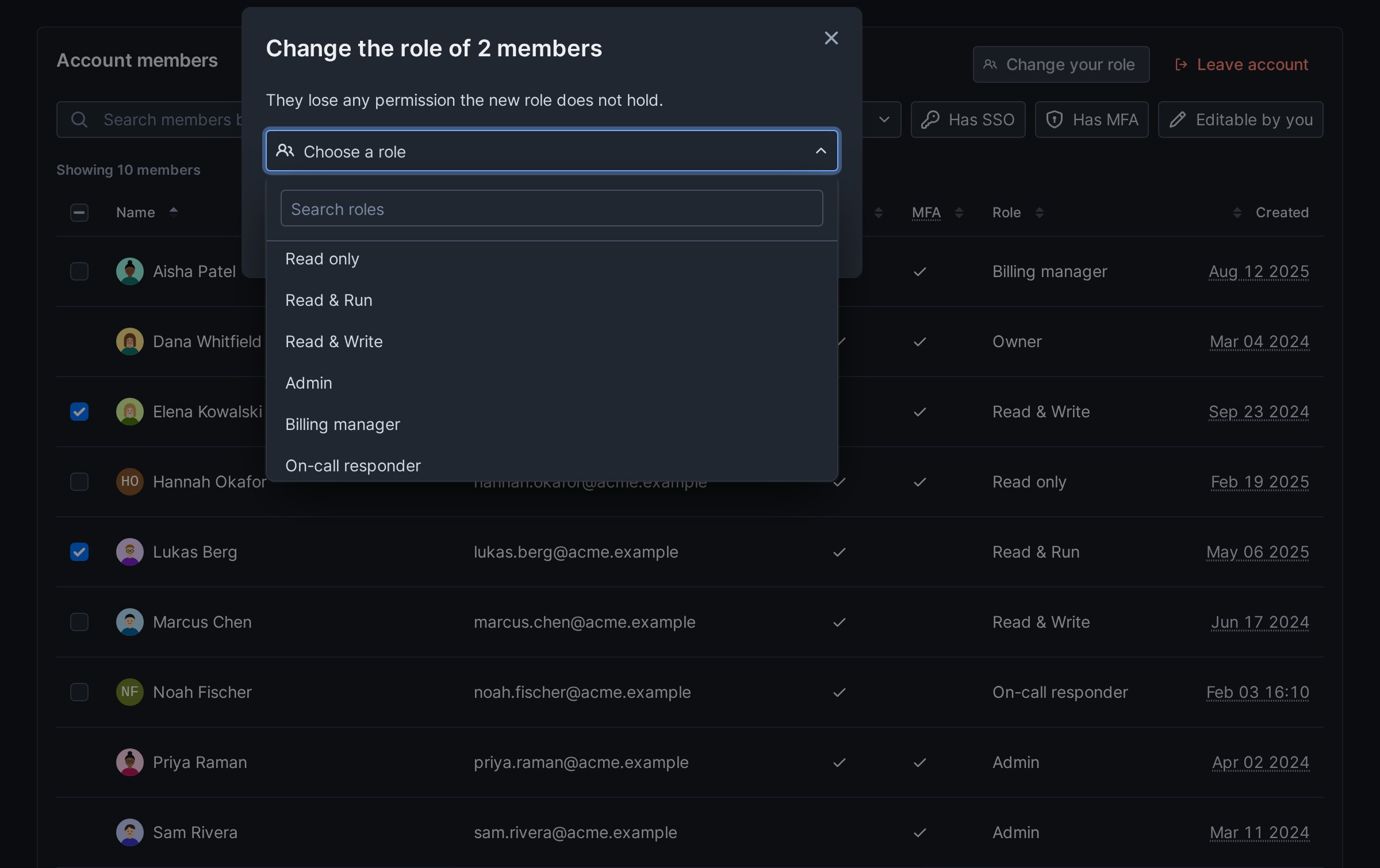
- You can only give a role whose permissions you hold yourself, and only to members with less access than you. A member has less access than you when you hold every permission of their role and at least one more.
- You can only move yourself to a role whose permissions you already hold.
- To give custom roles, your own role needs View roles. Every built-in role has it.