


Where you can use views
Each screen has its own views. A view saved on one screen doesn’t show on another.
Monitors: every account starts with shared Passing, Degraded and Failing views, and each view can show a counter on its tab.
Test sessions: the view tabs sit below the page tabs. The selected view and its filters stay when you switch between Test Sessions and Error Groups.


How views work
- All is always the first tab and shows the list without filters.
- Selecting a view replaces the filters on screen with the view’s filters.
- The arrow at the right end of the tab row hides or shows the filters. Your browser remembers the choice for each screen.
Create a view
New views are private, so only you see them until you share them. From filters: set filters while All is selected. They show as an Unsaved view tab. Click Save as new view, type a name and press Enter. With New view: click New view at the end of the tabs, type a name and press Enter. The new view stores the filters on screen.

Change a view’s filters
When the filters on screen differ from the selected view, its tab shows a dot and these buttons appear next to the filters:- Reset puts the view’s saved filters back.
- Save as new saves the current filters as a new private view.
- Save view updates the view. It only shows when you can edit the view.


View options
Click View options, the three-dot button next to the search field, to act on the selected view. Right-click any tab to open the same menu for that view without switching to it. The menu first says whether the view is private or who shared it. Then it lists the actions you’re allowed to take:- Counter picks the number the tab shows, on screens that have counters.
- Rename edits the name in place. Double-clicking a tab does the same.
- Move left and Move right reorder your bar.
- Hide from bar or Show in bar.
- Share with account or Make private.
- Delete. Deleting a shared view asks for confirmation, because it removes the view for everyone.


Private and shared views
A private view belongs to you. You can rename it, change its filters, or delete it, and nobody else sees it. A view shared with the account shows in the bar of every member who can see shared views. To share one of your private views, choose Share with account in its menu. Make private turns a shared view back into a private one. It goes back to the member who shared it if they’re still in the account. Otherwise it becomes yours. If a teammate deletes the view you’re looking at, or makes it private, its filters stay on screen as an Unsaved view.Permissions
Your own private views and the order of your bar need no permission. Shared views need these:
Custom roles can grant these permissions one by one. They’re listed under Shared views. See Team member roles for the built-in roles.
Arrange your bar
Your bar is yours. Reordering or hiding views only changes what you see, never what your teammates see.- Reorder: drag a tab, or use Move left and Move right. All and the Unsaved view stay where they are.
- Hide: choose Hide from bar. Hiding the selected view switches you back to All.
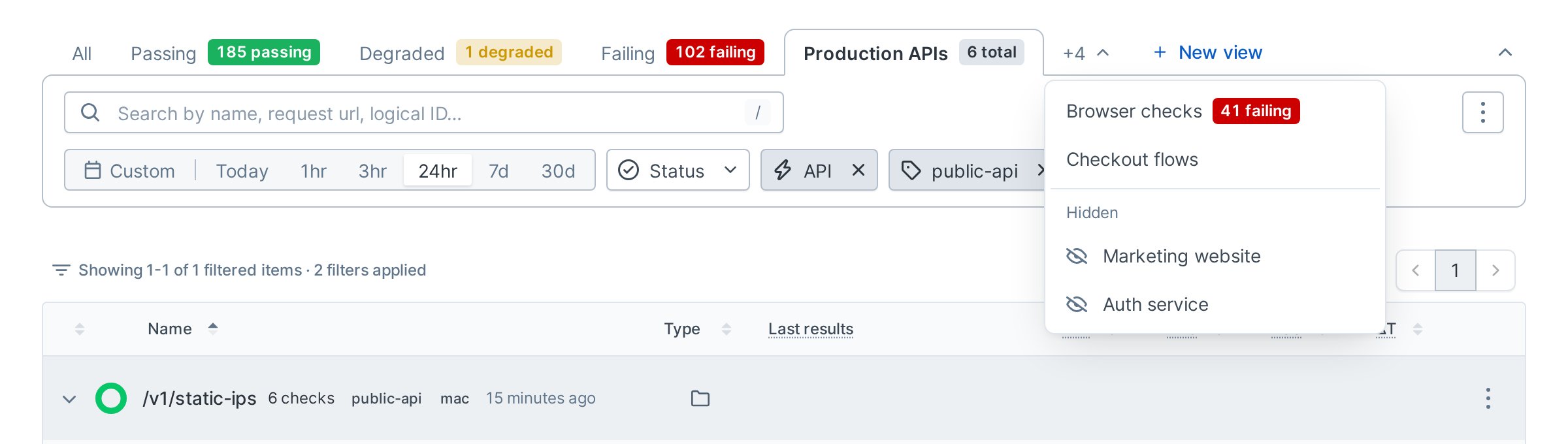
- Find hidden views: open the menu at the end of the tabs, labeled with the number of views it holds, such as +3. Hidden views are listed under Hidden. Tabs that don’t fit the width of the screen are listed there too.
- Show a hidden view: select it in that menu. It shows as a tab right after All until you choose another view. To keep it in the bar, choose Show in bar or drag its tab into place.

On a phone, the tabs scroll sideways. Press and hold a tab to drag it, and use View options instead of right-clicking.
Share a link to a view
The URL holds the selected view and every filter it applies. Copy it from your browser to send the same list to anyone in the account, even when the view is private.- A view you can see opens selected. If the link’s filters differ from the view’s saved filters, the view shows as changed: Reset puts the saved filters back, and Save view stores the link’s filters in the view if you can edit it.
- A view you can’t see, such as another member’s private view or a deleted view, opens as the Unsaved view with the link’s filters. Click Save as new view to keep them as your own private view.
- A link that names only the view, like the one Open uses in Account settings > Views, opens the view with its saved filters. So does a link that adds only a time range, except that the link’s range replaces the view’s.
Manage shared views
Account settings > Views lists every view shared with the account, across all screens, with its filters, who shared it and when it last changed. Search by name, or filter by Page and Shared by. Shared by shows Checkly for the views every account starts with, and Former member for views shared by someone who has left the account. Each view’s menu has:- Open takes you to the view’s screen with the view selected and its filters applied.
- Rename, with Edit shared views.
- Delete, with Delete shared views.


Limits
- Each member can keep 10 private views per screen. At the limit, New view and Save as new are disabled. Sharing a view frees a slot.
- Each account can have 10 shared views per screen.
- Making a shared view private fails if the member it goes to already has 10 private views on that screen.
- View names can be up to 200 characters.
Counters
On screens with counters, a view can show a number on its tab. Pick it in View options > Counter. On Monitors, the choices are:- None
- Total: every check the view shows.
- Passing, Degraded or Failing: the active checks in that state.