

What the limit covers
The limit covers overage dollars only, not your whole bill. Your plan price and add-ons are paid in full, whatever the limit is. For example, on a $29 plan with a limit of $50, you pay up to $79 for the billing period: $29 for the plan and up to $50 of overage. Only check runs count toward the limit:- API check runs and Multistep check runs
- Browser check runs and Playwright Check Suite runs
- A limit of $0 allows no overage. Checks stop as soon as your plan’s included check runs are used up.
- No limit is the default. Overage is billed with no maximum, and checks never stop for overage.
Setting the limit
1
Open the billing page
Select Billing & usage in the left sidebar, then the Plan & invoices tab.
2
Edit the limit
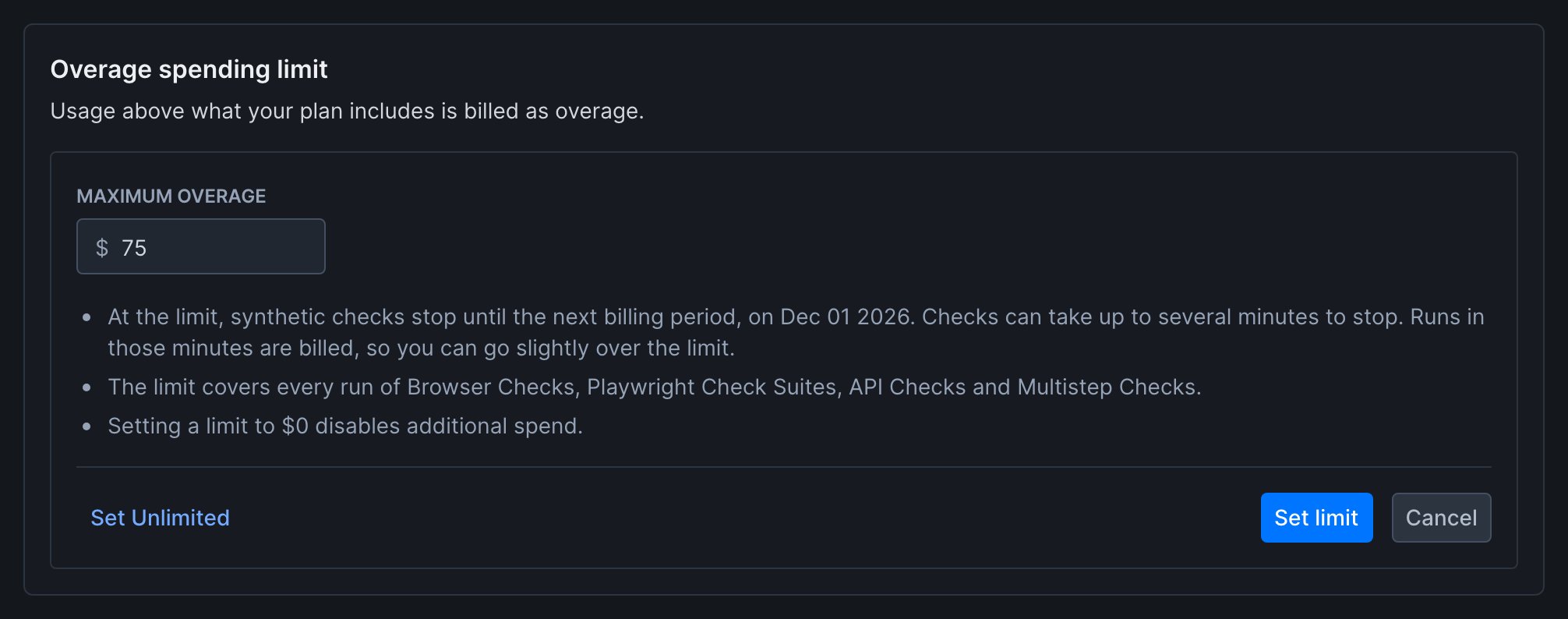
On the Overage spending limit card, select Edit, enter the amount and select Set limit.
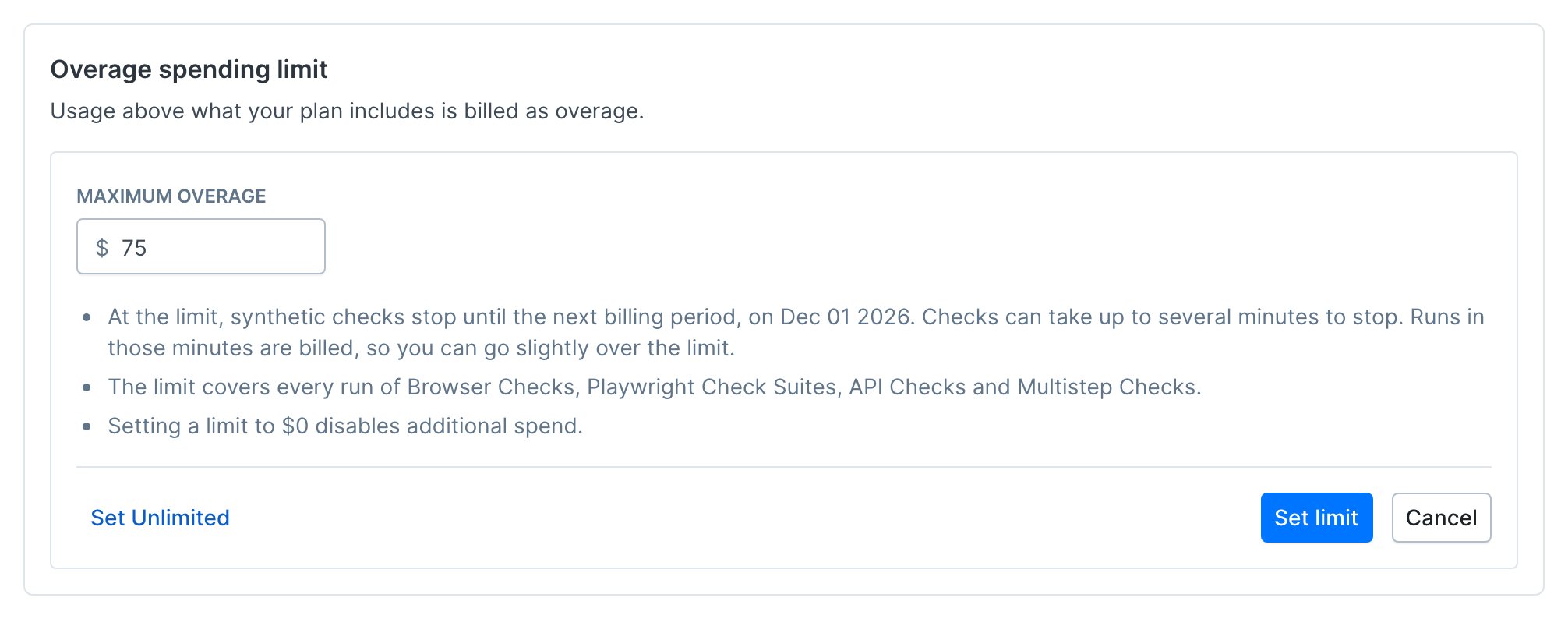
When the account reaches the limit
When the overage of the billing period reaches the limit, these checks stop:- API checks and Multistep checks stop once their included check runs are used up.
- Browser checks and Playwright Check Suites stop once their included check runs are used up.
- Scheduled runs don’t start, so the stopped checks can’t detect failures or send alerts.
- You can’t run the stopped check types from the web app. A CLI test session, such as
npx checkly testornpx checkly trigger, that includes a stopped check type is rejected as a whole, with the messageAccount has reached its spending cap. Raise or remove the cap to run more checks. - Uptime monitors, heartbeat monitors and Agentic checks keep running and alerting.
- Members who can see the limit get a banner in the web app that says which checks are paused. Members who can change billing also get an Increase limit link. Others are asked to contact a member with the billing permission.


- When the next billing period starts.
- Within minutes when you raise the limit above the overage so far, or remove the limit.
Yearly plans
On a yearly plan, the limit covers the whole 12-month billing period, not each month. The included check runs of a yearly plan are also counted for the whole year. Overage on a yearly plan is invoiced every time it reaches $300. When the account reaches its limit, the overage that isn't invoiced yet is invoiced soon after, instead of at the next $300. See Overage.Emails
Members who can change billing, Owners and Admins by default, get these emails about the limit:
Each email goes out at most once per billing period. On a yearly plan, the close to limit and checks stopped emails can go out again about every 30 days. For the emails about included check runs and overage, see Usage emails.
Who can see and change the limit
Read & Write, Read & Run and Read Only members don’t see the limit card. To give other members access, use a custom role with these permissions.
billing:update needs usage:read and billing:read.
Public API
Use the Public API to read and change the limit:GET /v1/billing/spending-capreturns the limit and how much overage the billing period has so far.PUT /v1/billing/spending-capsets the limit. Send{ "spendingCapCents": 5000 }for a limit of $50,{ "spendingCapCents": 0 }for no overage, or{ "spendingCapCents": null }to remove the limit.
401. Plans that can’t have a limit, such as prepaid and contract plans, get a 409 when you set a limit.
Terminal
CLI and MCP Server
- CLI:
npx checkly account spending-capshows the limit, andset <dollars>andremovechange it. Available since CLI v10.3.0. - MCP Server: the
get-spending-cap,set-spending-capandremove-spending-captools let an AI agent read and change the limit. The agent asks you to confirm every change.