

Benefits
- Configurable alert thresholds and escalation
- Reduce false positives with intelligent retries
- Fixed, linear, and exponential backoff options
- Multiple notification channels and integrations
- Location-based failure filtering
Alert Settings
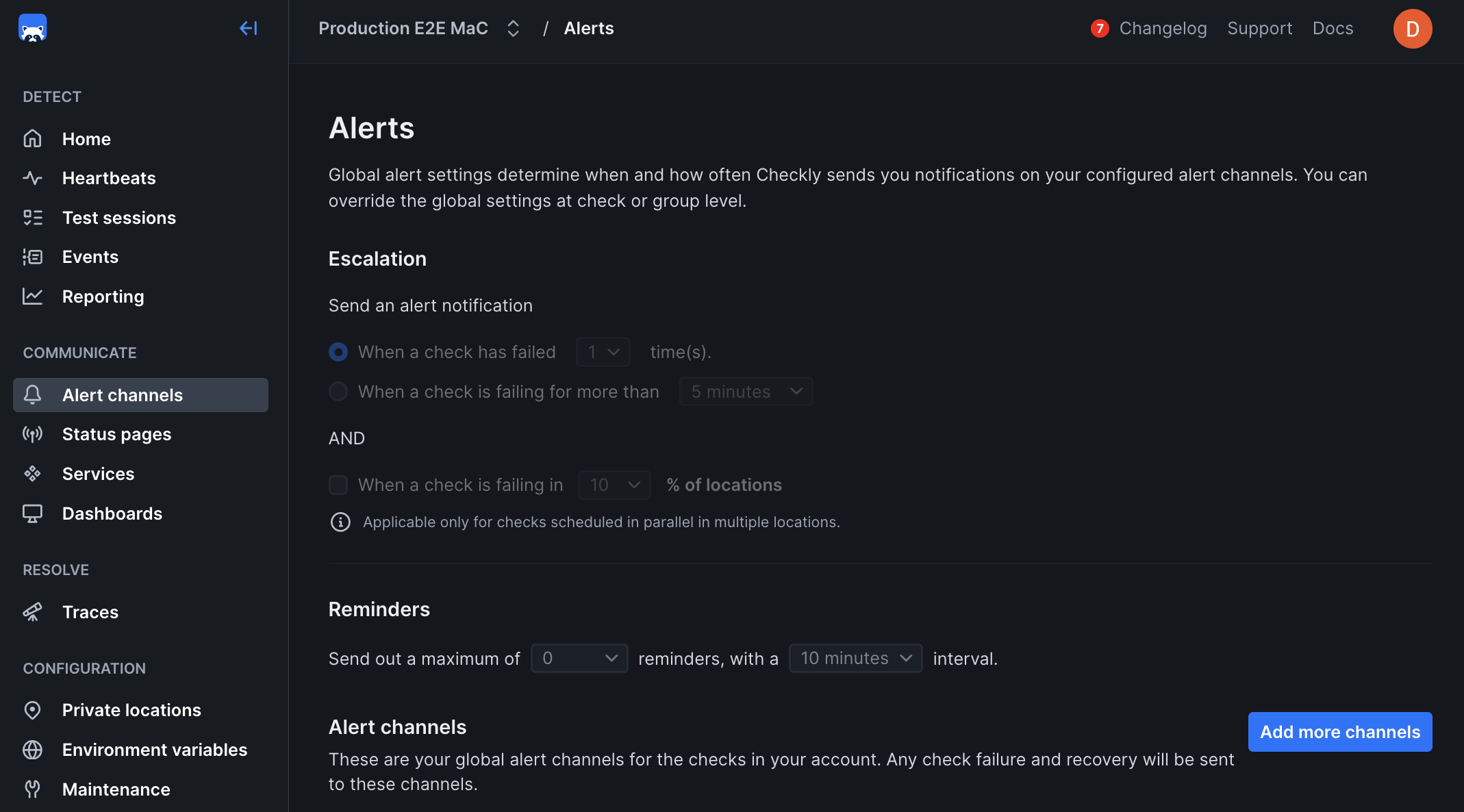
The alert settings screen gives you the options to tailor when, how and how often you want to be alerted when a check fails at the Account Level. This is also sometimes referred to as threshold alerting. For example:- Get an alert on the second or third failure.
- Get an alert after 5 minutes of failures.
- Get one or more reminders after a failure is triggered.
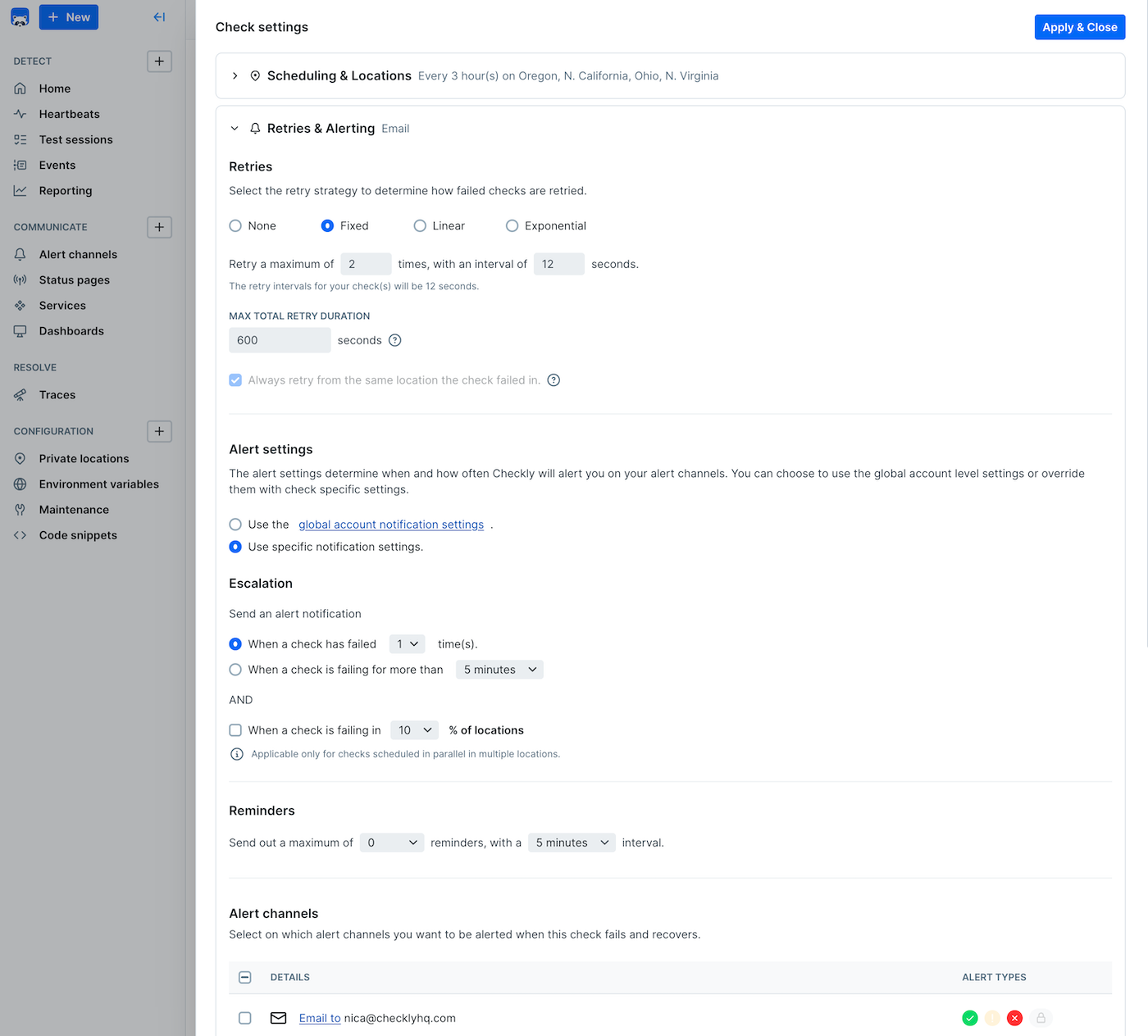
- Account level: This is the default level and applies to all of your check unless you override these settings at the check level.
- Group level: You can explicitly override the alert settings at the group level.
- Check level: You can explicitly override the account alert settings per check. Very handy for debugging or other one-off cases.
You can select whether group settings will override individual check settings for alerts, retries, scheduling, and location
Alert channels
When adding an alert channel, you can select which checks to subscribe to the channel. This way you can create specific routings for specific checks.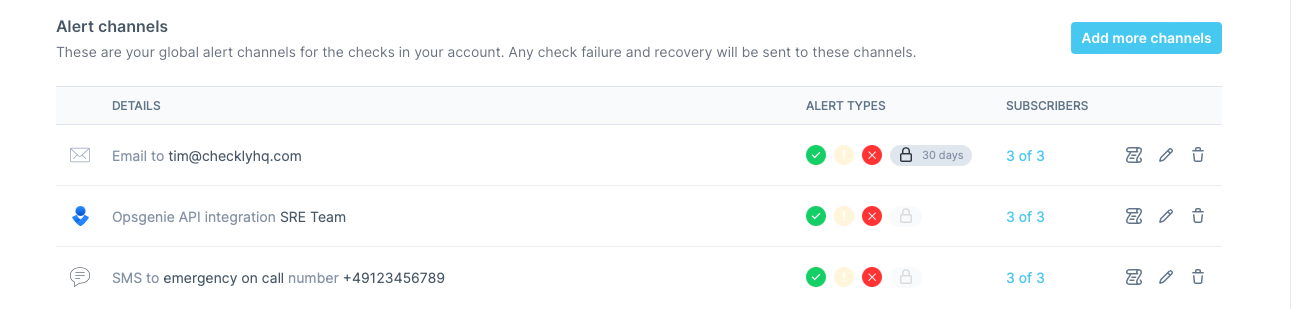
- Failure: When a check encounters a hard error.
- Degradation: When a checks is just slow, but still working.
- Recovery: When a check recovers from either failing or being degraded.
- SSL certificate expirations
If you are using Terraform or the CLI, you will need to specify alert channel subscriptions explicitly for each check / group.
Alert States
Sending out alert notifications like emails and Slack hooks depends on four factors:- The alert state of the check, e.g. “passing”, “degraded” or “failing”.
- The transition between these states.
- Your threshold alerting preferences, e.g. “alert after two failures” or “alert after 5 minutes of failures”.
- Your notification preferences per alert channel.
Note: Browser checks can be marked as degraded from your script with markCheckAsDegraded. See degraded state for Browser checks.
States & Transitions
The following table shows all states and their transitions. There are some exceptions to some of the more complex states, as the history or “vector” of the state transition influences how we alert. ✅ = passing ⚠️ = degraded ❌ = “hard” failingTesting your alerts
To check that a channel is set up correctly, open it from your alert settings and select Test alert channel. Checkly sends a test notification to that channel only. Tests are rate limited: if you send several in a row, the button shows how long to wait before the next one. To test the whole flow, from a failing check to a notification:- Make a deployed check fail, for example by changing an assertion so it can’t pass. Pick a check that is subscribed only to the channels you want to test: every subscribed channel gets the alert.
- Select Schedule now on the check, or run
npx checkly checks run. These are normal monitoring runs, so they follow your alert settings. Runs from the check editor and test sessions started withnpx checkly testornpx checkly triggernever send alerts. - If your threshold is more than one failure, for example “alert after 2 failures”, schedule more runs until it’s reached. With a time-based threshold, keep the check failing until that time has passed. Alerts are sent when a check changes state and the threshold is met, not for every failed run.
- Undo your change and run the check again to get a recovery notification.